


How to Use Shotcut to Crop Videos Using Filters and Zooming
Unlike traditional video editing tools, Shotcut unconventionally offers its cropping options. Instead of a dedicated tool, the video crop function in the software is available as a filter. This irregular design is challenging for new users of the software, since a dedicated tool cannot be accessed directly in the video preview. In this article, we will provide a detailed guide on Shotcut and how to crop videos in it. We will provide a guide on setting up filters, using them for a cropping effect, and using zooming as an alternative to video cropping. We will also provide a web-based alternative tool that you can use to crop videos as simply as possible.

- GUIDE LIST
- Part 1. How to Crop Video in Shotcut
- Part 2. Best Alternative to Shotcut to Crop Video for Free Online
- Part 3. FAQs About Cropping Videos in Shotcut
Part 1. How to Crop Video in Shotcut
Method 1: Crop Source
Best Used For: Removing black bars or trimming edges.
We will start this guide by outlining the steps for using the most customizable cropping filter in Shotcut: the Crop Source filter. Among the available cropping tools in the program, this filter allows Shotcut to crop video to remove black bars.
The Crop Source filter allows you to crop your video from the top, bottom, left, or right. Making it the best choice for removing unwanted sections on any side of the video via cropping with no watermark.
Before proceeding to our guide on using cropping filters, we provided a quick tutorial first to help our readers learn how to add filters. Make sure to refer to this guide to learn how to set up the video filters, which will be featured in the next sections of the article.
How to Add Filters
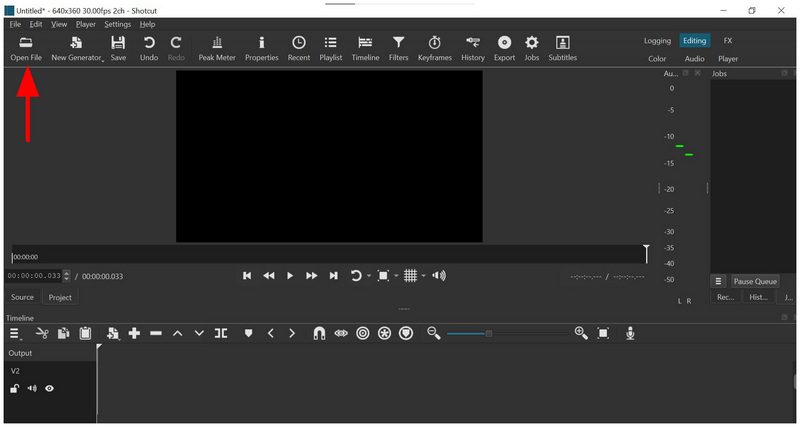
Open Shotcut and select Open File to open the video you want to crop.
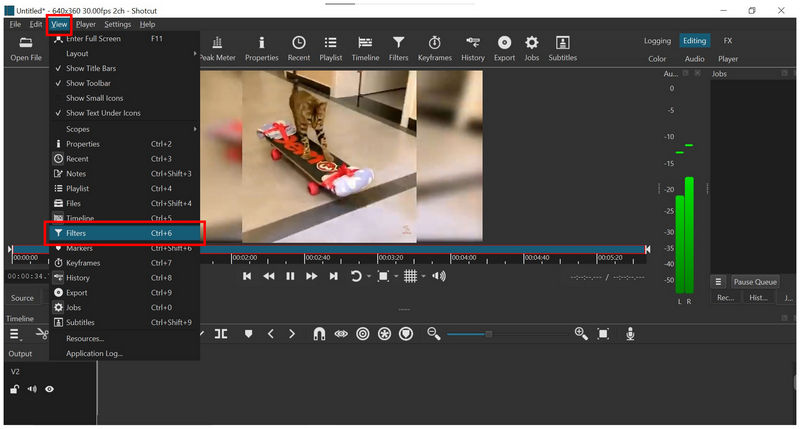
Next, click on View and select Filters.
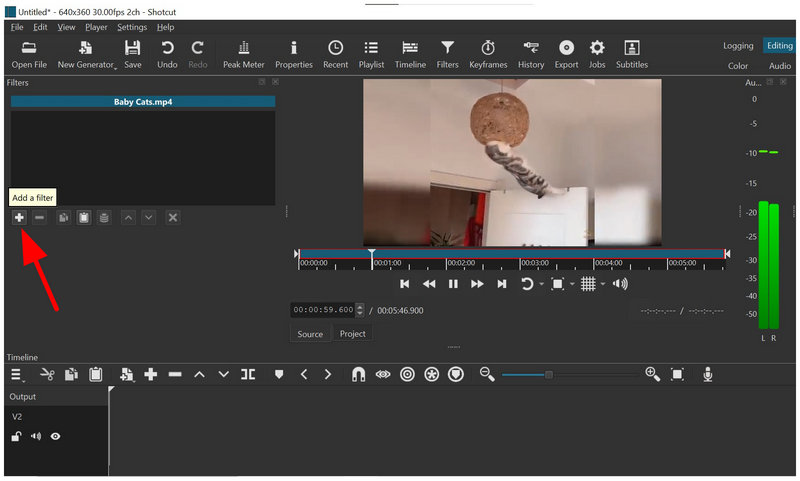
In the Filters menu, click on the Add a Filter button.
To learn the filters needed for video cropping, proceed to the following tutorials below.
How to Use Crop Source
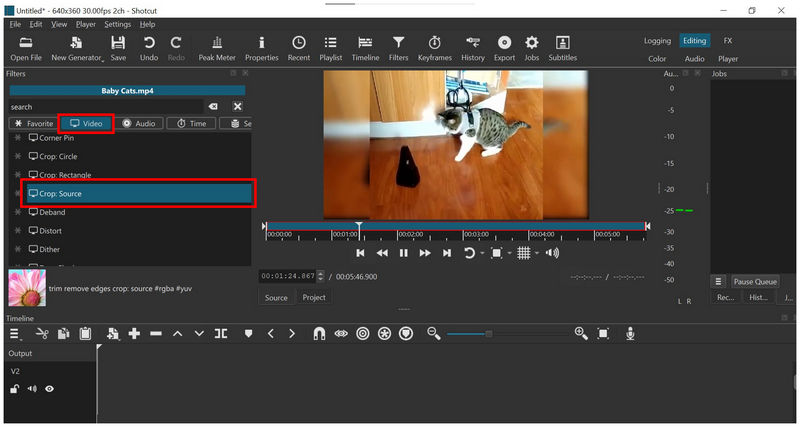
In the filters menu, go to Video, scroll down, and select Crop Source.
Once the Crop Source has been applied, you can now use the manual cropping sliders for the Top, Bottom, Left, and Right portions of your video.
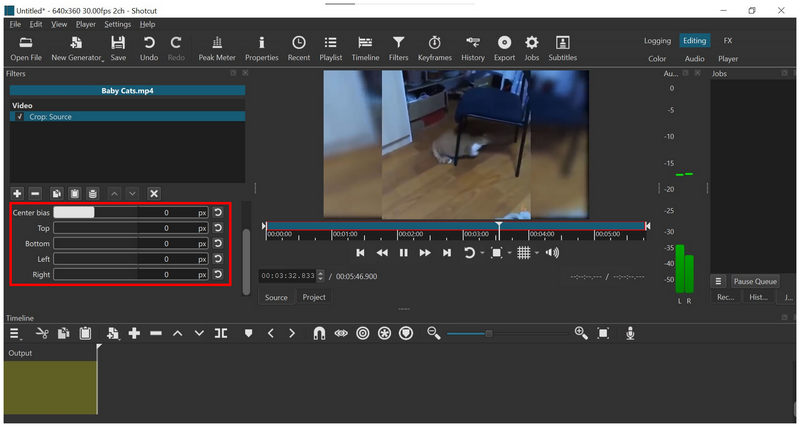
To remove blurred backgrounds, trim edges, or black bars from videos, adjust the crop sliders from the area where they are located. In this sample video, we adjusted the Left and Right sliders to remove the blurred background.
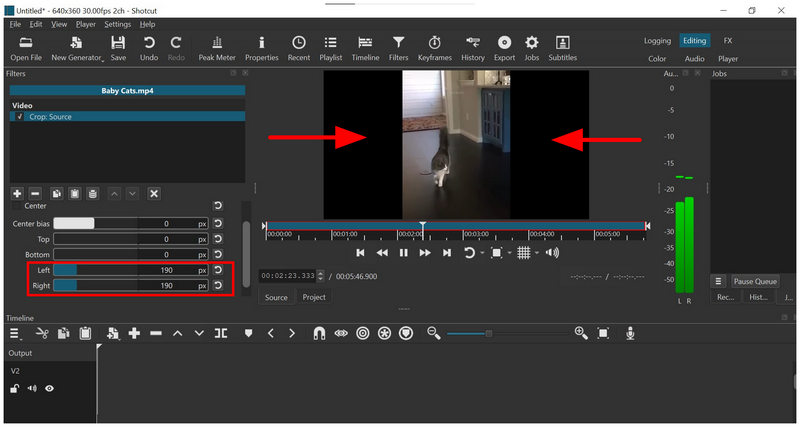
The Crop Source option is an excellent choice for users who prefer manual video cropping. It also provides greater control, making it a good choice for experienced editors.
Method 2: Crop Rectangle/Circle
Best Used For: Picture-in-Picture or artistic effects.
With the manual video cropping option in Crop Source now discussed, let us proceed to a more straightforward cropping tool that uses shape-based editing with the Crop Rectangle and Crop Circle options.
As their name suggests, they are designed to crop videos in these shapes specifically. However, a dedicated 4:3 crop video in Shotcut is still not available, so you need to set this up manually using the Crop Rectangle feature.
Crop Rectangle
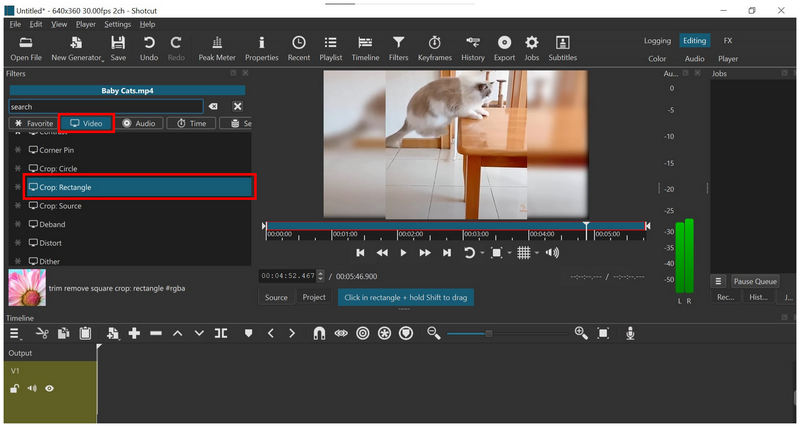
Go to Video filters, scroll down, and select Crop Rectangle.
With the Crop Rectangle now selected, adjust the Cropping Box surrounding your video in the preview window. You may adjust it using the points from the sides and corners of your file.
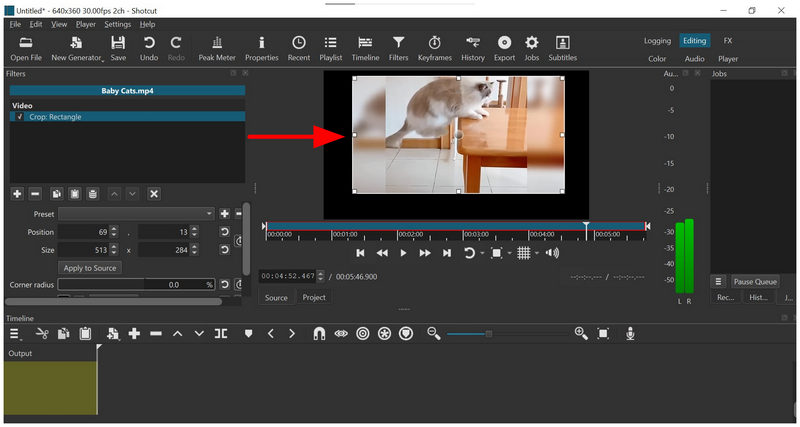
The Crop Rectangle mode is the most reliable and quite basic option for video cropping, often used in some of the best video cropper tools today. Using cropping is an excellent way to provide users with an easy-to-adjust zoom.
Crop Circle
Go to Video in the filters menu, scroll down, then select Crop Circle.
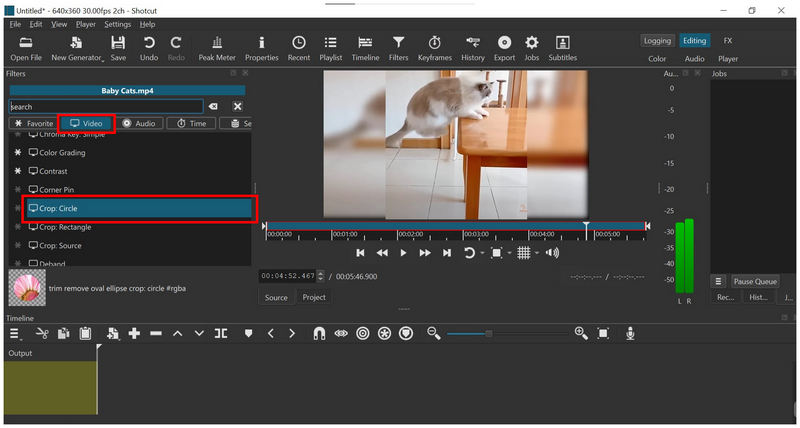
In the Crop Circle menu, adjust the Radius slider by reviewing the real-time changes in the preview window.
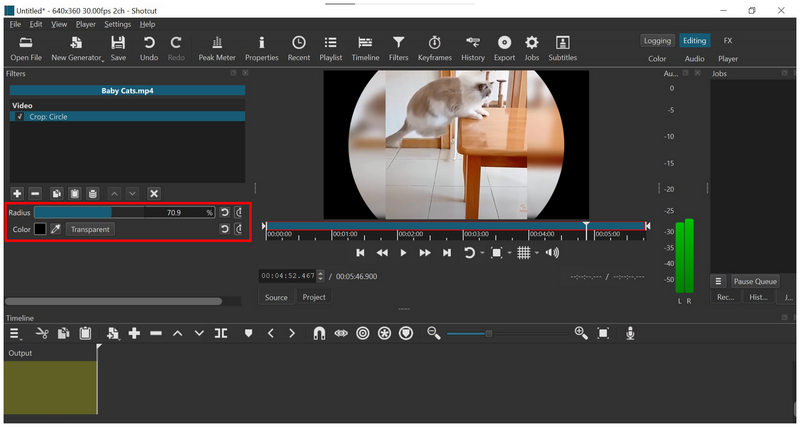
Although the Crop Circle option is quite situational, it is an excellent choice in different scenarios. This makes it a good option for creating picture-in-picture overlays and other similar uses.
Method 3: Zooming Function
Best Used For: Using the zooming function to crop as an alternative method.
When looking for a simpler option, the Zooming option in Shotcut serves as a video cropping tool. While it isn't the most reliable or accurate option, it gets the job done.
However, the lack of a zoom adjustment makes this not the best choice, and it should only be used in an emergency.
Under the main preview window, select the Toggle Zoom option.
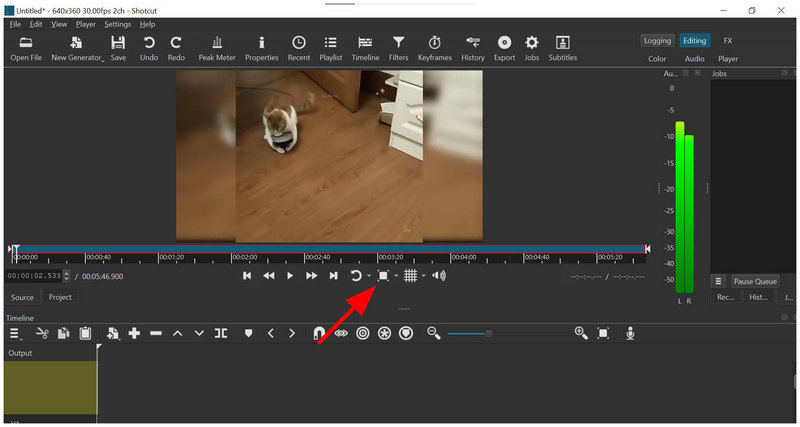
Next, choose the Zoom preset you want to use. In this guide, we will select Zoom 100%.
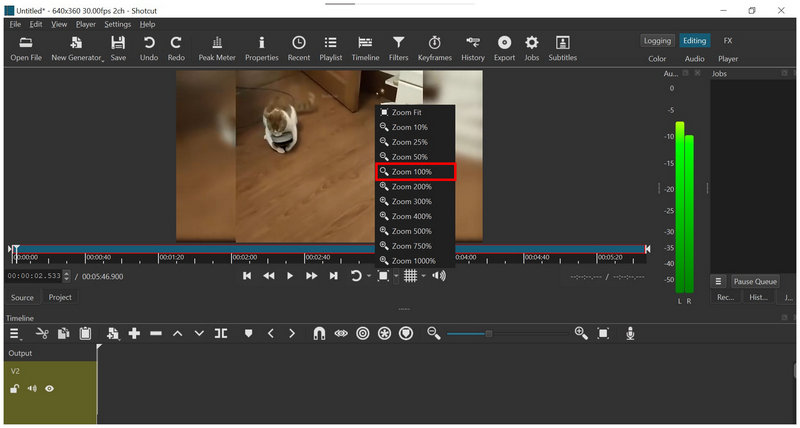
Once you have selected your preferred Zoom option, if your video is zoomed in, the part that has been zoomed out is technically “cropped”.
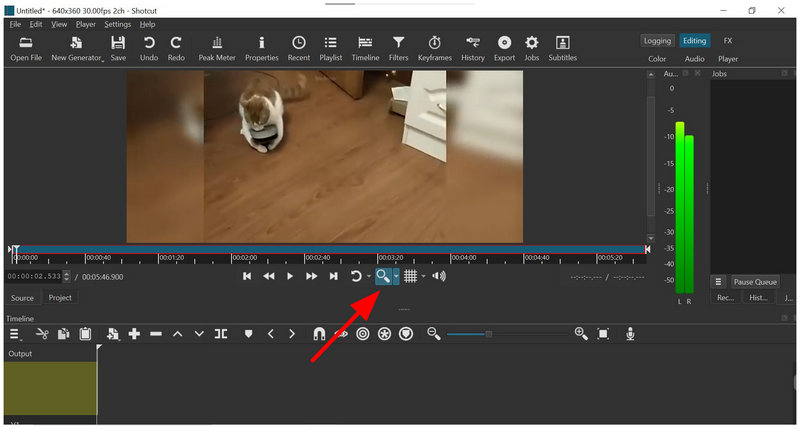
Due to limited control options, we recommend using this method only in an emergency or as an alternative. Although the cropping filter takes time to set up, they are way more reliable and easier to use.
Part 2. Best Alternative to Shotcut to Crop Video for Free Online
Although Shotcut’s cropping options are functional, its decision to place the crop features in the Filters section is not the best design choice. The lack of aspect ratio and resolution-based cropping is also suboptimal. As such, web-based solutions like ArkThinker Free Video Cropper Online are a great alternative for both beginners and users seeking a more practical way to crop videos.
Unlike the complex setup required for cropping in Shotcut, ArkThinker’s online software offers three cropping options directly on your video when it is imported to their site. Moreover, the video cropping options in the tool are way easier to set up and understand because they use Presets, Resolution Value, and a Crop Box.
In addition to being simpler than Shotcut’s, these video-cropping tools are highly practical for users looking for a quick solution. To learn how to use ArkThinker Free Video Cropper Online as a Shotcut alternative, please read our three-step guide below.
Click on the link to go to ArkThinker Free Video Cropper Online’s website. In the main menu of the web-based tool, select the Start Cropping Video button or drag and drop your file to the Upload Box.
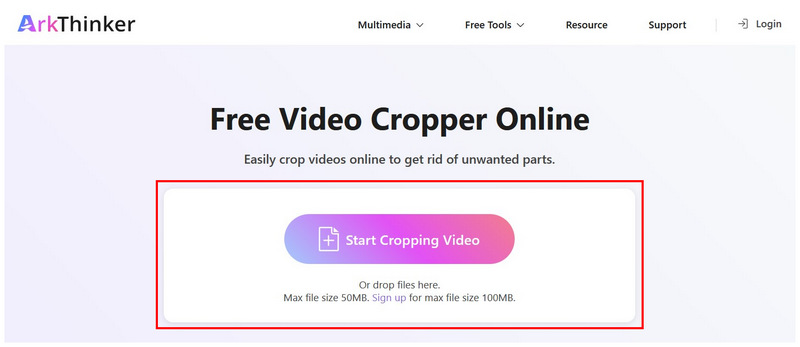
Wait a few seconds for your video to upload. Once done, you can now use the video crop Presets, Resolution Value adjustment, or edit the Cropping Box in the preview window, similar to Shotcut’s Crop Rectangle filter.
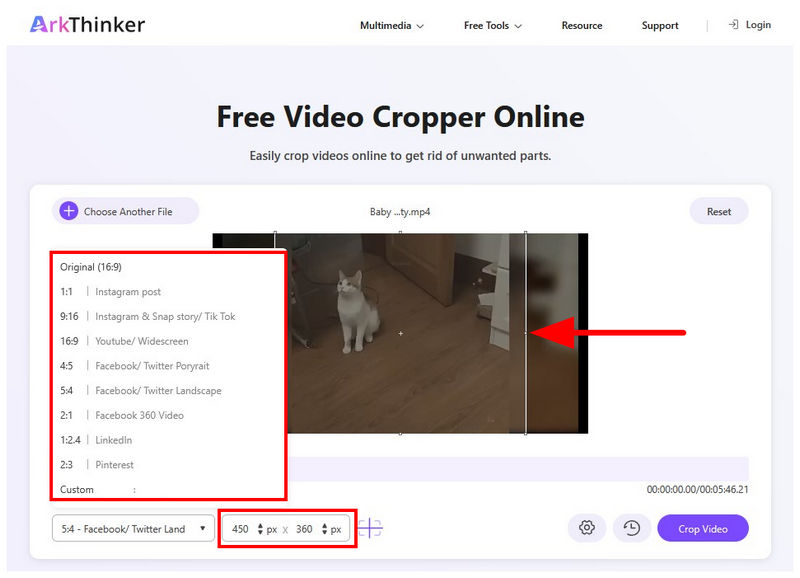
After applying your desired crop adjustment, select Crop Video to apply it to the video you are editing.
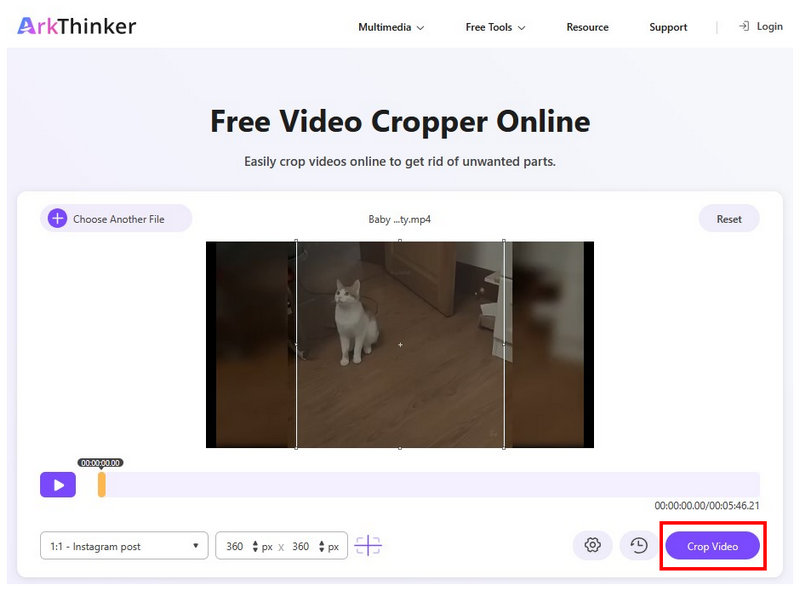
On top of being easier to use than Shotcut, ArkThinker Free Video Cropper Online is also way easier to set up. Since it is an online tool, you don’t have to download, set up, or follow any installation process.
Part 3. FAQs About Cropping Videos in Shotcut
Where can I find the crop tool in Shotcut?
Shotcut does not have an inherent Crop Tool. It offers a video cropping function in its filters library. These cropping options include manual, rectangular, and circular cropping.
Is Shotcut hard to use?
Yes, it is. Shotcut is a technical video editor. It is not the best option for beginners.
Can I use Shotcut for free?
Yes, you can. Shotcut is a freeware video editor. It is developed as an open-source software.
Are online tools reliable for video cropping?
Yes, they are. Online tools are excellent choices for basic video editing. Video cropping is one function where web-based options are capable.
Are online tools safe to use?
It depends on the website you use. Unfortunately, online tools have subpar safety and privacy on average. To learn the best online tool for security and privacy, ArkThinker Free Video Cropper Online is our top recommendation.
Conclusion
Now that we have discussed the best video cropping options in Shotcut, we hope that this article has provided you with a clear solution and tutorial to make cropping videos in the software accessible. However, Shotcut’s technical requirements for effective use are quite steep. As such, using alternatives like ArkThinker Free Video Cropper Online is a solid solution.
What do you think of this post? Click to rate this post.
Excellent
Rating: 4.9 / 5 (based on 559 votes)


