


How to Trim WebM Video: Do It with Desktop and Online Tools
The process of trimminga WebMfile is a great way to remove unnecessary parts of the video, create shorter clips, and make it easier for you to share the important parts of the video online. Whatever reason you may have for needing it, you should always know the proper process for trimming your WebM videos to ensure a high-quality output. To help, we'll guide you through the process using the right tools for desktop or online processing. Everything you need to know will be presented here. Read now and discover them.

- GUIDE LIST
- What is a WebM File and Why Trim It?
- How to Trim WebM Online
- How to Trim WebM on a Computer
- FAQs about Trimming WebM
What is a WebM File and Why Trim It?
WebM File is known for being an open-source media format that can give you high-quality video and great audio playback on the web. This format is usually beneficial because it has excellent compression that you get a smaller size without having significantly reducing quality.
Now, many users are asking why we need to trim a WebM file. The answer to that will depend on the situation and the needs of each user. However, some of the common reasons why they have to do this process are:
- • Erase the unnecessary parts of the videos.
- • Extracting a specific part of the clip that you need to post, edit, or share.
- • Creating a shorter clip for presentation.
- • Reduce file size without converting to another format.
- • Keep the original WebM format and preserve video quality.
How to Trim WebM Online
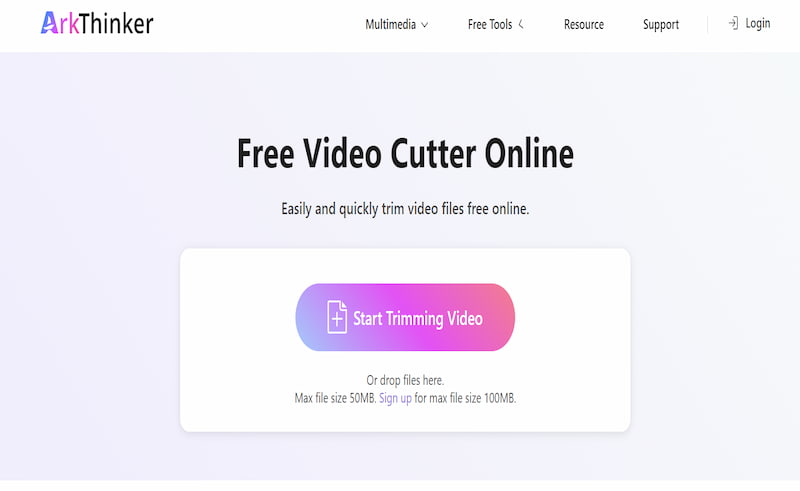
We shall now introduce you to the process of trimming a WebM file online. This will be possible using the best tool, ArkThinker Online Video Cutter. This online tool has a simple and straightforward process for trimming your media file, including WebM. Here, there is no need to install a tool. All you need to do is access their website and follow the process below:
Access the official website of ArkThinker Online Video Cutter. After that, see its main interface and click the Start Trimming Video button.
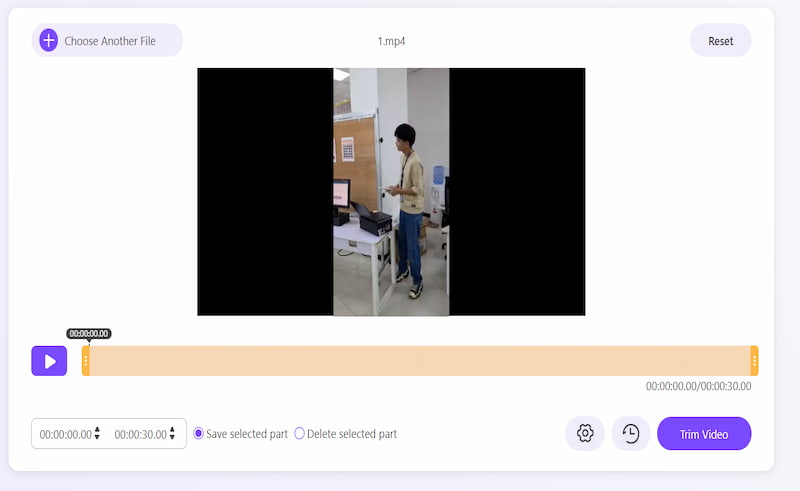
Select the WebM file you need to trim. Wait for the video to be uploaded.
Use the tool in selecting the specific parts you need to get. Trim the video at the start and/or end of the video file. Finally, click Trim Video and get your output.
How to Trim WebM on a Computer
Tool 1: FFmpeg
Best for: Users who want fast, precise WebM trimming without quality loss.
Overall Rating: 4/5
FFmpeg is the leading tool for trimming WebM on your computer. This is known to be as an open-source video trimming tool that uses command-line process. Many professional users say it is an accurate way to trim WebM files with higher-quality output. The process of preserving the quality of video and audio in a WebM file is also possible even without re-encoding. One downside of this tool is its lack of a graphical interface. This might also be overwhelming for beginners. In short, FFmpeg is highly efficient and widely used by professionals for precise video editing tasks.
The first thing we need to do is download and install FFmpeg on your computer. Then, kindly open Command Prompt on Windows and Terminal on Mac and Linux.
Navigate to the folder containing your WebM file. Then, run the following command: ffmpeg -i input.webm -ss 00:00:10 -to 00:00:30 -c copy output.webm.
After that, you need to press Enter to start trimming. Wait for the process to finish.
Tool 2: Adobe Premiere
Best for: Professional users who need precise WebM video trimming and advanced video editing features.
Overall Rating: 4.5/5
Another tool to use is Adobe Premiere Pro. This is also known as a professional-grade video editor that makes trimming WebM files simple. This is possible with the use of its visual timeline interface.
Unlike FFmpeg, which is a command-line tool, Premiere Pro lets you preview edits in real time and offers advanced features like transitions, effects, color correction, and audio enhancements. This is a great tool for tech-savvy users who need quality outputs. Here are the steps to follow.
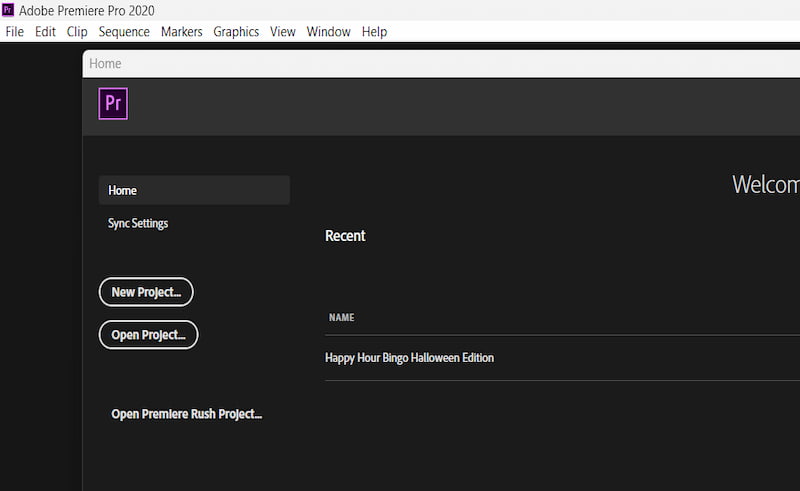
Install and purchase the tool on your computer. Then, open Adobe Premiere Pro and import your WebM file. Click New Project to do it.
Drag the video onto the timeline. Then, please move the playhead to the desired start and end points, then trim the clip edges or use the Razor Tool.
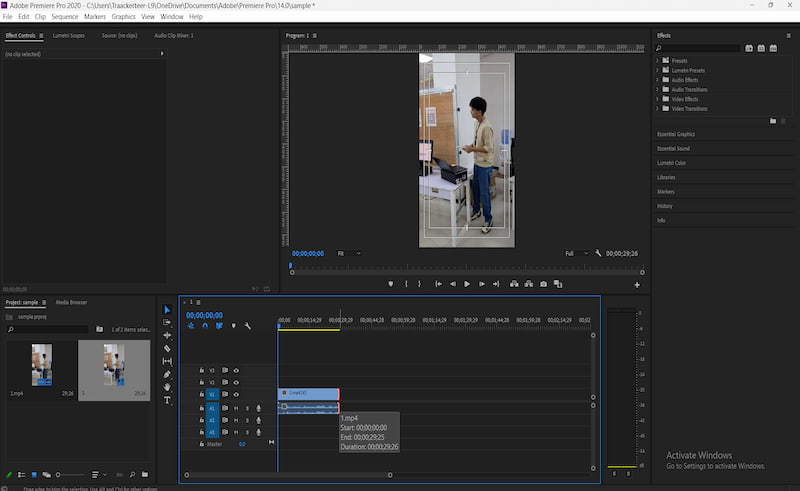
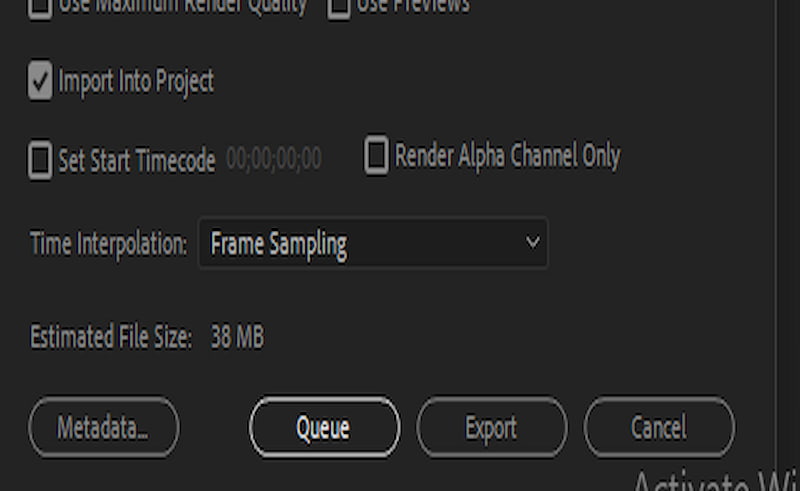
Preview the trimmed video and make any necessary adjustments. Export the project to save your trimmed WebM video. Click CTRL + M and set the settings you need. Click the Export button and wait for it to be saved.
FAQs about Trimming WebM
Can I trim a WebM file without the need to re-encode it?
Yes. That is possible with the help of FFmpeg. This open-source tool can allow you to trim WebM files using stream copy. This common line can cut the video without re-encoding and preserve the original quality.
Can a trimmed WebM clip result in a few seconds off from the selected cut point?
Yes. This can happen because the WebM files you have most likely use keyframes. If you trim without re-encoding, the cut may snap to the nearest keyframe instead of the exact timestamp.
Why do I get a larger file size when I already trimmed my WebM?
You get a larger file size even after trimming the video because it was re-encoded with higher bitrate settings during export. Using the original codec settings or stream copy can help maintain a smaller size.
Is it possible to trim multiple WebM files at once?
Yes. Tools like FFmpeg support batch processing through scripts, allowing you to apply the same trim settings to multiple WebM files automatically.
Can I trim a WebM file and keep the transparent background?
Yes. trimming WebM file and maintaining the transparent background on it is possible. As long as the original WebM file you have uses an alpha channel and the trimming software supports alpha transparency, the transparent background can be preserved after trimming.
Conclusion
As we get to the conclusion, we can see that trimming WebM files is easy whether you are using your laptop or an online tool. There are a few options for you to do it, such as using ArkThinker Online Video Cutter. This is the easiest tool you can use, even without installing software on your device. Get and use it now, and will see how amazing the quality it can offer is.
What do you think of this post? Click to rate this post.
Excellent
Rating: 4.9 / 5 (based on 692 votes)


