


How to Convert HEIC to JPG in Google Drive (2026 Guide)
Among popular image formats today, HEIC files are becoming more popular because they are more compact and offer better quality than regular JPG images. Unfortunately, HEICs are poorly compatible outside the Apple ecosystem. As such, HEIC files uploaded to Google Drive may encounter issues when sharing files stored on the platform, especially when the HEIC images are saved on desktop computers. In this article, we will provide a tutorial on two options for converting HEIC to JPG in Google Drive. These options may not be built-in tools in Google Drive, but they are solid solutions for converting HEIC images from your Google Drive storage to your local files.

- GUIDE LIST
- Part 1. Can Google Drive Convert HEIC to JPG Directly
- Part 2. How to Convert HEIC to JPG in Google Drive
- Part 3. FAQs About Converting HEIC to JPG in Google Drive
Part 1. Can Google Drive Convert HEIC to JPG Directly
No, you cannot convert HEIC to JPG in Google Drive using any built-in options in the cloud storage program. However, there are numerous options you can use to fix the compatibility issue of your HEIC files stored in Google Drive. One option is to convert your HEIC first before uploading. You can also use the built-in screenshot function on mobile devices as another solution for indirect HEIC to JPG conversion on Google Drive.
Part 2. How to Convert HEIC to JPG in Google Drive
Method 1: Using Web-Based Third-Party Apps (ArkThinker Free HEIC Converter Online)
The first option for converting HEIC to JPG is to use web-based software, such as ArkThinker Free HEIC Converter Online. However, it is not a feature built into Google Drive. Its web-based software makes it fully accessible in the web browser you use to manage your Google Drive media.
Since Google Drive does not have a format converter tool, web-based solutions are the best way to avoid facing problems involving incompatible image formats. Thus, converting your HEIC files to JPG first before format conversion is an excellent solution.
Fortunately, online tools such as ArkThinker get the job done while preserving image quality and making it as simple as possible to use, even for complete beginners. To learn how to use ArkThinker Free HEIC Converter Online for HEIC to JPG conversion, make sure to read our guide below.
Go to ArkThinker HEIC Converter Online’s website, and select the Add Files to Start option to import the HEIC image for conversion. Alternatively, you may drag and drop up to 10 files at once into the upload box to batch process multiple HEICs.
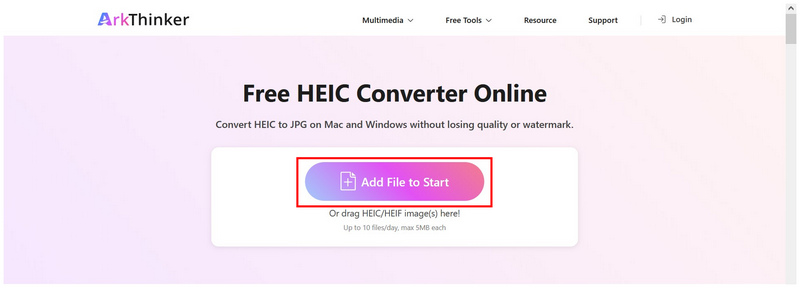
Wait for your HEIC file to be uploaded; it will be automatically converted to a JPG once it has been added to the software. Finally, click on the Download button to save the now converted JPG image to your computer.
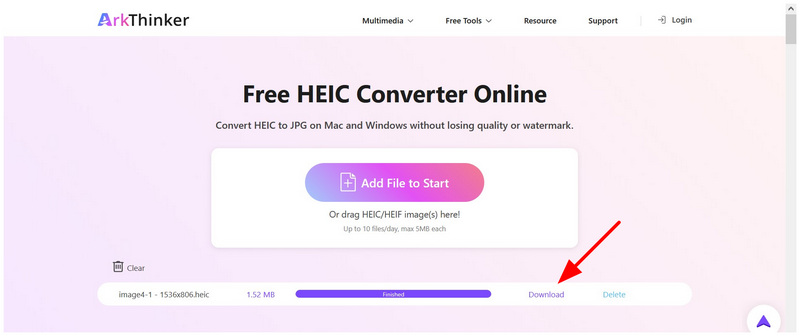
Once your image files have been converted using the online tool, you can now upload your HEIC file as a JPG to Google Drive . This is the easiest way to ensure your images uploaded to Drive are accessible, since JPG files are widely compatible across operating systems, devices, and software.
Method 2: Mobile Screenshot & Share Shortcut
For mobile users who want a more unconventional but effective way to convert HEIC files to JPG, a good option is to use mobile screenshots. Since mobile screen captures are saved in JPG format, you can simply take a screenshot of your HEIC file and upload the JPG to Drive. This is a perfect option if you are looking for a simple solution to convert HEIC to JPG on Android.
Go to the HEIC image you want to upload and take a screenshot of it. Once the HEIC file is captured, use your device’s Crop function to remove any part of the screenshot that isn’t the image itself.
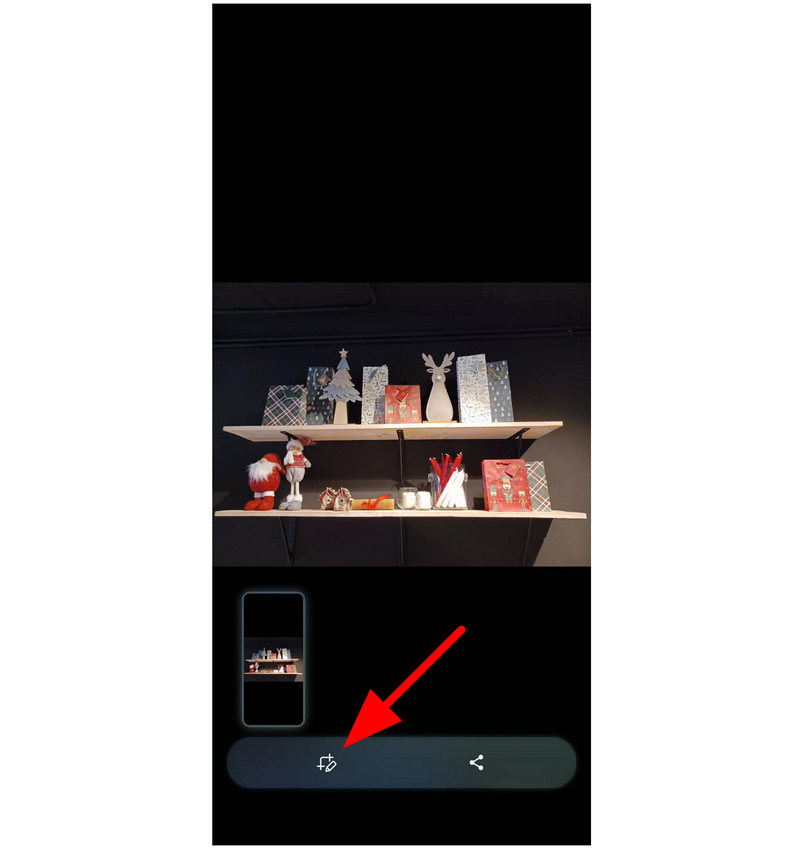
Once the file has been cropped, select the Share button.
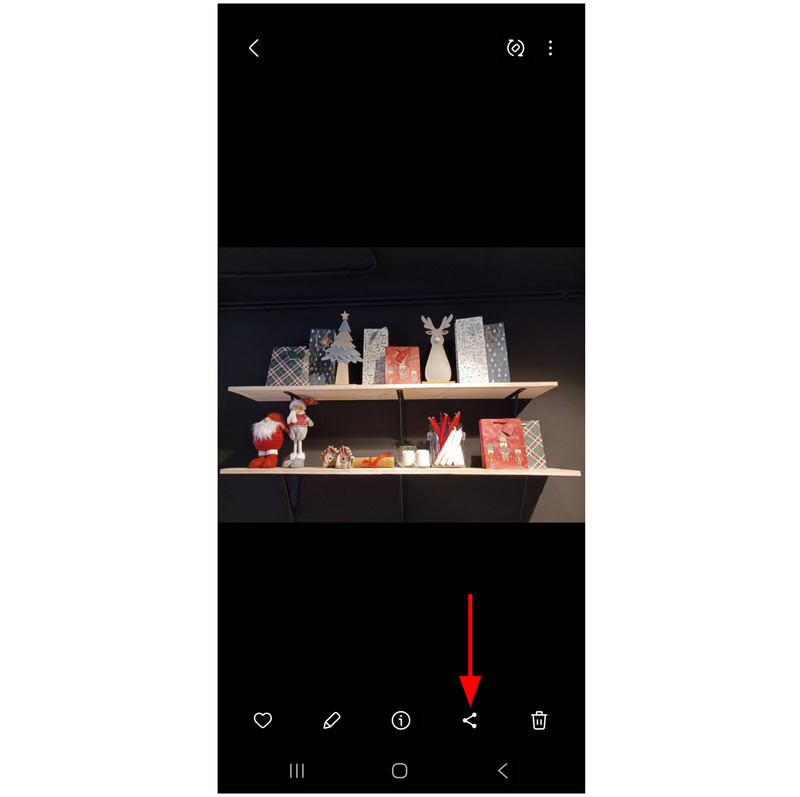
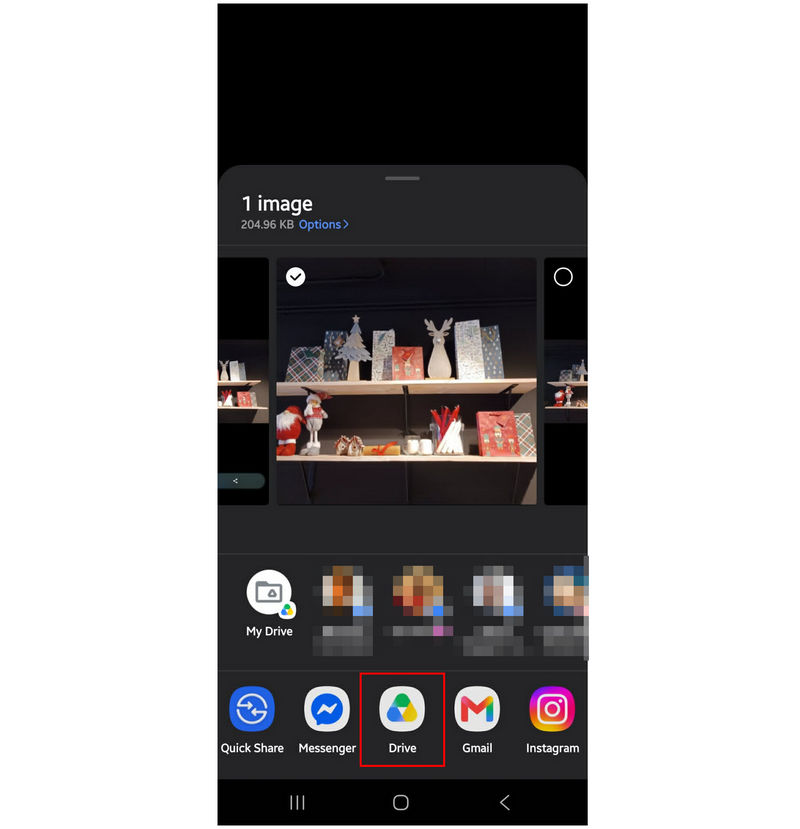
Among the sharing options, find Google Drive and select it.
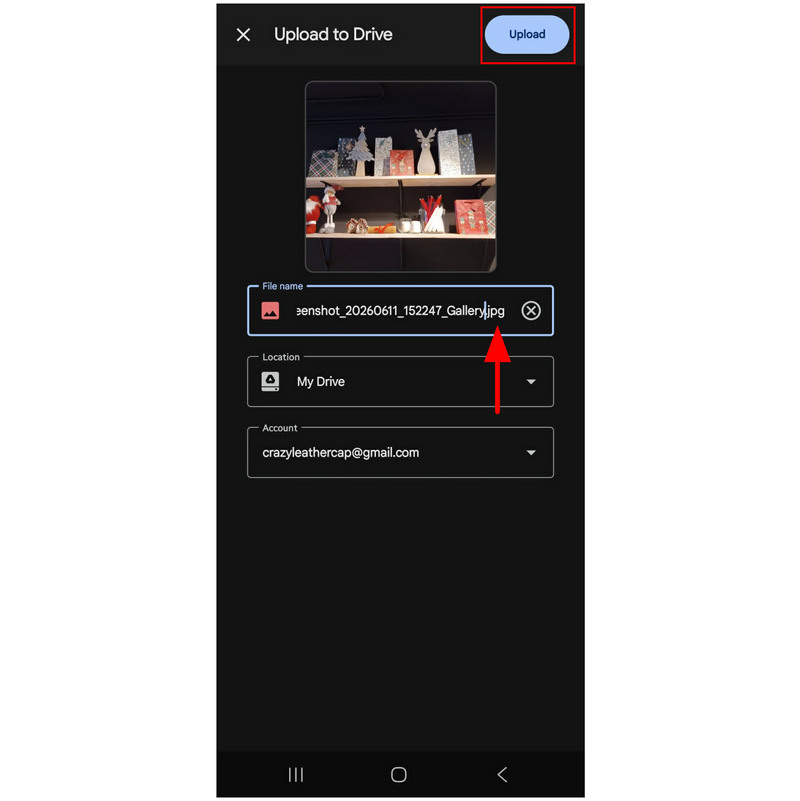
In the Upload to Drive menu, check the File Name tab to ensure that your image is set in JPG format. Click Upload to save the new JPG image to your Google Drive storage.
Before using this option, keep in mind that screenshots saved in JPG format will not have the same quality as a raw HEIC file. These make the files not viable for advanced uses, such as serving as an editing asset.
Part 3. FAQs About Converting HEIC to JPG in Google Drive
How to change HEIC to JPG in Google Drive?
There is no built-in option to convert HEIC images to JPG in Google Drive. Google Drive only operates as a cloud storage service. It does not have advanced file management options.
How to download HEIC as JPG from Google Drive?
There is no option to download HEIC as a JPG directly on Drive. Google Drive only offers a built-in download button. You cannot use the Save As function on files saved in Drive.
Are HEIC files supported on Windows and Android devices?
HEIC cannot be opened by default on Windows desktops. You need to download a third-party application to save open HEIC on Windows. On the other hand, modern Android devices can open HEIC files.
What format should I save my HEIC files in?
Both PNG and JPG formats are good options. They are both highly compatible with a wide range of devices and software. However, PNG has better quality overall.
Are online tools safe to use?
Yes, they are. However, you have to use online tools that offer strong security and user privacy. ArkThinker HEIC Converter Online is a solid option.
Conclusion
With the methods we have provided in this article for converting HEIC images to JPG on Google Drive, we hope this article has given you convenient solutions for handling such unconventional image formats and converting them to a more compatible JPG format. Among the provided methods, we highly recommend using ArkThinker Free HEIC Converter Online as the best option to convert HEIC to JPG first before storing them in Google Drive.


