


Avidemux Review: Is It a Good Video Editing Software in 2026
Are you looking for reliable, free-to-use video editing software designed specifically for simple video adjustments, such as basic cutting, adding audio, and rotating the video frame? If so, chances are Avidemux has been one of your top considerations. With that in mind, this article review and quick guide aims to help you decide whether the program is safe to use and whether its free video-editing features will suit your editing needs. We will review Avidemux’s key features, pros, and cons, and provide short guides on using the program for basic video editing.

- GUIDE LIST
- Part 1. Key Features of Avidemux
- Part 2. Avidemux Pros & Cons: What Works and What Doesn’t
- Part 3. How to Use Avidemux to Edit Video
- Part 4. Best Avidemux Alternative
- Part 5. FAQs About Avidemux Review
Part 1. Key Features of Avidemux
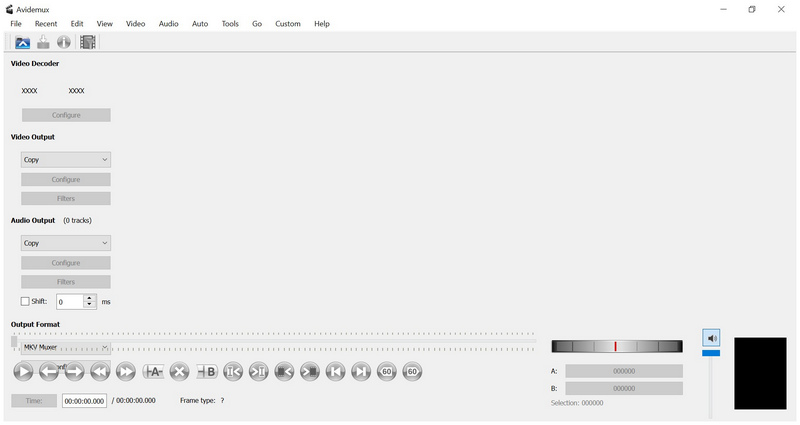
Avidemux is a free-to-download open-source video editing tool designed for handling basic video adjustments, compared to traditional video editing software. It was primarily designed to handle simple editing tasks, such as cutting, filtering, encoding, video rotating, and more. As such, the program works well for quick editing and basic adjustments, all in lightweight, efficient software.
To learn more about the program’s capabilities, read its main features below.
Main Features of Avidemux:
- • Cross-platform availability for Windows, macOS, and Linux.
- • Supports popular and modern video formats such as AVI, MP4, MKV, MPEG, and MOV.
- • Built-in video filter settings for basic editing work, such as sharpening, resizing, deinterlacing, noise reduction, and color correction.
- • Versatile codec support from H.264, H.265, MPEG-4, and AAC.
- • Extremely low system requirements.
To learn more about the most compelling strengths and limitations of Avidemux for Mac, Windows, or Linux, make sure to read its pros and cons below.
Part 2. Avidemux Pros & Cons: What Works and What Doesn't
To give our readers an idea of what works and what doesn’t in the Avidemux free video editor, we have included a detailed Pros and Cons section that reflects the program's capabilities and limitations.
- Completely free and open-source.
- Compatible and runs well on older computers.
- Designed for quick edits, such as cutting, trimming, and rotating.
- Capable of batch processing.
- Completely watermark-free.
- The outdated interface is designed compared to modern editors.
- Limited advanced editing features.
- Its unconventional interface makes it complicated for first-time users.
- Faces stability issues when handling certain video formats.
- Very lacking when used for professional videos or complex projects.
Part 3. How to Use Avidemux to Edit Video
With a clear overview of Avidemux's features and capabilities as a video editor, let us now proceed to a simple step-by-step guide to using the program for basic video editing.
Cut Video in Avidemux
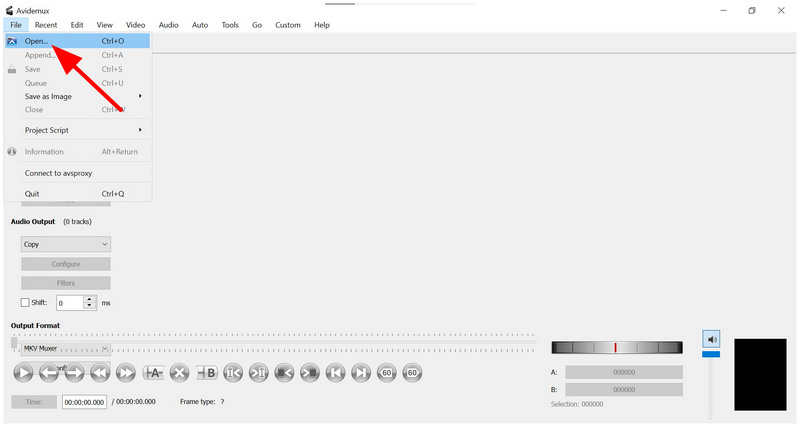
Open Avidemux, select File > Open, then import the video you want to edit.
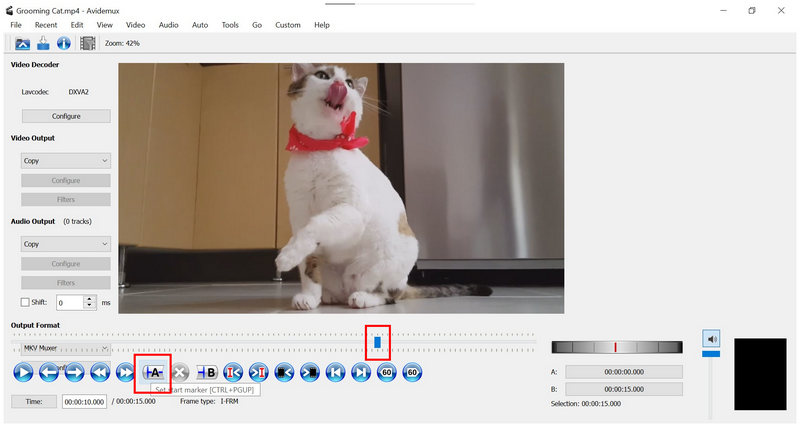
Once the video is added, move the Playhead where you want the cut to begin. Then select Set Start Marker. Repeat the process and set your Playhead to where you want the cut to end. Then, select Set End Marker.
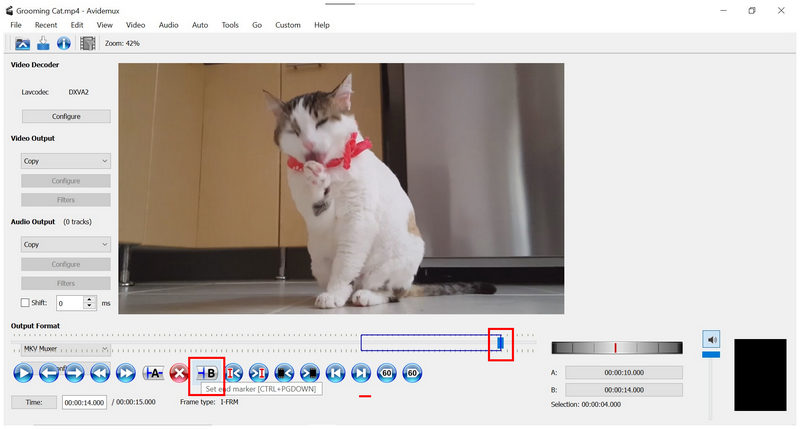
With the Markers now set, click Edit > Delete. Or simply press the Delete button on your keyboard.
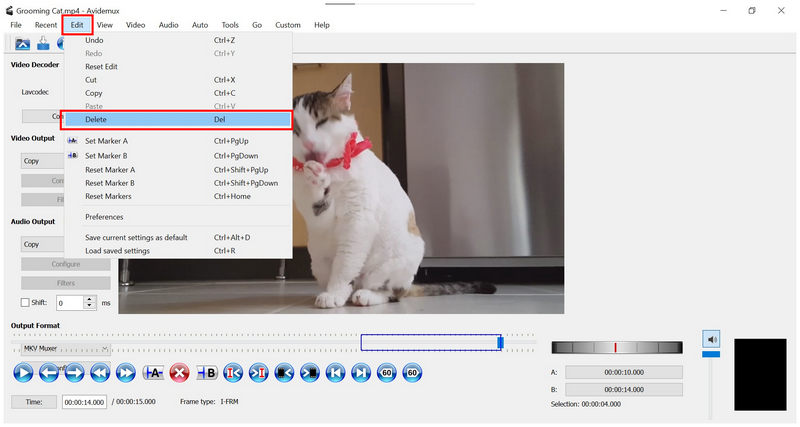
The use of markers is one factor that makes Avidemux outdated. Unfortunately, the lack of trimming sliders is noticeable in the program. Making video cuts and edits in Avidemux is quite complicated.
Add Audio in Avidemux
Click Audio in the Avidemux taskbar and click on Select Track.
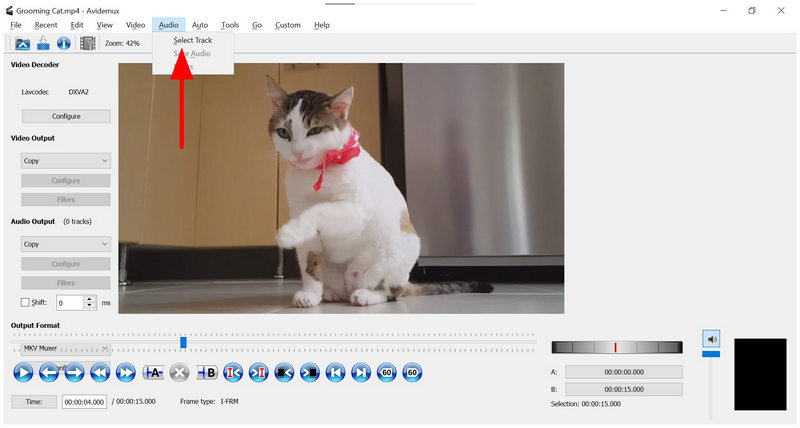
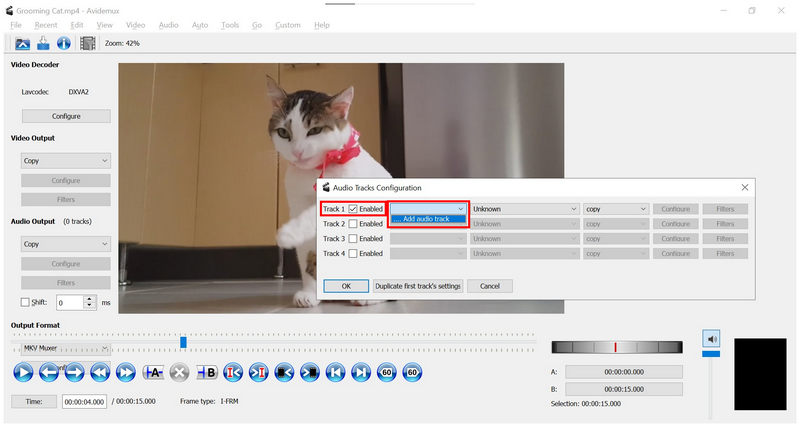
In the Audio Tracks Configuration menu, click Enable on one of the tracks. Then click on the drop-down menu and click Add Audio Track. Navigate to your file manager to add the audio track you want to add.
Once you have selected an audio file, click OK in the Audio Tracks Configuration menu.
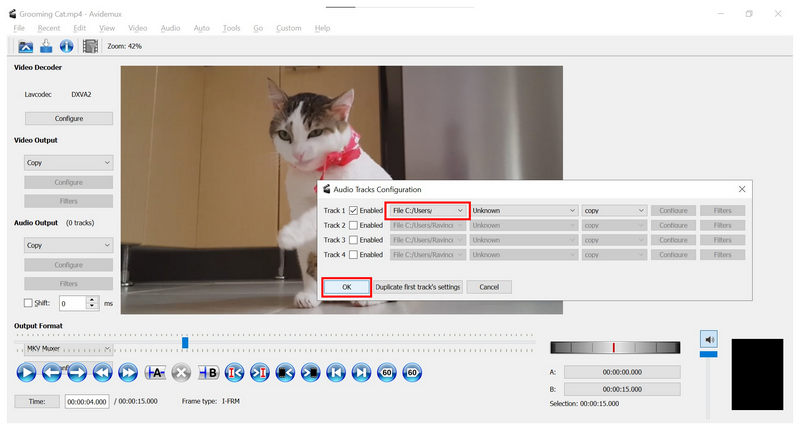
Adding audio in Avidemux is surprisingly intuitive. It is easy to do, and the support for multi-track audio is a good addition.
Rotate Video in Avidemux
Select the dropdown menu under Video Output, set to Copy by default. Then, choose among the available formats. We recommend MPEG4 AVC (x264).
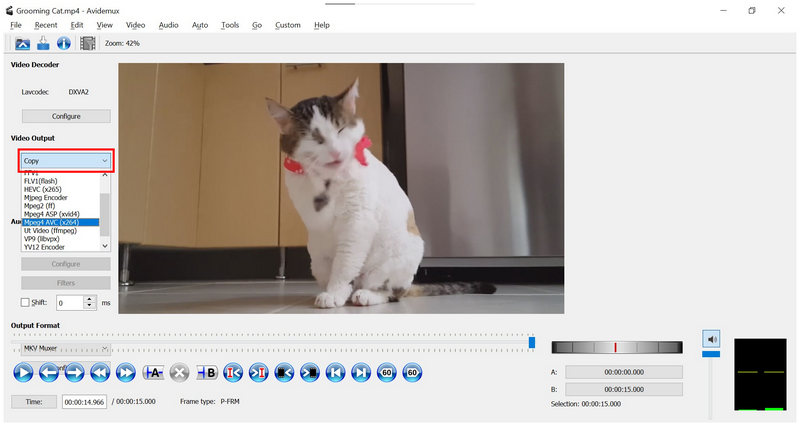
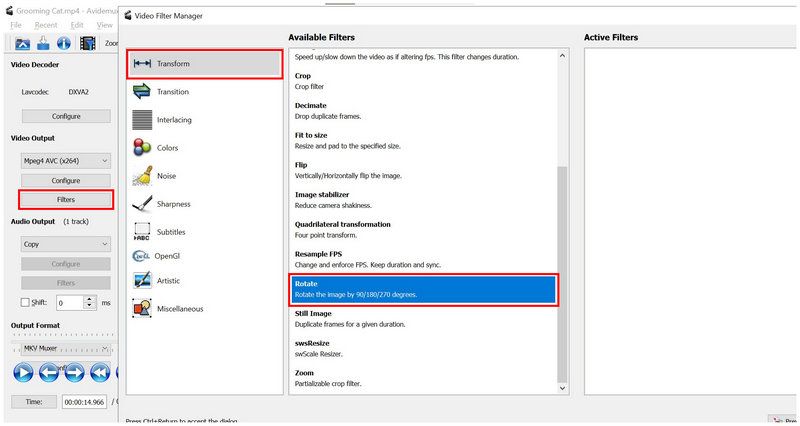
With the format in the Video Output now adjusted, select Filters. Then click Transform in the Video Filter Manager, then select Rotate.
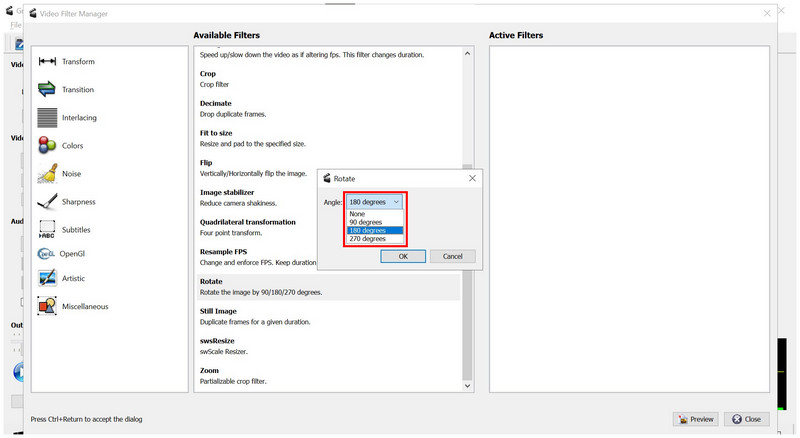
After selecting Rotate, choose among the available angles: 90 degrees, 180 degrees, or 270 degrees. Click OK to confirm your selection.
With your desired angle now added to the Active Filters, select Preview.
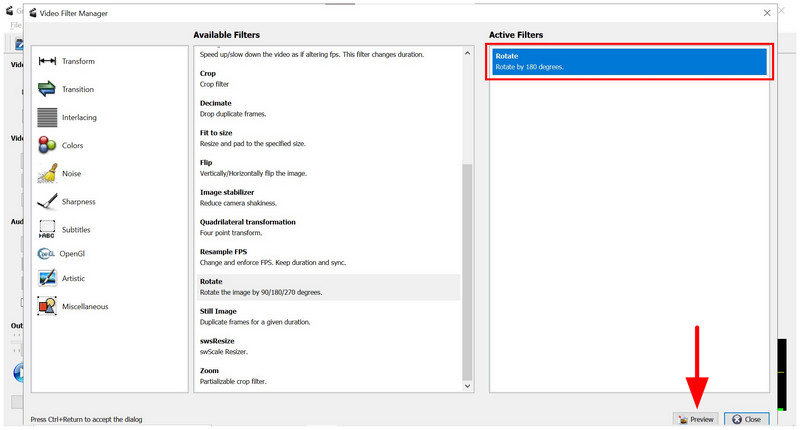
To confirm whether your Rotate filter is added, check the video Preview and select OK once the video rotation is confirmed.
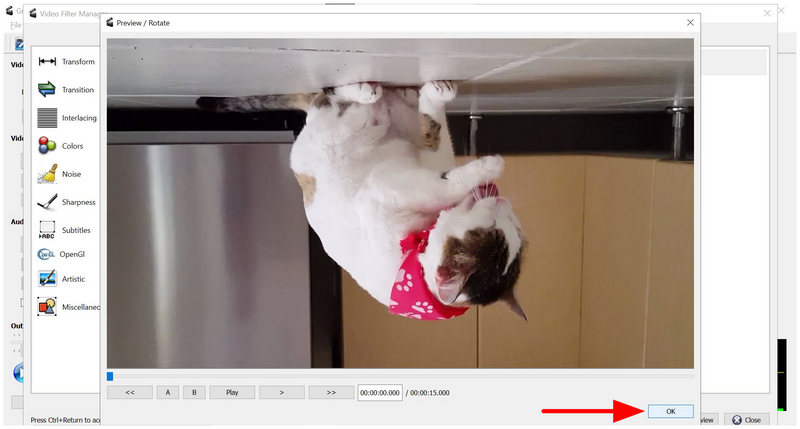
Rotating videos and the Filter tab, in general, are the most complex settings in Avidemux. Yes, it gets the job done, but setting it up is complicated for beginners and even for intermediate editors due to its unconventional interface design.
Part 4. Best Avidemux Alternative
Although Avidemux is designed as a freeware alternative to traditional free video editors, its unconventional, quite dated interface design affects the program's accessibility. With that in mind, its users often look for an easier-to-use alternative, and ArkThinker Free Video Looper Online is a solid choice.
Designed as a web-based program, ArkThinker’s exclusive video looping tool was optimized for maximum intuitiveness, making it a solid choice for beginners and experienced editors alike seeking a quick, easy solution.
Beyond its main purpose as a video looper, it also offers supplementary editing tools to improve the quality of your edited media files. These range from its built-in Trimming Tool and Playback Speed editor.
To get to know more about our proposed web-based alternative, make sure to read ArkThinker Free Video Looper Online’s main feature below and read our three-step guide on how to use it.
Main Features:
- • Does not require any installation or complex initial setup.
- • Equipped with an intuitive video trimmer and playback speed tools.
- • Compatible with web browsers on Windows, macOS, Android, and iPhone.
- • Supports looping video files up to 10 0MB in size.
- • It can read commonly used video files from MP4, MOV, AVI, MKV, FLV, and more.
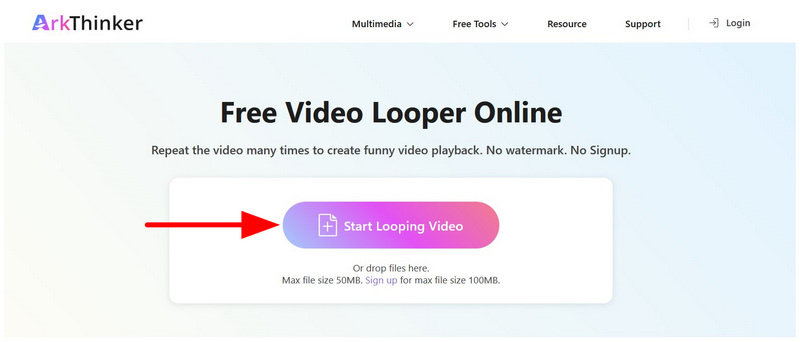
Select the provided link to go to ArkThinker Free Video Looper Online’s website. Select the Start Looping Video option to upload the video you want to edit. Wait for the upload process to finish.
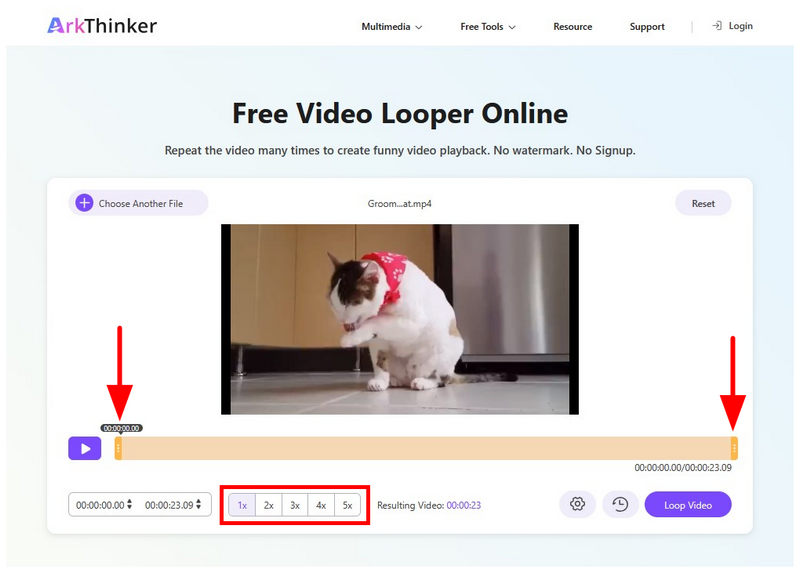
After importing the file, you can apply simple adjustments to your media file using the Trim Sliders and Playback Speed options in the software.
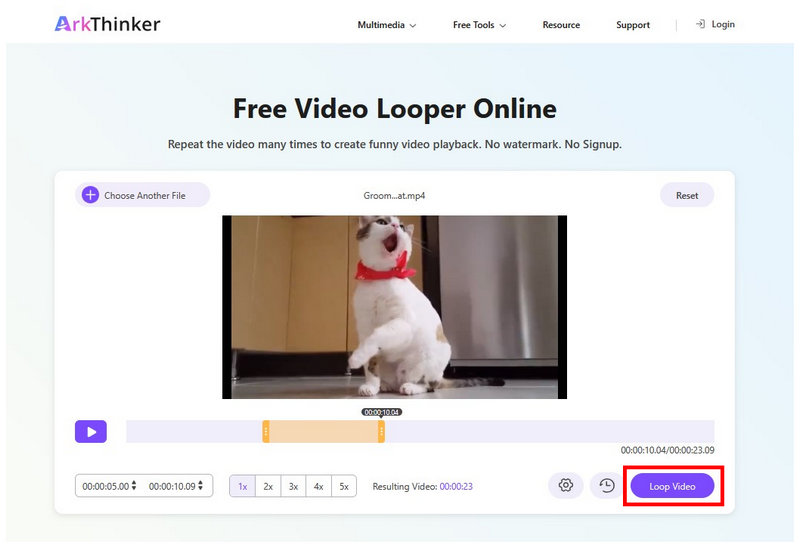
Once you are satisfied with the edited video, click Loop Video to start producing your media that now plays on loop.
If you are looking for an alternative to what may be considered a portable version of Avidemux, online tools are your best bet. For video looping adjustments, ArkThinker Free Video Looper Online will always be a reliable choice.
Part 5. FAQs About Avidemux Review
Does Avidemux’s latest version support WebM?
Yes, it does. Avidemux can edit WebM files. This is only one of the formats that the program supports.
Can you use Avidemux to add an image to a video ?
Yes, you can. Avidemux supports adding videos to editing projects. It can be applied in the Logo option of the Filters manager.
Can Avidemux add subtitles ?
Yes, Avidemux can add subtitles through SRT hardcoding via its filters. However, it does not offer advanced subtitle editing tools like professional editors. This makes hardcoding subtitles in the program not advisable.
Is Avidemux safe to use?
Yes, Avidemux is generally safe to use. However, make sure to download it only from its official website. Since it is open-source software, its code is publicly reviewed by the community.
Should I use Avidemux for basic video editing?
Yes, you can. Avidemux is especially designed for basic video editing. However, it is not equipped with more advanced editing tools, which limits it.
Conclusion
With the strengths, weaknesses, and technical features of Avidemux now discussed, we hope that this article review has provided you with useful information to help you decide whether the program is worth your time for video editing. However, if you want a modern option for practical video looping, we highly recommend using online tools such as ArkThinker Free Video Looper Online.


