


Compress Video 7-Zip: Default and Alternative Method.
A ZIP File, also known as .zip, is a file format that compresses files to make them as small as possible on a user's PC. While Windows and macOS have built-in tools to compress files, 7-Zip, a third-party Windows tool, gives users more control over file size. While 7-Zip is currently unavailable on macOS, there are similar tools like Keka to make up for its absence. Using 7-Zip's video compression capability to elaborate zip files further, making video files smaller, and showing the differences in customization features users may have compared to just using a default method for compressing a video file.
Moreover, while this article has briefly discussed what a ZIP file is, this article will focus more on a software tool called 7-Zip bringing out fresh perspective on the tools capability to compress a video file, confirm if the software tool can really compress a video file, give out our first-hand pros and cons experience in using 7-Zip as a compression tool, and finally give out a detailed yet novice-friendly guide how one can compress a video using the software tool by default ways as well as provide an alternative ways for a more accessible video file compression needs.

- GUIDE LIST
- Part 1. Can 7-Zip Compress Video Files?
- Part 2. How to Compress Video with 7-Zip
- Part 3. Best Alternative to Compress Video to 7-Zip
- Part 4. FAQs about How to Compress Video with 7-Zip
Part 1. Can 7-Zip Compress Video Files?
7-Zip, an open-source file archiving application for Windows devices, allows users to compress files to any format with a single click. With encryption, it can compress files by up to 2% to 10%, far better than other Zip programs. As a ZIP program, 7-Zip can compress video files for easy sharing, uploading, emailing, and more, although it may not be as efficient as dedicated tools designed to compress video files directly.
How Does The 7-Zip Compression Method Work?
The 7-Zip compression method is based on a lossless archiving algorithm that allows a file, specifically a video file, to reduce its size without compromising or altering the original data.
As 7-Zip uses an LZMA (Lempel-Ziv-Markov Chain Algorithm), it analyzes the patterns from the file data and replaces the repeated sequence with a shorter reference then eventually use a dictionary to store and reuse the data efficiently allowing a video file to reduce in size for compression and for it to be able to play or open the compression file must be extracted to be able to open the video file with its original file size.
Pros and Cons of Compressing Video with 7-Zip
- A free-to-use and open-source zipping video file tool.
- Stable and reliable tool.
- Lightweight with minimal system resource consumption.
- High compression ratio capability.
- Wide file format and compression file support.
- MP4 and MKV files may appear with little to no reduction in size after compression, as they are already compressed.
- It does not have a built-in preview or media tool for minimal editing.
- It has an outdated user interface.
- Not ideal for first-time users of zip file compression tools.
Part 2. How to Compress Video with 7-Zip
If you are now ready to embark on video file compression using the 7-Zip program, you must read our detailed instructions and steps below to navigate it correctly the first time, like a pro.
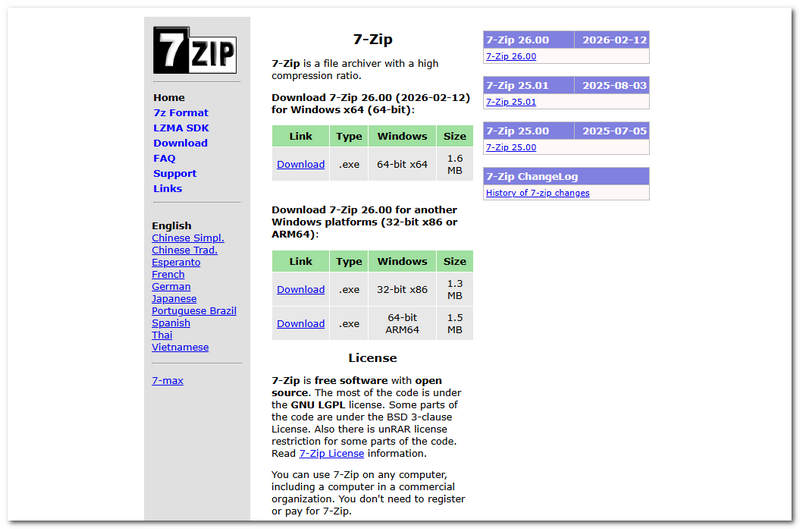
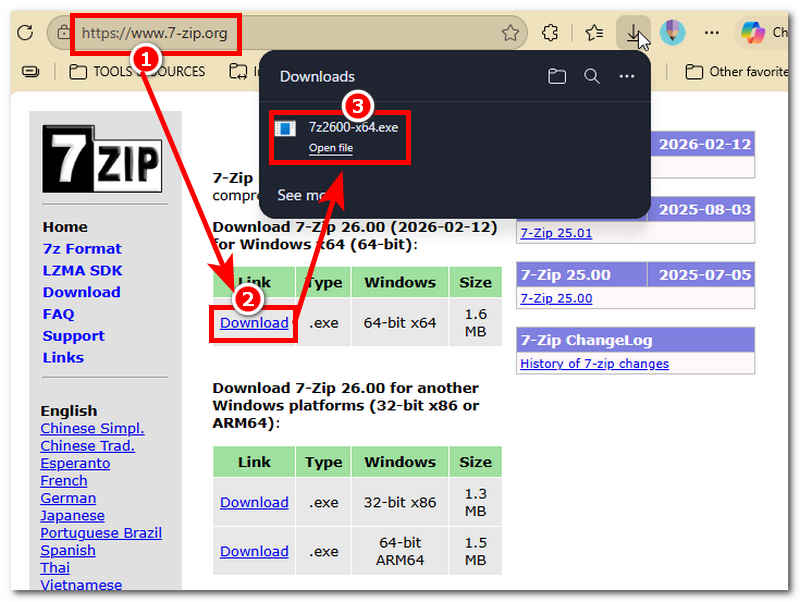
Go to the 7-Zip website; there, you can find the official download link and a version compatible with your device. Proceed to the Download section for the compatible version of 7-Zip for your device, then simply install the downloaded file to complete the installation.
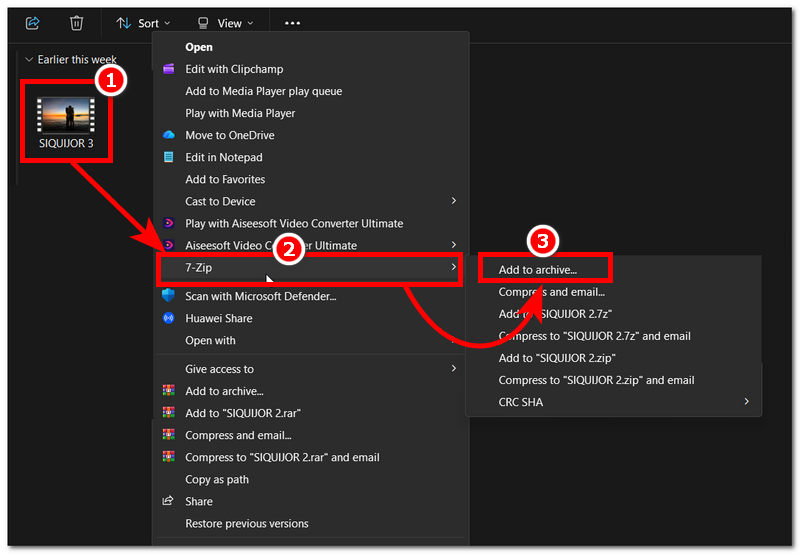
Once 7-Zip is installed, open the folder where you want to compress your video. After that, right-click the video or file, and from the extended menu that appears, click the 7-Zip option, then add to archive.
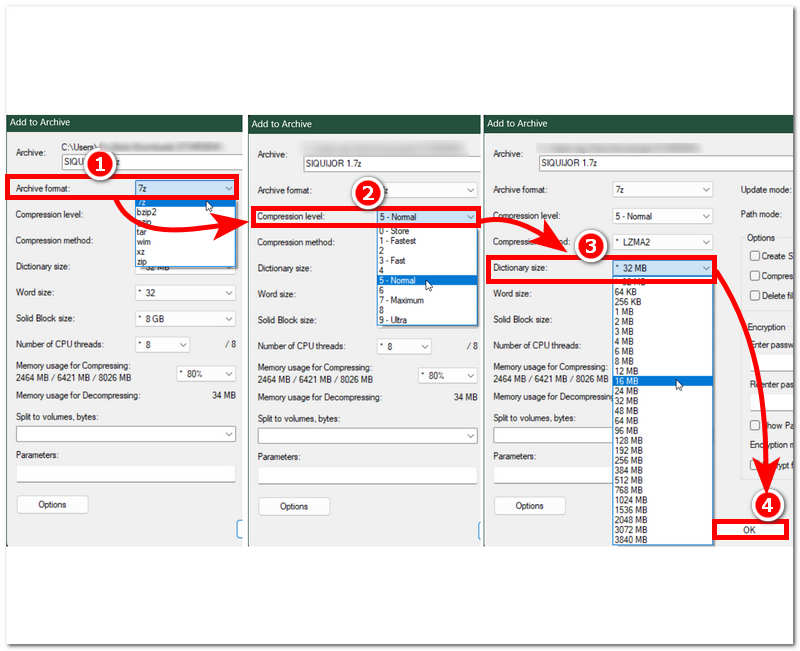
After selecting 7-Zip, a new window will appear on your screen. From there, simply locate the Archive Format and make sure it's set to 7z. Next, head over to the Compression Level. This will keep your file as small as possible; however, choosing the ultra setting may increase the time it takes to compress your video. Lastly, head over to the Dictionary Size. This will determine the dictionary size of your video file based on the compression level you just selected. Once done, you may click the OK button to start compressing your video file.
Once the compression is complete, you may find your 7-Zip-compressed file in the same folder as your selected video file.
Part 3. Best Alternative to Compress Video to 7-Zip
If you find 7-Zip a bit overwhelming to use on your end and want a simpler yet functional way to compress your video file, fret not. In this section, we will provide you with the best 7-Zip compression method for video using a third-party tool. ArkThinker Video Converter Ultimate is a tool for converting and compressing video and audio files. Its broad accessibility across various media tools has made ArkThinker the best alternative to 7-Zip. If you are curious about why we think you should try ArkThinker for your compression needs, we have listed the software's key features below.

Key Features:
- • Free to use tool.
- • It has an updated, straightforward user interface.
- • It has access to various media file tools and features.
- • Lightweight on the device.
- • Support 1000+ audio and video file formats for compression.
- • Guaranteed to compress video files without losing a single pixel in quality.
- • Equipped with a fast processing compression tool.
- • Allows users to preview the file before compressing it.
How to Compress Videos Using ArkThinker Video Converter Ultimate
Open ArkThinker Video Converter Ultimate on your Windows or Mac devices.
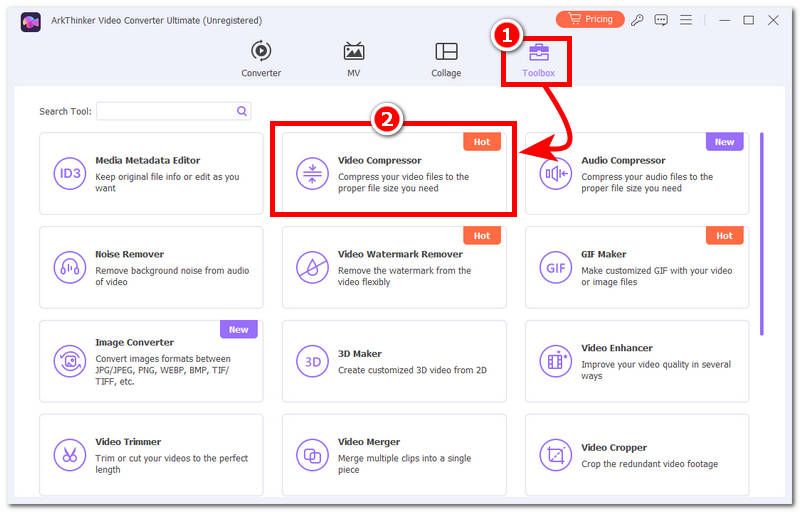
From the tools' main interface, click the Toolbox icon at the top of the tool’s interface, then locate and click the Video Compressor tool to proceed.
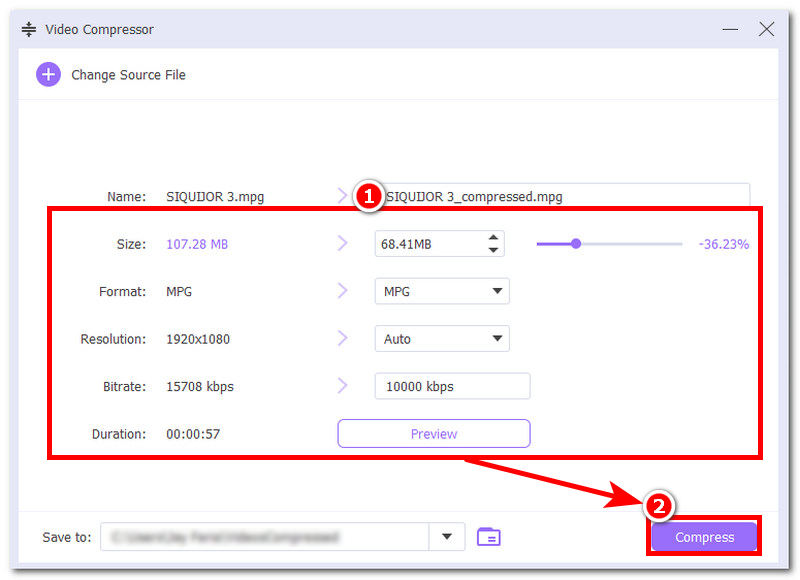
A new window will pop up on your screen indicating that you have accessed the Video Compressor page. From there, the tool lets you upload the video file you wish to compress, and once the file is loaded, you can begin adjusting the video size, file format, resolution, and bitrate. You may also preview your video file first to ensure it does not degrade your video quality, and once you are done, you may begin the compression process by clicking the Compress button.
Part 4. FAQs about How to Compress Video with 7-Zip
Will 7-Zip significantly reduce the size of a video file?
Not always, as the quality of compressed video depends on the file format it's in; if the video is in MP4, you may expect minimal file size reduction, as it is already a highly compressed format compared to others.
Can I split a large video file using 7-Zip?
Yes, you may do so by simply following the steps we listed above. Adding your video file to a 7-Zip archive lets you set the file size to split it into smaller parts.
Can I password-protect a compressed video?
Yes, 7-Zip has a feature that allows users to add encryption to their compressed video files to protect them and make them harder to extract unless the user enters the correct encryption key.
Conclusion
This article not only briefly discusses what 7-Zip is but also takes an in-depth look at 7-Zip Pro and its potential for compressing video files, by using the program and explaining in detail how its compression method works. Moreover, this article provided users with insights into the pros and cons of using 7-Zip as a video file compression tool, as well as an alternative method for 7-Zip's best compression for video, using a more sophisticated, versatile, and lightweight video compressor and converter in one tool called ArkThinker.
What do you think of this post? Click to rate this post.
Excellent
Rating: 4.9 / 5 (based on 632 votes)


