


Loop Videos on CapCut: Default & Alternative Online Methods
CapCut, a handy all-in-one video editing application for mobile and desktop devices developed by ByteDance, has been making a noise, especially in producing short-form videos in the likes of TikTok, making the tool among the most accessible video editing tools for users to utilize when it comes to instantaneous video or media file editing needs. As convenient as it is, CapCut claims to be an all-in-one video editing tool that makes video looping easy.
Video looping is a technique used on video clips to repeat the video from almost the start to the end, so users don't have to manually play it over and over. This has become popular for kiosk displays or presentations to automatically restart the video, creating a continuous video playback cycle. As confusing as it sounds, doing it is easier, and that’s why this article shows how to loop a video in CapCut on mobile and desktop, as well as using an alternative online video looper to complete the video looping experience. Thus, reading further will help users gain insights into managing audio stability while the video loops to avoid stuttering.

- GUIDE LIST
- Part 1. How to Loop Video on CapCut
- Part 2. Best Free Online Alternative to CapCut to Loop Videos
- Part 3. Tips For Keeping the Background Music Seamless While the Visual Loops
- Part 4. FAQs about How to Loop A Video on CapCut
Part 1. How to Loop Video on CapCut
Method 1: Copy-Paste Technique
CapCut Mobile Version:
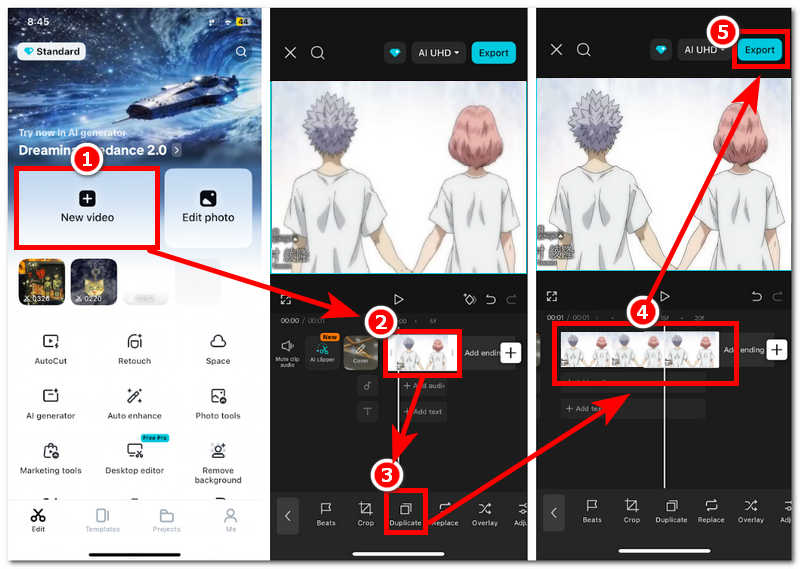
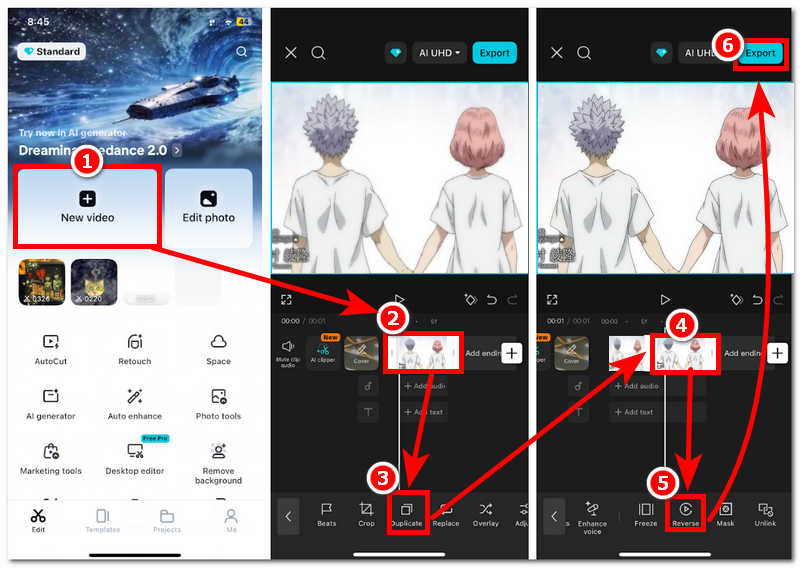
Open the CapCut Mobile and from its main interface tap on the New Video to create a new project. The application will then let you choose video clips to upload to the application to edit, in this case,t o make a video loop.
After learning how to speed up a video in CapCut, you can further enhance your edit by creating a loop. Once your clip is loaded in the timeline, tap to select it. From there, locate the Duplicate feature from the video clip setting situated below your screen.
Tap on the Duplicate multiple times, or depending on how long you want your video clip to last during the loop.
Once satisfied with the amount of duplication you made with your video clip, you may proceed to tap on the Export button to have it be saved in your gallery.
CapCut Desktop Version:
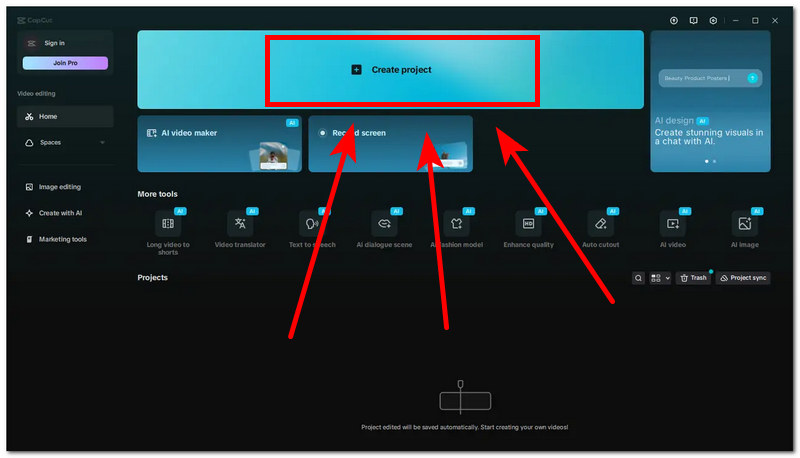
Open your CapCut Desktop and from its main interface, click on the Create Project to start a new project, and from there, the program will prompt you to upload a video clip to the program. Simply choose the video clip you want to loop in the program accordingly.
Once you have loaded your video clip into the program, from the timeline view, click on the video clip you want to create a loop with.
Once the video clip is selected, from your keyboard, press Ctrl + C to copy the video clip, and to create a duplicate of the video clip, press Ctrl + V to paste the duplicate.
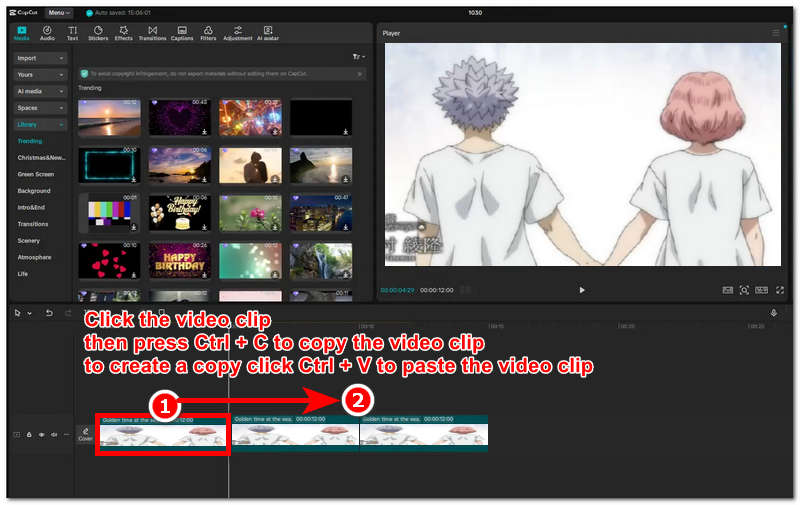
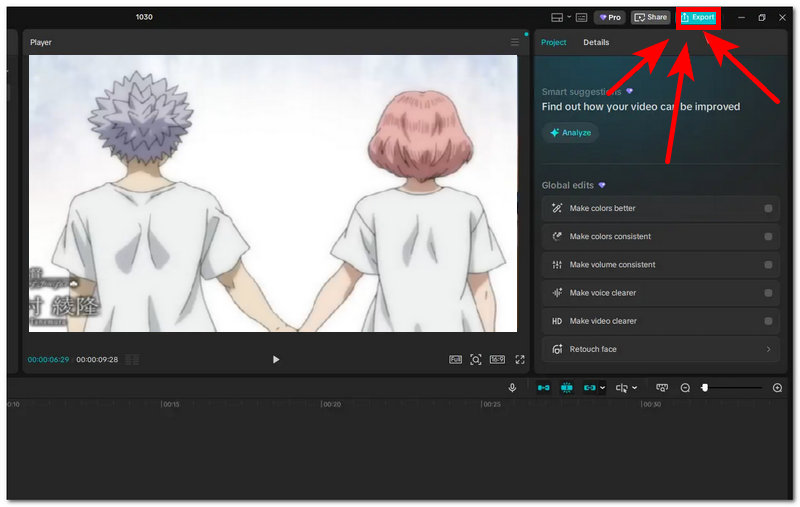
Do the Copy-Paste technique a few times,e depending on how long you want your video loops to last. Once satisfied,d click on the Export button to save your video loop to your desktop device.
Method 2: Reverse Looping
CapCut Mobile Version:
Open your CapCut Mobile and from its main interface tap on the New Video and upload the video clip you want to reverse loop using your CapCut mobile.
Once your video clip is loaded into the CapCut Mobile from the timeline of the app, tap on your video clip, and from there, you will be able to access the video clip settings situated in the lower part of the application. From the video clip setting, locate and tap on the Duplicate function to create a duplicate of your video clip.
Once you duplicate your video clip, a copy of your video clip will appear right beside your original video clip. From there, tap on the second video clip and from the video clip settings, locate and tap the Reverse function. The second clip will then undergo a reverse process.
Once the reverse process of the second video clip is done, you may now tap on the Export button to have your reverse looping video be saved in your gallery.
CapCut Desktop Version:
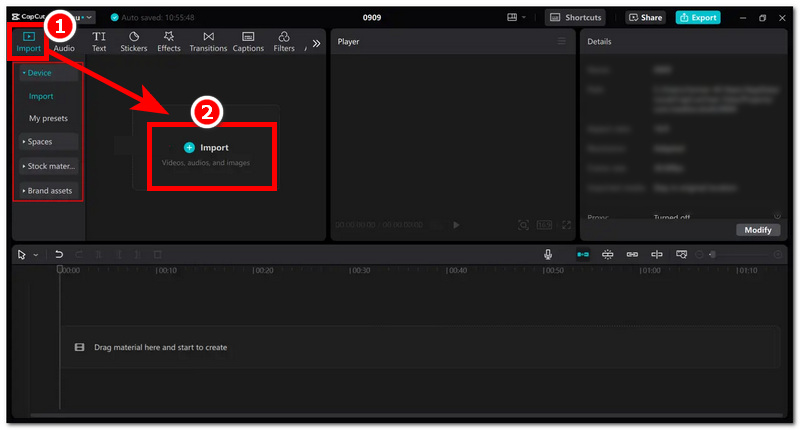
Open your CapCut Desktop and from its main interface, click on the Import section situated on the upper-left corner of your screen and add the video clip you want to make reverse looping with.
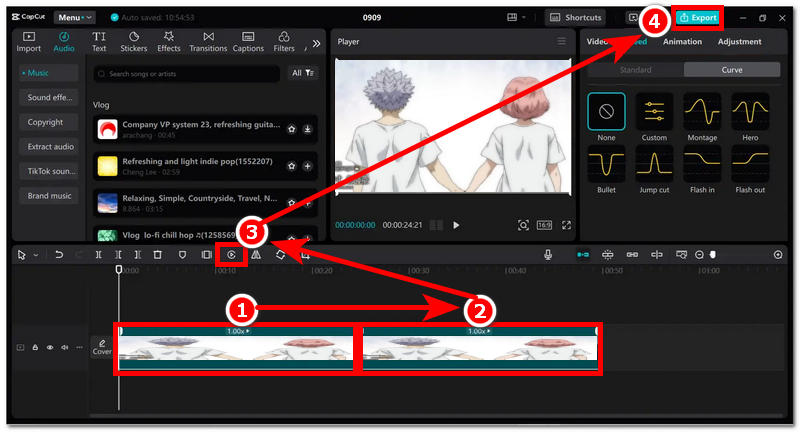
Once your video clip is loaded into the program timeline, the first thing you need to do is duplicate your video clip. To do this, simply click on your video clip in the timeline and hit Ctrl + C and Ctrl + V keys on your keyboard to duplicate your video clip.
Once the duplicate version of your video clip appears right beside your video clip, proceed to click on the duplicate version of your video clip and from there select the Reverse icon from the video settings above in your timeline track view. Once you click on the Reverse feature, it will automatically reverse your selected video clip.
Once the reverse process is complete,e you may proceed to click on the Export button to have your reverse looping video saved on your desktop.
Part 2. Best Free Online Alternative to CapCut to Loop Videos
Since CapCut has been gaining popularity for its seamless video editing, the app has also transitioned from free to a subscription-based model, limiting access to certain video editing features. For this instance, we have prepared an online alternative to CapCut for looping your videos called ArkThinker Free Video Looper Online.
What makes this web-based video looper unique is that users don’t need to install a third-party application or subscribe to a premium wall to access video looping features. Moreover, it is lightweight on the device, ensuring that all devices with any web browser can access the tool without a problem.
How to use ArkThinker Free Video Looper Online
Go to the ArkThinker Free Video Looper Online official website.
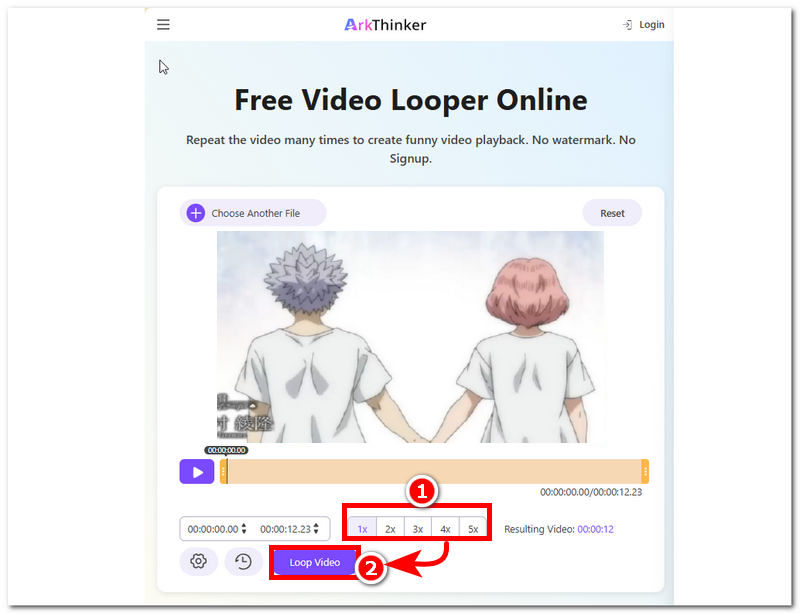
From ArkThinker’s webpage, simply upload your video clip to the field space provided you wish to loop into the field space, and wait for it to finish uploading.
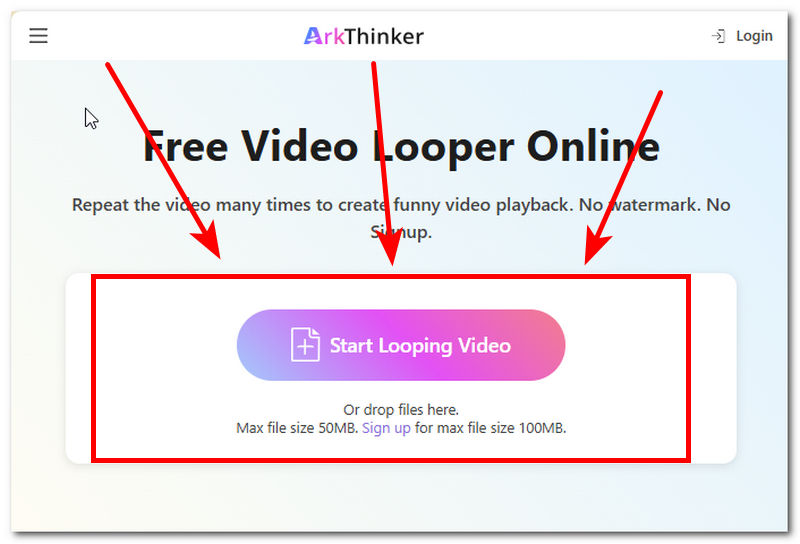
Once your video is loaded into the tool, select the number of loops you want, then click the Loop Video button to start. Once done, your video will be saved as a looping video without using any video editing program.
Part 3. Tips For Keeping the Background Music Seamless While the Visual Loops
- • To keep a seamless background while the video loops, consider muting the original video audio and adding a separate audio track to ensure smoother looping transitions.
- • Consider using fade-in/out sound effects in the video loop section of your video to achieve a smoother transition between video clips, rather than straight-up music in and out.
Part 4. FAQs about How to Loop A Video on CapCut
Is there a built-in loop feature in CapCut?
CapCut doesn’t have a built-in feature or tool that instantly creates a video clip into a loop. It can only be done manually using the copy-paste technique for video clips.
How long can I loop a video?
You can loop videos as long as you want with this best video looper. it's up to the user's preference. However, as you make your loop longer,r expect your video file size to be larger, and the export time to take longer than with shorter loops.
Conclusion
CapCut is indeed a powerful, handy video editing software that can be used on mobile or desktop. While it offers endless possibilities for video editing and enhancement, video looping is possible within the tool editing program via a copy-pasting technique, which this article covers in a step-by-step guide. Not only that, but this article provides a complete basis for learning how to loop video in CapCut PC, using both the mobile and PC versions, and offering two separate guides to ensure CapCut users know how to do it effectively. Furthermore, if users want a more lightweight tool and a simpler way to loop a video clip, this article also features an online video looper called ArkThinker for a faster, more convenient way to loop a video.
What do you think of this post? Click to rate this post.
Excellent
Rating: 4.9 / 5 (based on 602 votes)


