


2 Ways to Loop Videos in Windows Media Player (2026 Guide)
When it comes to watching movies and TV shows on PC, Windows Media Player still has its established users who want to stick to the software’s barebones simplicity and overall ease of use. It also helps that a modernized version of the software was recently released for Windows 11. In this article, we will explore how to loop a video in Windows Media Player, both in the legacy and the modern versions of Windows' default multimedia software. This article will feature two guides on how to enable the video loop and repeat functions in the two versions of Windows Media Player to watch videos on loop.

- GUIDE LIST
- Part 1. How to Loop Video on Windows Media Player
- Method 1: Enabling Repeat in Legacy Windows Media Player
- Method 2: How to Loop a Video in Windows 11 Media Player
- Part 4. Bonus: Create a Looped File with ArkThinker Free Video Looper Online
- Part 5. FAQs About Looping Videos on Windows Media Player
Part 1. How to Loop Video on Windows Media Player
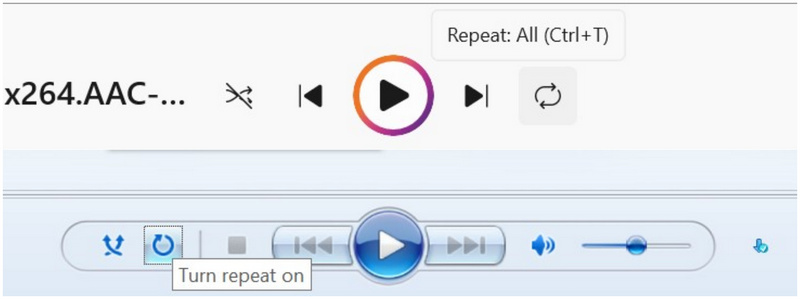
Regardless of which version of the multimedia player you are using, the repeat button is the option you use to loop videos in Windows Media Player. Fortunately, it is easily accessible in the main video player's toolbar. The Repeat toggle is available alongside the Play/Pause, Shuffle, Previous/Next, and Volume tools. This is the same for other multimedia players as well, such as using VLC for looping videos.
Additionally, it has multiple options, including the basic repeat one video, repeat video currently playing, and repeat playlist; the latter is only available in the modern Windows 11 version of the software.
To learn how to loop videos on Windows Media Player’s legacy and Windows 11 versions, please read our tutorial below, featuring the two versions of the built-in tool.
Method 1: Enabling Repeat in Legacy Windows Media Player
We will start this guide by showing how to loop a video in the legacy version of Windows Media Player. Fortunately, this software is favored for its simplicity and functional design.
To learn how to repeat videos in the program, please read our guide below:
Open Windows Media Player, then go to the Videos tab. Then, select the video file you want to open and double-click it.
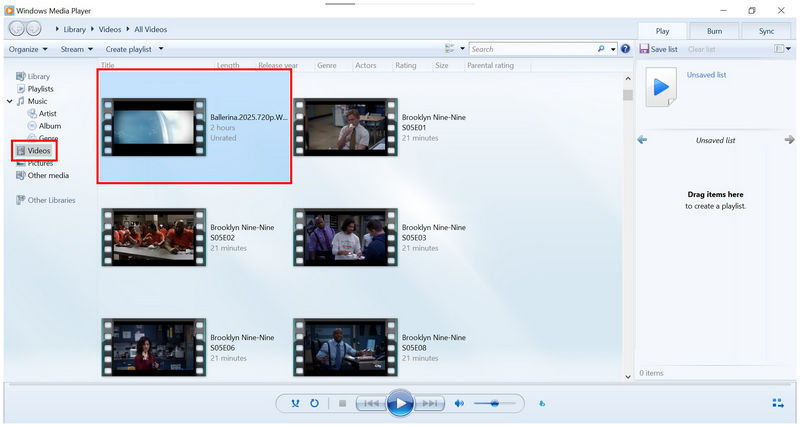
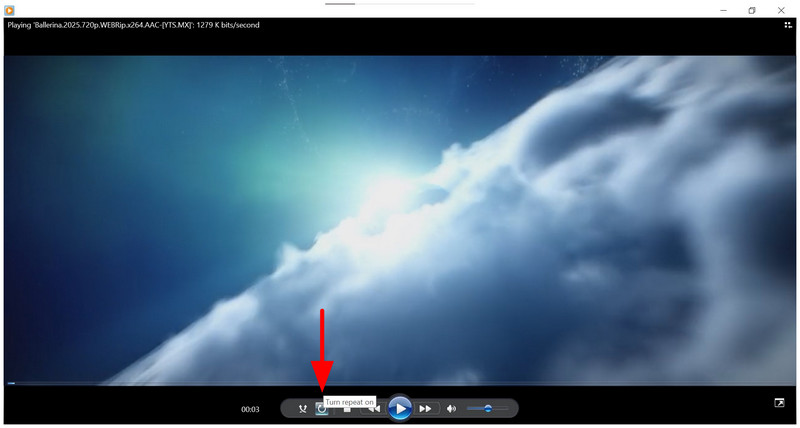
Once the video file starts playing, select the Repeat button in the toolbar beside the Shuffle button. The repeat button in the legacy version sets all open videos to repeat, not just the currently playing one.
To confirm that the Repeat button is active, it should have a blue shadow. If it is present, your video is now on loop.
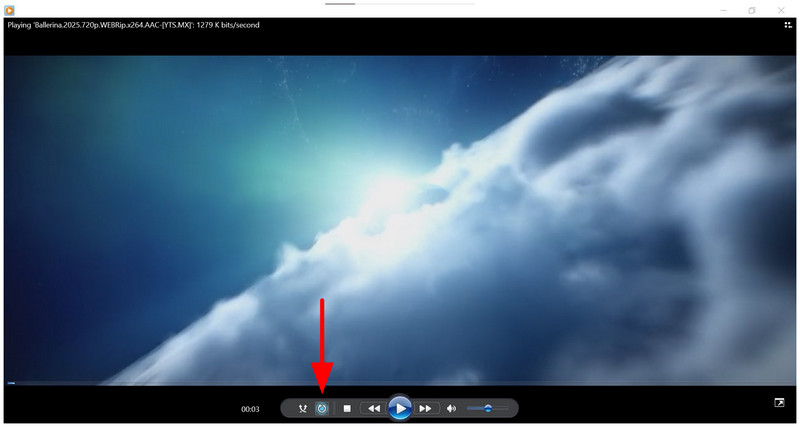
Since the software option sets all selected videos to repeat, learning to loop multiple videos in Windows Media Player is easy, since it is set to repeat by default.
Method 2: How to Loop a Video in Windows 11 Media Player
Similar to the legacy version, the Windows 11 Media Player also has a repeat option, which can be enabled from the main player toolbar. The only difference between them is that there are additional options for where you can set the loop.
To learn more about the additional repeat option, read our guide below.
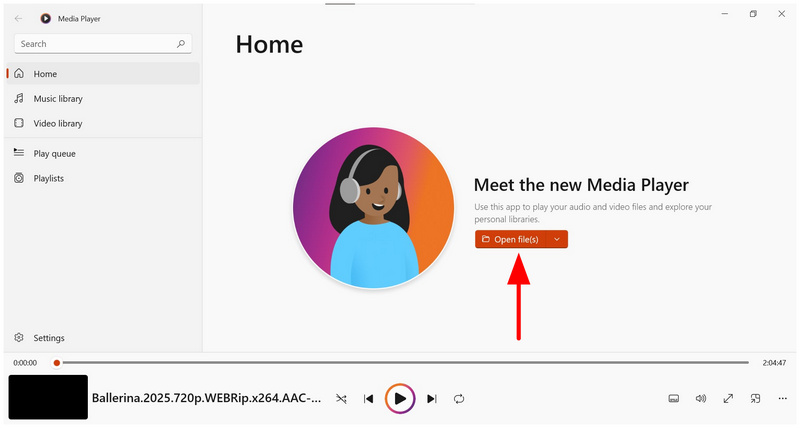
Open Windows 11 Media Player and then select the Open File button in the main menu.
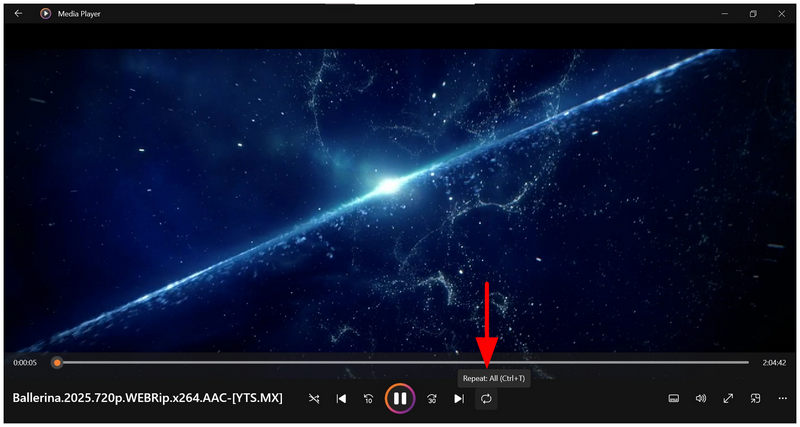
In the video playback menu, the Repeat mode is set to Repeat All by default. This mode will cause the playlist to restart from the start once the last media file finishes playing. This is advisable for TV shows or anime with shorter episodes.
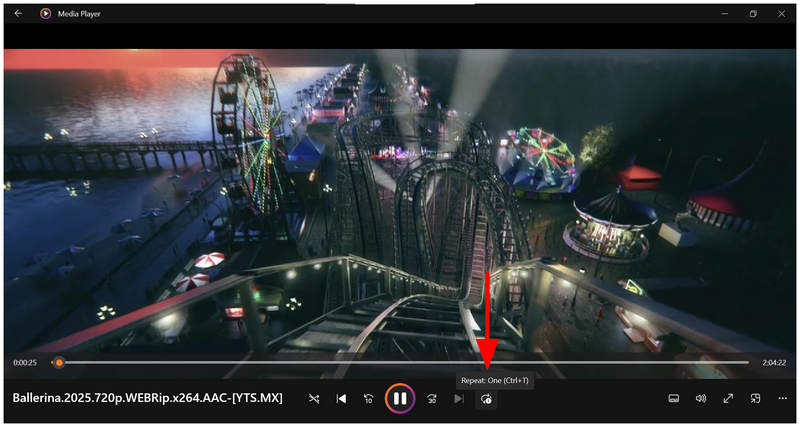
Alternatively, click the Repeat button again to set the mode to Repeat: One. This will make the currently playing video loop continuously.
To turn it off, click the button once again to set it to Repeat: Off.
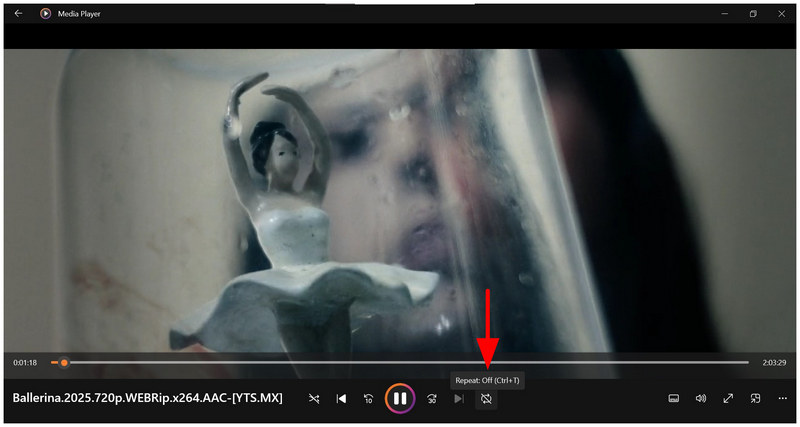
Since there is a Repeat: One setting in Windows 11 Media Player, you can safely open multiple videos and only repeat one of them.
Part 4. Bonus: Create a Looped File with ArkThinker Free Video Looper Online
Since both versions of Windows Media Player can only play videos on repeat when they are opened on them, these media files will not play on loop once they are outside media players. In this case, you have to use editing tools to apply looping in the video itself. With that in mind, online programs such as ArkThinker Free Video Looper are among the easiest to use.
Designed for creating video editing assets and seamless short-form content, ArkThinker’s web-based video looper tool was built to loop video clips without relying on media player playback settings.
To learn how to make your videos on loop, please read our three-step guide below.
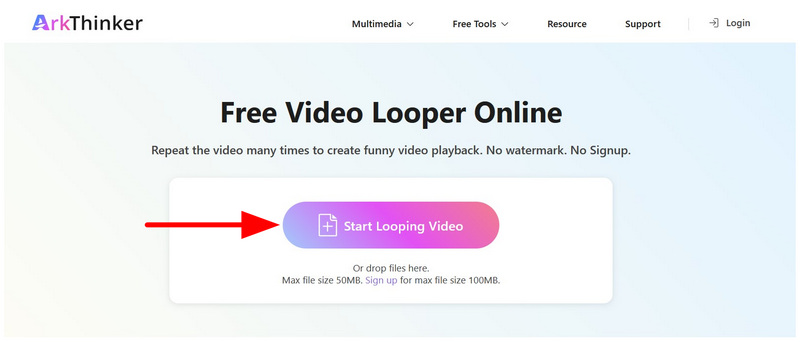
Click the provided link to go to ArkThinker Free Video Looper Online’s website. Next, select the Start Looping Video button to add the media file you want to set on loop. Wait for it to be uploaded.
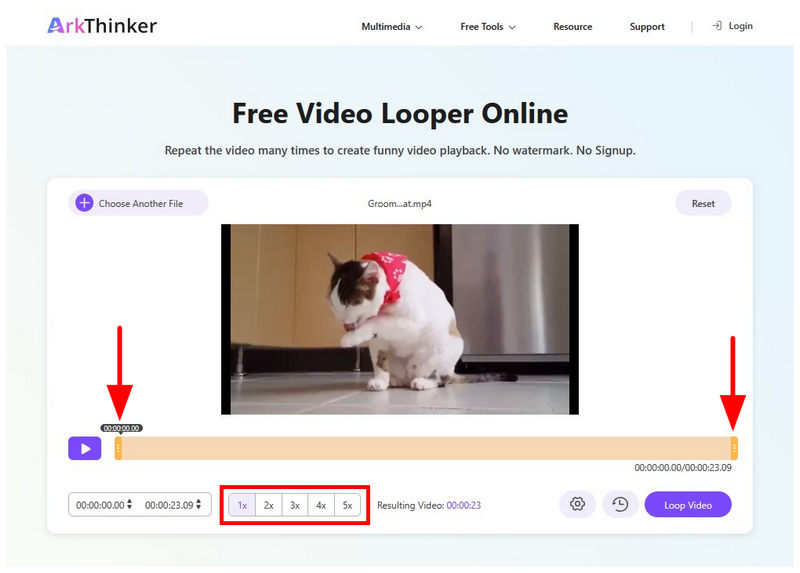
Once the upload process is complete and your media file is imported into the online tool, you can use the Trim Sliders and Playback Speed options in the software. You can use them to trim your video or adjust its playing speed.
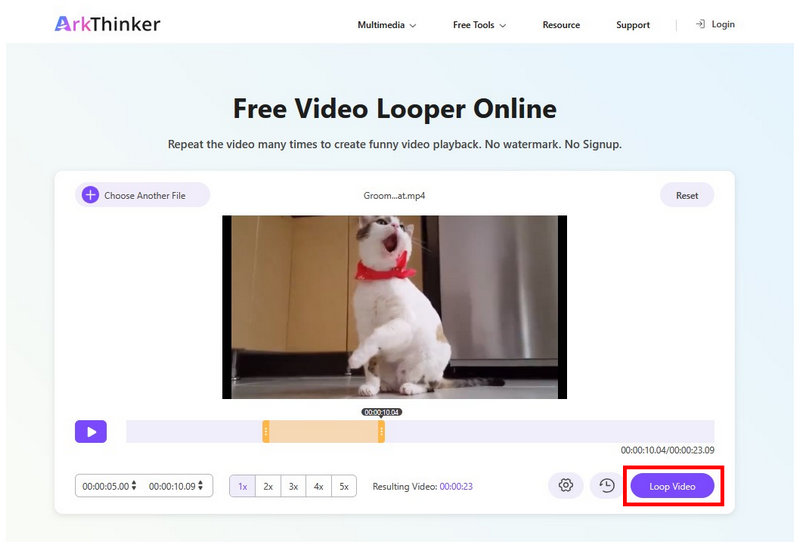
When you are done with the video and playback adjustments, click on Loop Video to begin producing your media file now with a looping effect applied.
On top of setting videos on loop, ArkThinker Free Video Looper Online’s editing options also give it an edge for users who want more control over their videos.
Part 5. FAQs About Looping Videos on Windows Media Player
How to loop a video in the media player ?
Simply toggle the repeat or loop button. Most media players also have multiple looping modes. You may loop a single video or a playlist of selected files.
What is the better choice between the Legacy Windows Media Player and the modern Windows 11 version?
The modern option is a better choice overall. It looks better, and the video playback is more intuitive. Its design is also modernized.
Will videos on repeat play smoothly?
It depends on how the video was edited. However, a video on a loop is generally not smooth-looking. You need to edit the video to loop smoothly.
Should I download a different multimedia player on Windows?
It depends on your needs. However, it is common for Windows users to download third-party video players. The most common option is VLC Media Player.
Are online tools safe to use for media editing?
Yes, they are. Online tools are generally good for media editing, such as ArkThinker or Canva, for video looping. However, avoid editing sensitive files, as privacy is not a strong suit of web-based options.
Conclusion
Now that we have provided a tutorial on using Windows Media Player to loop videos, we hope this article has given you useful information to make your viewing experience smoother. However, if you want to use videos for editing, we recommend using ArkThinker Free Video Looper Online to apply smooth looping playback.


