


4 Ways to Capture High-Quality Fortnite Recordings in 2026
Are you looking for reliable solutions to capture high-quality gameplay recordings from your Fortnite sessions? This is a common problem among gamers, as finding reliable screen recording tools can be challenging given the vast number of third-party recorders. In this article, we will provide a detailed review and tutorials on using four of the best recording software for Fortnite . These programs are selected for their ability to capture gameplay clips at a smooth FPS.

- GUIDE LIST
- Part 1. Can You Record Fortnite on Nintendo Switch
- Part 2. Best Ways to Record Fortnite Gameplay
- Part 3. Best Fortnite Recording Settings for Smooth 60FPS Gameplay
- Part 4. FAQs About Fortnite Recording
Part 1. Can You Record Fortnite on Nintendo Switch
Yes, you can capture Fortnite gameplay recordings on Nintendo Switch using various options. Although not as flexible as multiple software options on PC, you also have different ways to learn how to record gameplay on Switch for Fortnite. Primarily, you can use the Postparty app for clips, an external capture card for longer gameplay, or an external camera to record the Switch screen.
As such, if you plan to capture Fortnite gameplay on Nintendo Switch, we recommend preparing the following equipment:
- • External capture card
- • HDMI cable
- • Computer or laptop with HDMI port
- • External microphone (Optional for better audio quality)
Part 2. Best Ways to Record Fortnite Gameplay
Method 1. Record Fortnite with ArkThinker Screen Recorder (Best for Flexible Game Capture)
The first method we will discuss is ArkThinker Screen Recorder, an exclusive desktop-based screen recording tool designed to serve as both a general screen recorder and a specialised one for advanced uses, such as gameplay recording.
Equipped with an exclusive Game Recorder mode, ArkThinker’s gameplay capture is powered by hardware acceleration, enabling smooth recording performance using your GPU resources. This enables the software to capture dynamic Fortnite skirmishes while maintaining a smooth framerate with zero stuttering.
Despite its advanced features for optimal performance, ArkThinker Screen Recorder is extremely lightweight in both installation size and resource consumption. This makes the tool a suitable choice for most devices, including entry-level or outdated computers.
To learn how to use the Game Recorder for capturing Fortnite recordings, make sure to read our three-step guide below. Do not forget to download it as well for an easier time learning how to use the program.
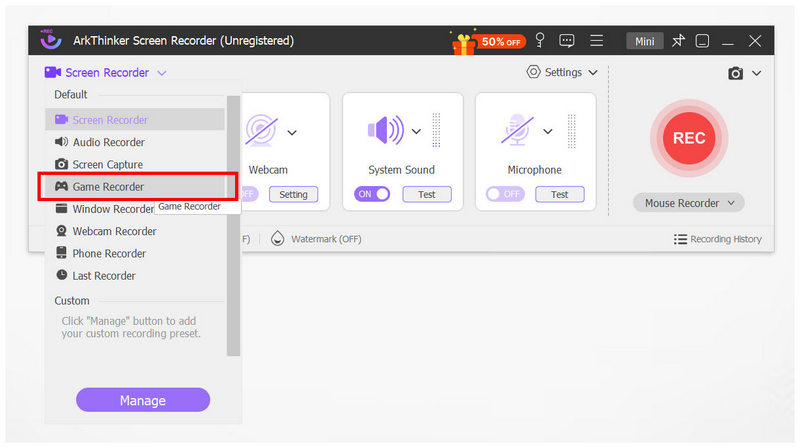
Open Fortnite and ArkThinker Screen Recorder. Then, set the recording mode option to Game Recorder. Using the game recorder feature will trigger the program to restart in administrator mode.
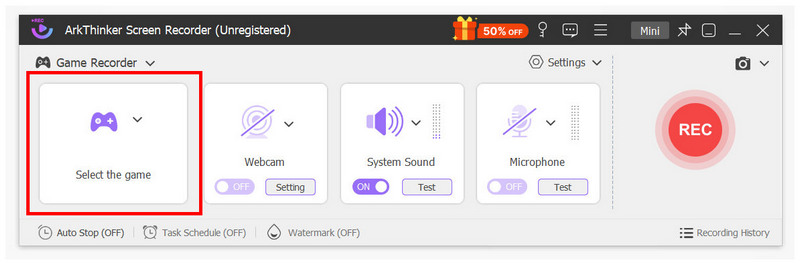
In the Game Recorder menu, click on Select the Game option and choose Fortnite.
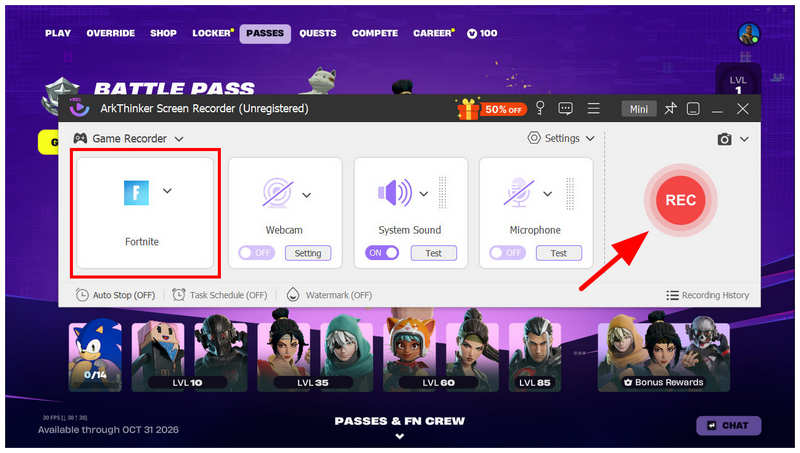
With Fortnite selected as the recording program, click the REC button to begin recording. You can now start playing while ArkThinker Screen Recorder captures your gameplay.
Since ArkThinker Screen Recorder is available for both Windows and Mac, captures screen recordings, and is extremely lightweight, it makes the software a good OBS Studio alternative, as you don’t have to optimise the best OBS settings for Fortnite recording if you use ArkThinker’s option.
Method 2. Use GPU Recorder (Best Low-Impact Recording)
If your computer is equipped with an external GPU, you may also use the built-in recorder function in their software for personal gameplay recordings. Unfortunately, integrated GPUs usually lack a recording feature, as in AMD Adrenalin for their iGPUs.
To learn the basics of setting up GPU recorders, you may read our guide.
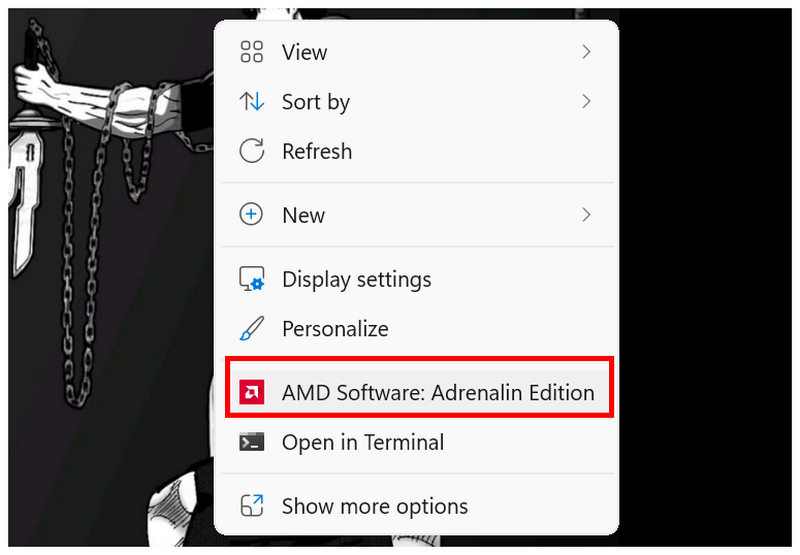
Go to your desktop, right-click it, and select AMD Software: Adrenaline Edition to open the AMD Software settings.
In the AMD menu, go to the Record & Stream tab. Go to the Settings menu to adjust the recording settings you will use for the Fortnite gameplay.
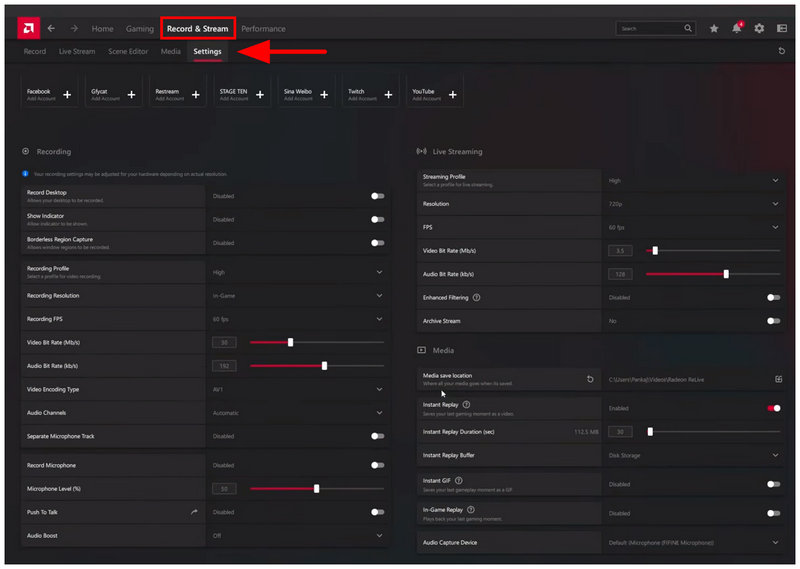
Once the Recording settings are adjusted based on your needs and preferences, go to the Record section. Then select Start Recording to begin capturing your screen. You can now open Fortnite and play while AMD captures your gameplay with low-impact recording.
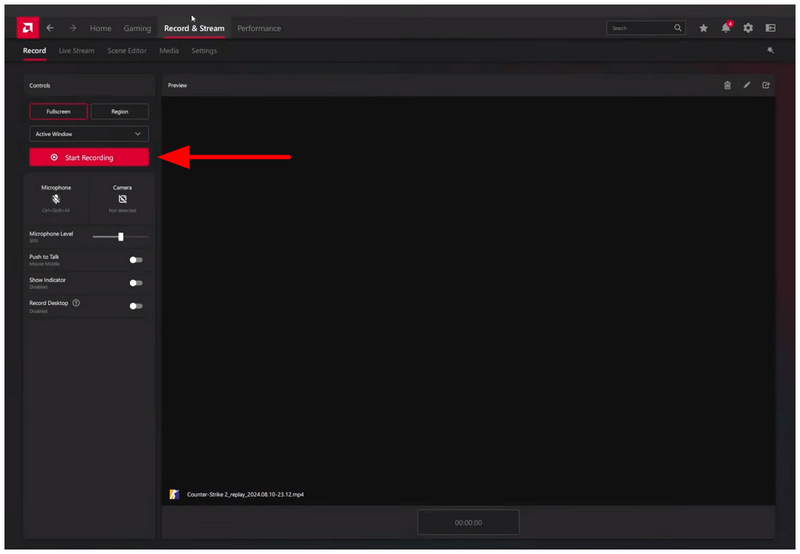
Using GPU recorders is one of the best ways to record Fortnite on PC regardless of whether you use NVIDIA GeForce or AMD Adrenalin Edition since they have minimal performance impact. This makes GPU recorders among the best game recorders if your hardware supports them.
Method 3. Use Built-in Console Recording
For console gamers, the built-in recording feature of your console should be enough for basic Fortnite recordings. For the PS5, the basic gameplay recording feature is more than enough, since Fortnite is relatively light on system resources.
Open Fortnite and then press the Share button on your PS5 controller.
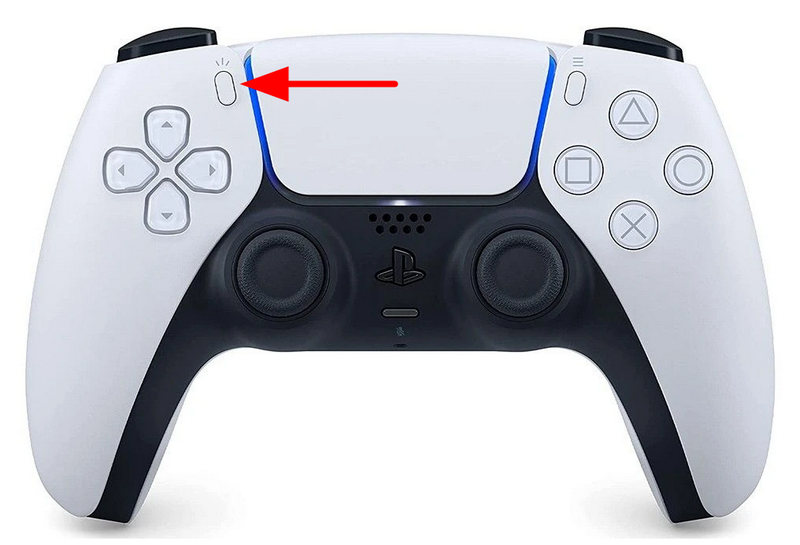
In the Share menu that opens in Fortnite, go to Capture Options, the far-right tab. In the Video Clips settings, you can adjust the file type and audio capture of your screen recording.
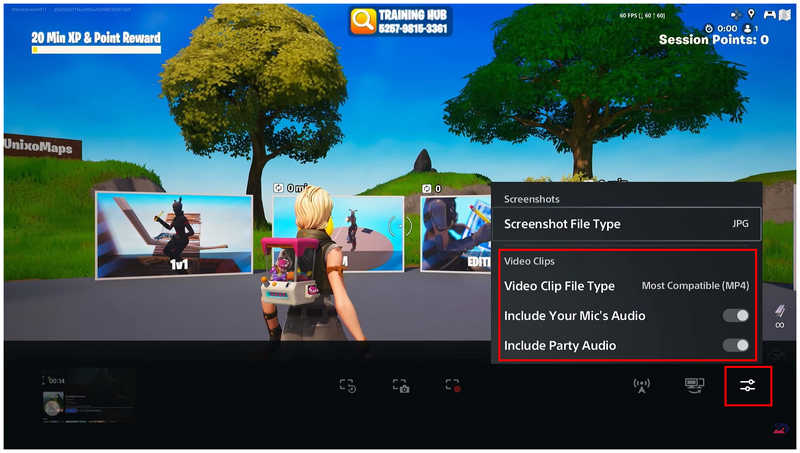
After editing the capture options to your preference, press the Start New Recording button, then press the X Button on your PS5 controller to begin recording.
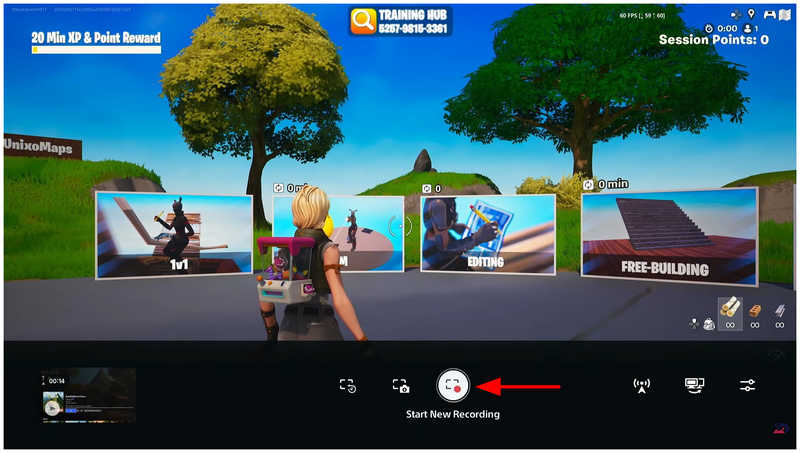
The presence of built-in gameplay recorders is a big advantage of Fortnite console players over PC gamers in terms of practicality.
Method 4. Use Fortnite Replay Mode for Cinematic Videos
To ensure that your gameplay recordings will not consume too many resources on your device, you also have the option to use the in-game replay function of Fortnite. With this setting, the game will automatically handle gameplay recordings.
Open Fortnite, select Profile, then click Settings.
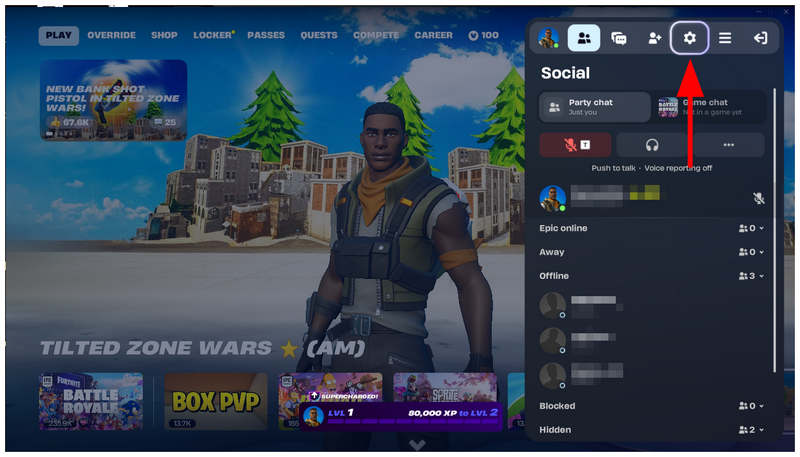
In the Settings tab, select Game and go to Replays.
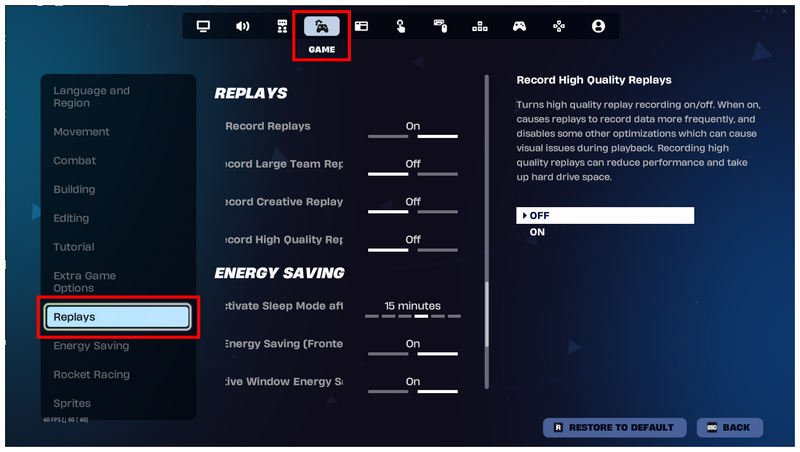
In the Replay settings, make sure that the Record Replays option is ON.
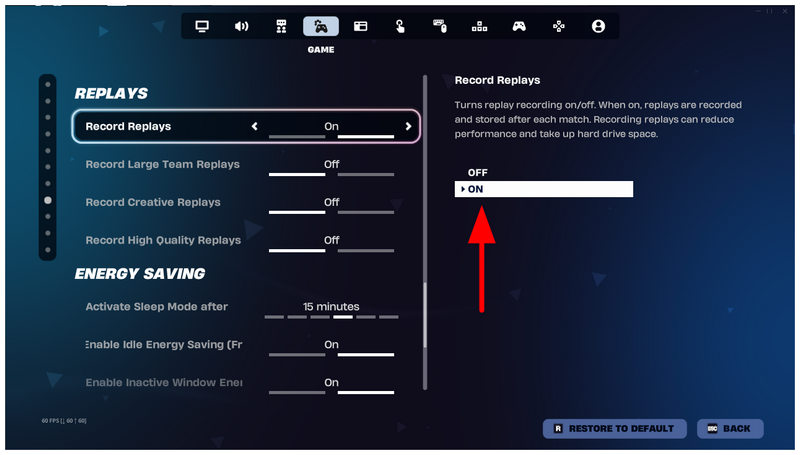
Unfortunately, the recorded gameplay of the Replay Mode is only available in-game and is not saved as video files locally.
Part 3. Best Fortnite Recording Settings for Smooth 60FPS Gameplay
To ensure that your Fortnite recordings will be suitable for content creation. You have to learn the optimal recording settings for general gameplay captures. To ensure your gameplay videos are high quality and recorded at 60 FPS for smooth gameplay, follow our recommended settings below.
Recording Resolution: 1920x1080 (1080p)
Frame Rate: 60FPS
Encoder Settings: NVIDIA NVENC (HEVC/H.264) or AMD AMF (HEVC/H.264)
Audio Settings: System Sound + Microphone at 48 kHz, Stereo, and 192 - 320 kbps
Part 4. FAQs About Fortnite Recording
Does Fortnite have an in-game screen recorder?
Yes, it does. Fortnite has an auto-recording capture in its settings. It automatically records all gameplay sessions and saves them in-game.
What are good lightweight screen recorders for Fortnite?
Among the options on this list, ArkThinker Screen Recorder is the best lightweight option. The program is specifically designed as a general recording tool for all recording needs. However, it has an exclusive Game Recorder mode for high-performance recordings.
Should I use built-in recorders when taking Fortnite videos?
Yes, you can. Using built-in screen capture tools such as Xbox Game Bar will be enough for Fortnite recordings. However, do not expect a smooth frame rate from these basic recorders.
Can you record Fortnite on Nintendo Switch?
Yes, you can. However, it is usually harder to set up than on PC or console. You have to learn to use an external capture card to record Fortnite gameplay on Switch.
How to record Fortnite on Switch?
The most accessible recording mode for Fortnite on Switch is the Replay Mode. Unfortunately, these videos are not saved locally. To capture local Fortnite gameplay, you have to connect your Switch via HDMI to an external capture card.
Conclusion
With the best methods for capturing Fortnite gameplay recordings now discussed, we hope you can record high-quality gameplay from your battle royale sessions. These videos will be more than enough whether you plan to create gaming content or simply want to review your gameplay. Regardless of your needs, ArkThinker Screen Recorder will get the job done.
What do you think of this post? Click to rate this post.
Excellent
Rating: 4.9 / 5 (based on 569 votes)


