


Full Tutorial to Learn Where the Steam Screenshot Folder Is
Capturing screenshots while gaming is one of the best ways to share your experience online. In some games, graphical marvels can also be captured to create your own wallpaper or simply to appreciate your gaming achievements. Unfortunately, before indulging in these gameplay captures, you have to locate where the files are saved first. In this article, we will provide a detailed guide to help our readers know how to find the Steam screenshots folder both in-app and through their local files.

- GUIDE LIST
- Part 1. Where Does Steam Save Screenshots on Windows and Mac
- Part 2. How to Find Steam Screenshots Quickly
- Part 3. A Table of Steam Screenshot Folder Locations by Operating System
- Part 4. How to Change Steam Screenshot Settings
- Part 5. Why Can’t I Find My Steam Screenshots
- Part 6. How to Take Better Steam Game Screenshots
- Part 7. FAQs About Steam Screenshots Folder
Part 1. Where Does Steam Save Screenshots on Windows and Mac
Steam saves in-app screenshots in your local files. On both Windows and Mac, they are saved in the Steam folder in your device’s user file system. However, there are multiple options to access these images.
For a more direct solution, you can use Steam’s in-app settings, which make it easier to find your screenshots. Alternatively, you can manually follow the image save path in your local folders.
If you want to share an individual image file, use the built-in Steam option, which offers quick sharing options, including a copy to clipboard for practical copy-and-paste. However, for sharing multiple files at once, locating the save folder is preferable.
Part 2. How to Find Steam Screenshots Quickly
To learn how to access the Steam screenshot folder via in-app or local file options, make sure to read our step-by-step guide below. The two methods we have featured in this section offer practical ways to locate where your gaming screenshots are saved easily.
Method 1. Open Steam Screenshot Manager
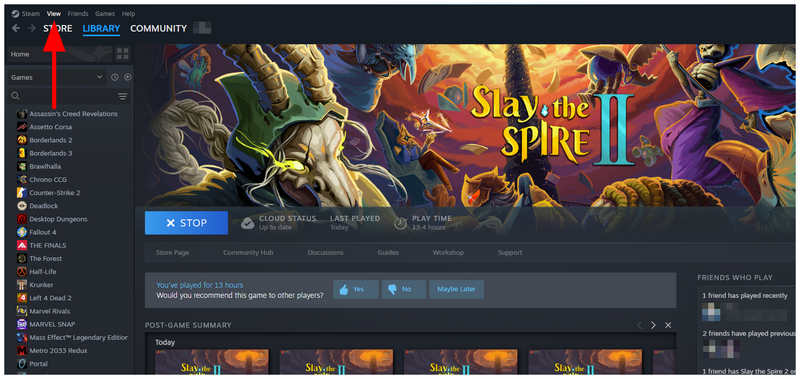
Open the Steam client, then select View.
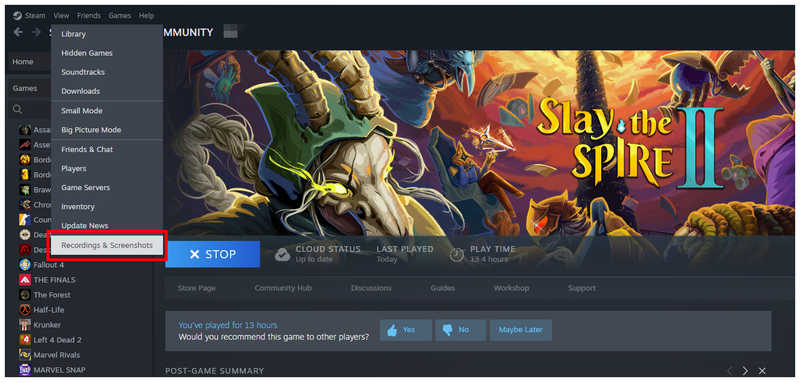
In the View dropdown menu, select Recordings and Screenshots.
After selecting the option, you will have access to the screenshots you took on Steam.
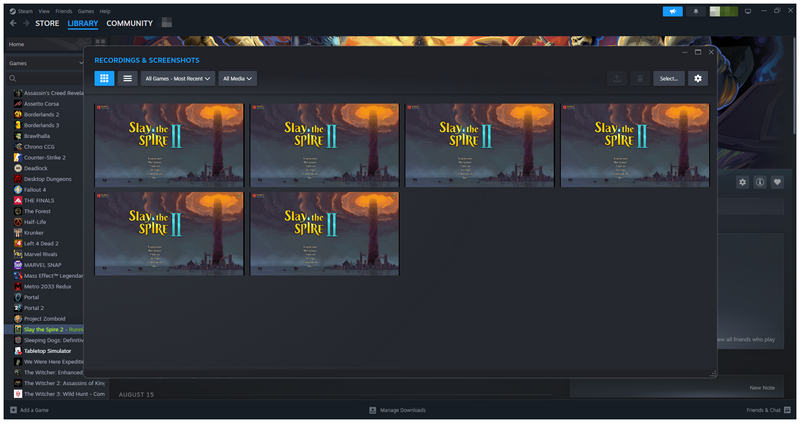
For an easier time learning how to open the Steam screenshots folder, you can use the files in the Recording and Screenshots setting to go to the save location of Steam. Simply right-click on the folder and select the Show on disk option. As its name suggests, you can also find videos that are recorded on Steam in this menu.
Method 2. Locate Steam Screenshot Folder Manually
Open your file manager, then navigate to C:Program Files (x86)Steam to access the Steam folder where your files are saved.
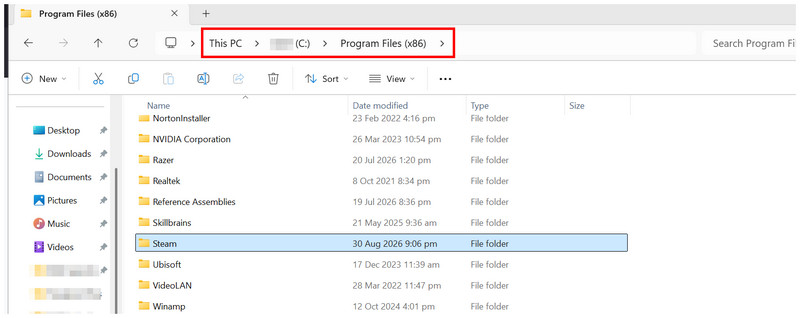
In the Steam folder, follow this path: userdata
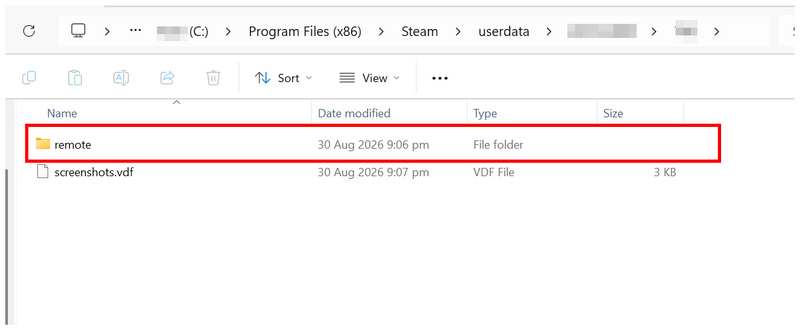
Finally, select the application code in your remote folder and select the screenshots folder
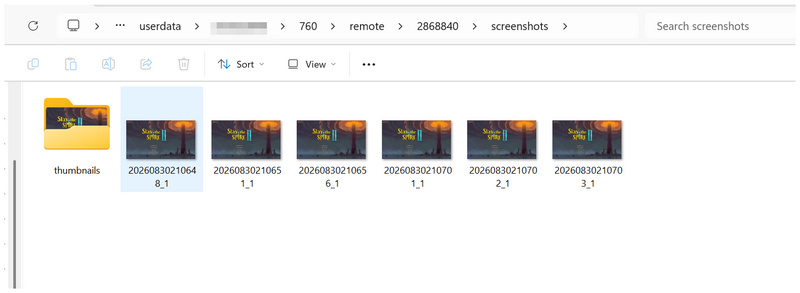
If you plan to locate the Steam screenshots manually, simply follow this guide, which shows the default Steam screenshot folder in your device’s local files.
Part 3. A Table of Steam Screenshot Folder Locations by Operating System
Since Steam is a multi-platform software platform, we have provided a table below showing the default save paths for Steam screenshots across three operating systems. Fortunately, once you locate the Steam folder, the screenshot folder path will be identical across different OSes.
| Windows | C:\Program Files (x86)\Steam\userdata\[Your SteamID]\760\remote\[AppID]\screenshots\ |
| macOS | ~/Library/Application Support/Steam/userdata/[SteamID]/760/remote/[AppID]/screenshots/ |
| Linux | ~/.local/share/Steam/userdata/[SteamID]/760/remote/[AppID]/screenshots/ |
Part 4. How to Change Steam Screenshot Settings
If you want to edit the settings for capturing your Steam screenshots. You also have an option to edit a few specific settings on how the screen capture function of Steam will work.
To learn how to access these basic screenshot settings, read our guide below.
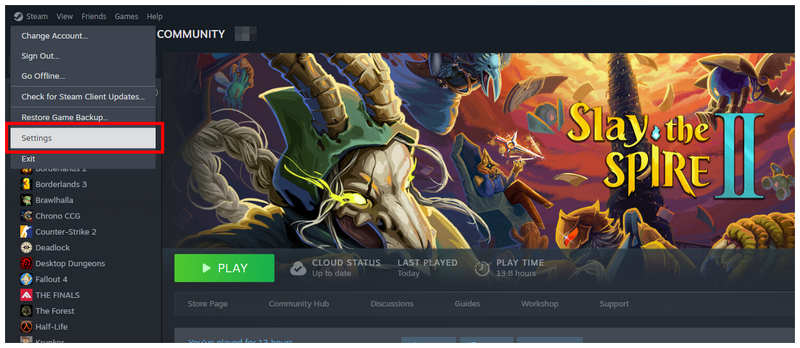
Open the app client, select the Steam button, then click Settings.
In Steam Settings, go to In-Game. Then scroll down to find the Screenshot settings. Among the settings, use the On/Off Toggles on each option based on your preference.
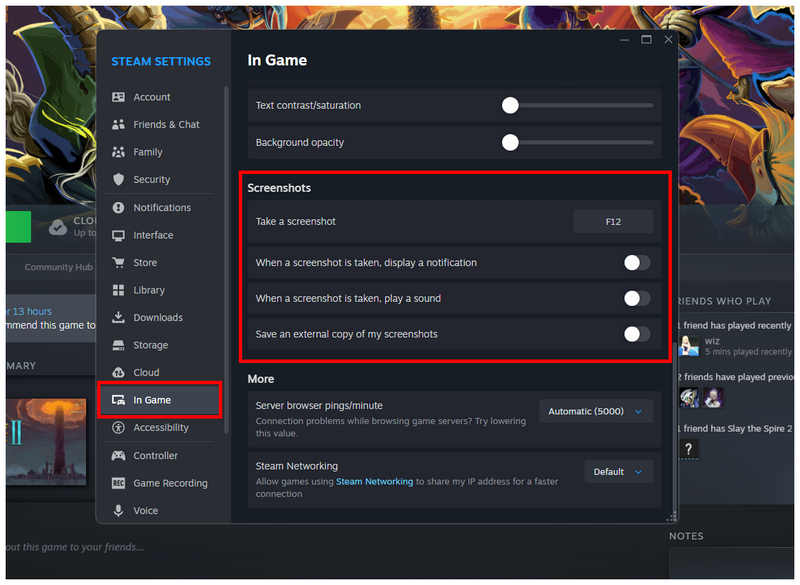
If you want to create an external folder to save an additional copy of your screenshots, simply toggle the external screenshot option.
Part 5. Why Can’t I Find My Steam Screenshots
To avoid having a hard time finding your Steam screenshot folder, the easiest option is to go to Steam’s Recordings & Screenshots folder. Right-click any screenshot and select the Show on disk option to open the Steam screenshots save folder.
Part 6. How to Take Better Steam Game Screenshots
Since Steam’s screenshot function is limited to full-screen mode, using an alternative program that offers more flexible screen capture options is a better way to take Steam game screenshots. In this case, we strongly recommend using the screen capture feature in ArkThinker Screen Recorder.
What makes this program a direct upgrade over common screenshot tools is its built-in annotation feature, available once your screenshots are captured. As such, you can easily mark your gameplay with shapes, callouts, and lines to make gameplay tutorials and walkthroughs easier to produce.
To learn more about the program, make sure to read its key features as a screenshot tool. Do not forget to download it to make it easier to learn to use the program.
Main Features:
- • Built-in annotation tools after screen capture.
- • Customizable save destination folder upon taking a screenshot.
- • Pin-to-screen function to use screenshots as digital sticky notes.
- • Offers more screenshot options than Steam, which is limited to full screen.
- • Equipped with six screen recording modes, including a dedicated Game Recorder.
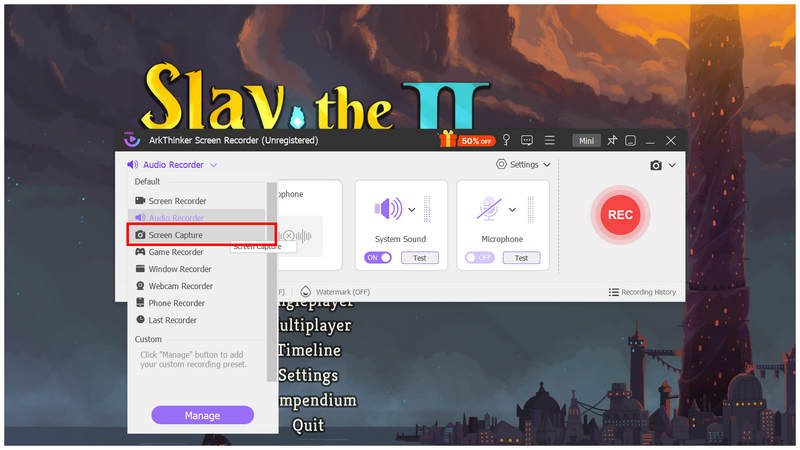
Open ArkThinker Screen Recorder and the Steam game you want to take a screenshot of. Then, open the ArkThinker menu over the Steam game and select Screen Capture under the recording mode dropdown menu.
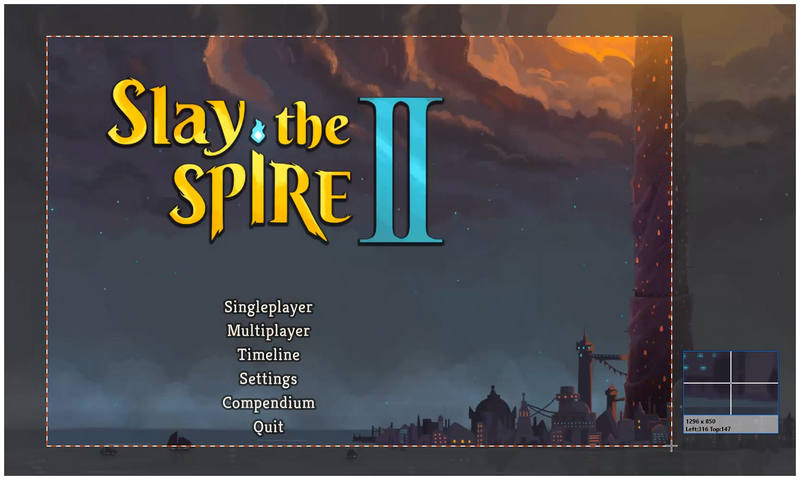
After choosing the Screen Capture mode, your cursor can now be used as the Screenshot Tool. Click and drag it to select the region of the screen you want to take a screenshot of.
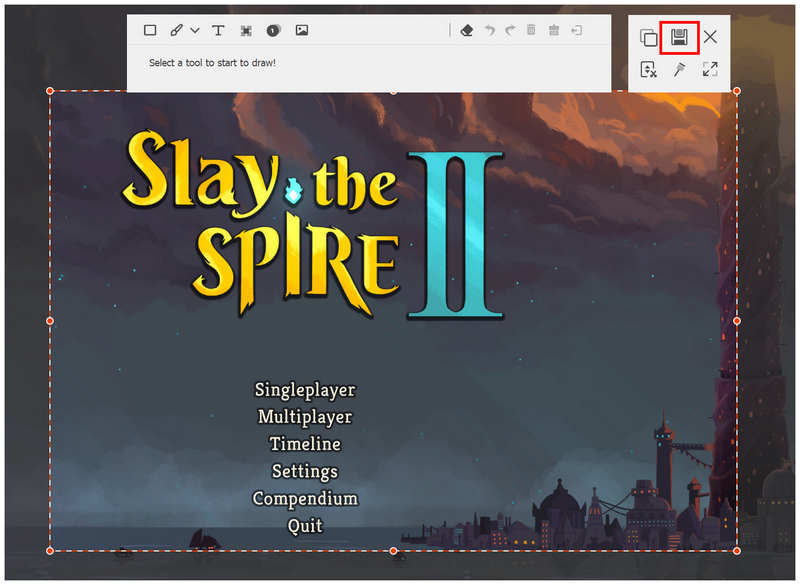
Once the portion of the screen has been captured, select the Save button of ArkThinker Screen Recorder.
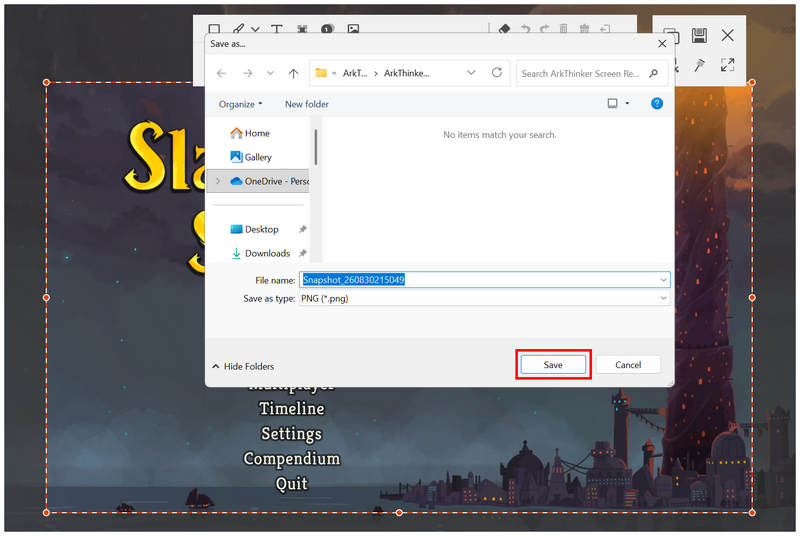
The app will then give you access to where you want to save your screenshot. Click on Save once you have set the destination folder to confirm.
Although designed as a screen recorder program, ArkThinker Screen Recorder’s Screen Capture feature can serve as an alternative to Steam screenshots or Windows’ basic Print Screen function.
Part 7. FAQs About Steam Screenshots Folder
Can you change the Steam screenshot folder ?
Yes, you can. However, you will only create an external folder. This folder is where the copies of screenshot images are saved.
Does the Snipping Tool work with Steam games?
Yes, it does. The built-in Windows screenshot option is compatible with Steam. It is the most accessible option for PC gamers.
Is it hard to locate the Steam screenshot folder?
Yes, it may be. If you manually find the screenshot folder, you will have a hard time since Steam folders are numbered. However, you can easily locate it by showing the screenshot disk location on Steam.
Is it safe and legal to take Steam game screenshots?
Yes, it is. There will be no legal issues when taking screenshots on Steam. Feel free to take high-quality gaming photos.
Are Steam screenshots raw in quality?
No, they are not. Screenshots from Steam are compressed JPG files. They are not a 1:1 copy.
Conclusion
Now that we have provided a full guide to locating the Steam screenshot folder, we hope this article will help with your file management needs. However, if you want a more straightforward solution for capturing gaming images, we suggest using ArkThinker Screen Recorder, which also offers a game recorder upgrade.
What do you think of this post? Click to rate this post.
Excellent
Rating: 4.9 / 5 (based on 559 votes)


