


How to Compress a Video in Shotcut With 2 Built-in Options
Among desktop-based video editing tools, Shotcut is one of the few reliable choices for freeware programs. The software offers reliable video editing tools, basic conversion options, and limited advanced editing options, which are typically only available in paid video editing programs. Among the advanced functions in the tool, this article focuses on helping our readers learn how to reduce video size in Shotcut using two built-in options available in the program. Unfortunately, these methods are unconventional, but they are effective if your primary concern is reducing file size. As an alternative, we also featured a program that offers a more direct and easier video compression option compared to Shotcut.

- GUIDE LIST
- Part 1. How to Compress a Video in Shotcut
- Part 2. Best Alternative to Shotcut for Compressing Video
- Part 3. FAQs About Compressing Video in Shotcut
Part 1. How to Compress a Video in Shotcut
If you want to learn how to use Shotcut for video compression , there are two options in the program that you can use. However, be aware that these are unconventional video or MP4 compression solutions. Nevertheless, both lowering the video quality and trimming the video length will result in a smaller file size, although this is not a direct result of compression per se.
To learn how to apply these adjustments, please read our guides below.
Lower the Quality Percentage for a Smaller Video Size
Open Shotcut and then import the video you want to edit. Then, click on Export.
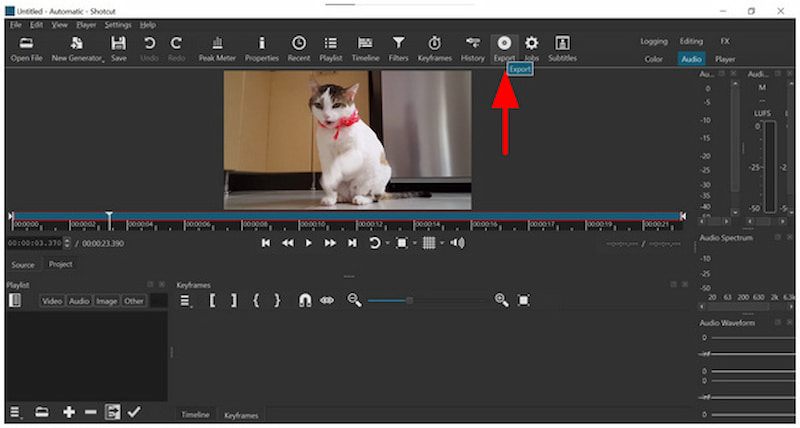
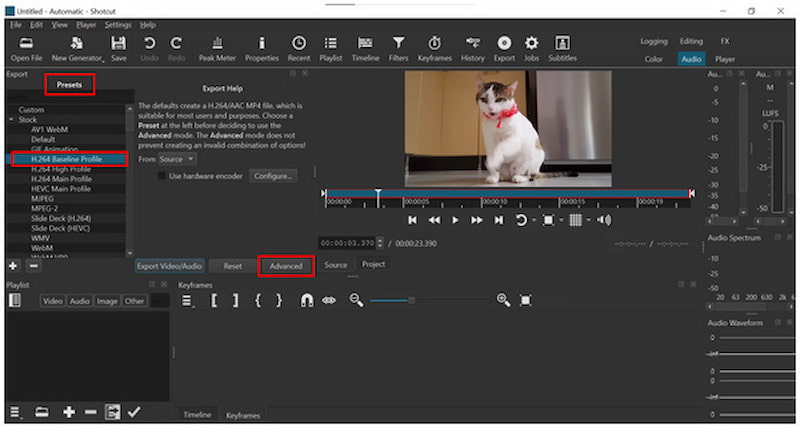
After clicking on Export, the Exporting Presets available in Shotcut will open. Among them, the H.264 Baseline Profile is a good option. Then, click on Advanced.
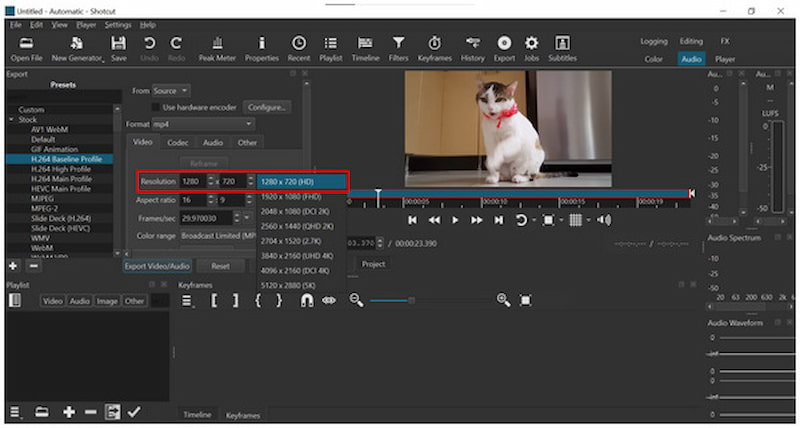
In the advanced settings of the exporting preset, click on Resolution, then select the smallest resolution that is still sufficient for your needs.
Then, click on Codec. For a stronger compression rate, lower the value beside Quality to a value lower than 55%. However, be aware that setting the rate lower than 55% will result in a significant reduction in quality. Then, click on Export Video/Audio to proceed with the export.
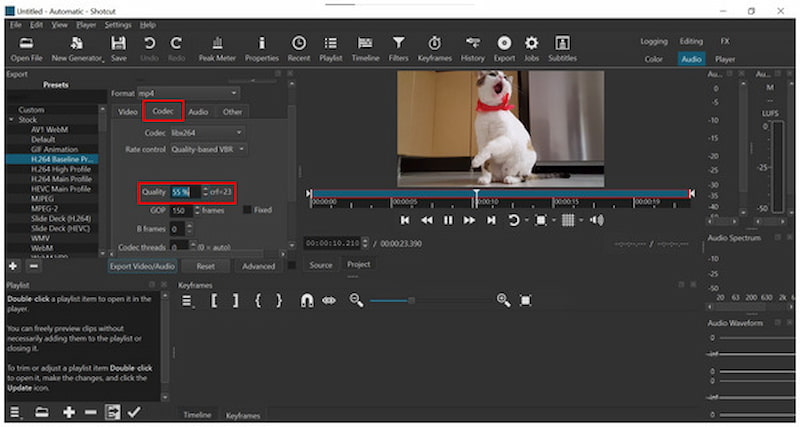
Although it gets the job done, it aggressively lowers the video quality of your file. This will significantly impact the usage of your video, as you may no longer use it for purposes that demand higher quality.
Trim the Video to Get a Smaller File Size
Open Shotcut and then hover your cursor to the End of your video timeline. Click and hold that section.
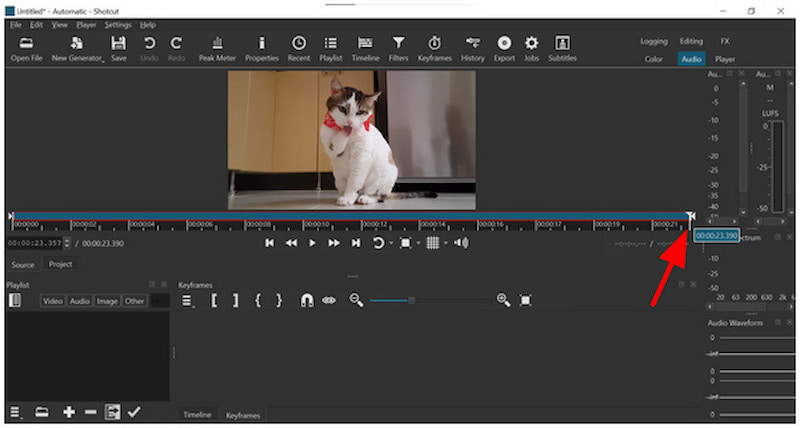
While holding the end section of the timeline, click and drag your cursor to the part of the video you want to trim. For more accurate trimming, you may edit the Time Value on the lower left portion of the timeline.
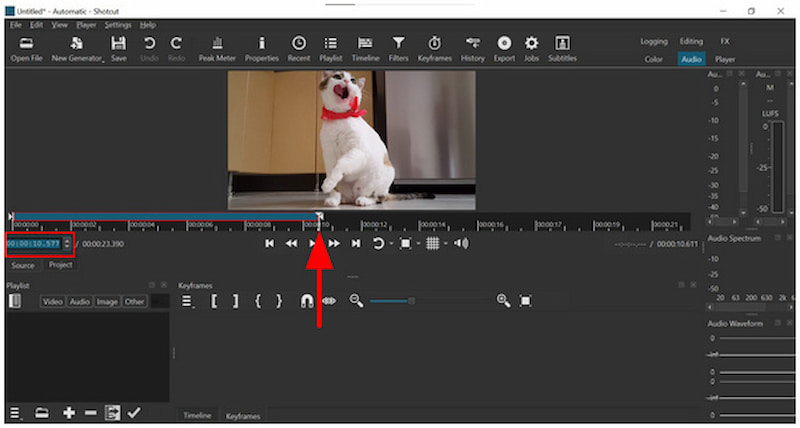
Once the video trimming is complete, click Export, select a Preset, and then click on Export Video/Audio to begin producing the trimmed video.
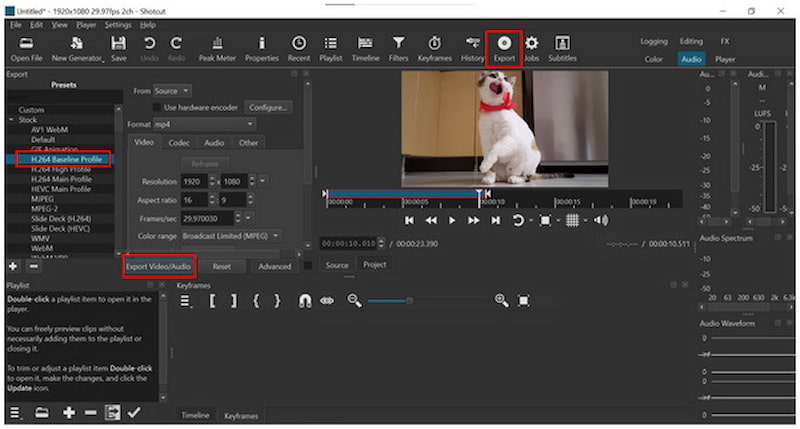
When it comes to a drastic file size reduction solution, nothing beats trimming your video’s duration. Although it may yield results, the payoff of removing a portion of your video might be too expensive.
Part 2. Best Alternative to Shotcut for Compressing Video
Despite video compression being available in Shotcut through unconventional means, file size reduction should not involve lowering resolution, reducing quality, or cutting content. To avoid these compromises, it is still a better choice to use an exclusive multimedia editing tool that offers video compression, such as ArkThinker Video Converter Ultimate.
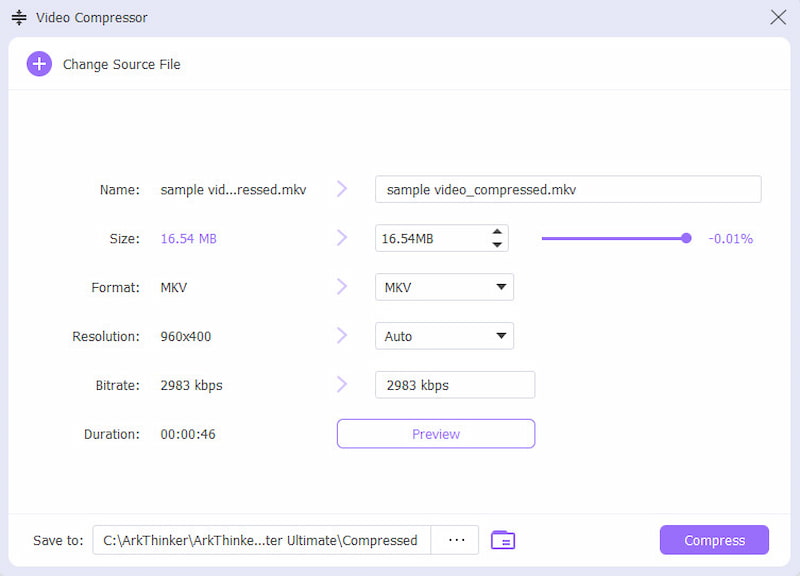
With the help of its dedicated Video Compressor tool, the software offers file compression solutions that can be applied using a beginner-friendly slider tool. Together with its compression slider, you can also manually adjust the file’s format, resolution, and bitrate.
For experienced editors, these options are beneficial additions, as they allow for specific adjustments to reduce file size. Instead of sacrificing both the resolution and general quality of your videos, you can use ArkThinker Video Converter Ultimate to avoid this major trade-off.
To learn more about using this practical multimedia editor, make sure to read its main features below.
Main Features:
- Beginner-friendly video compressor tool that can compress videos to a specific size.
- Offers format conversion, which can improve the compression rate of videos.
- GPU-accelerated video adjustments are applied faster than VLC Media Player.
- Percentage-based compression for controlled file size reduction.
- Preserves the original quality of compressed videos.
Open ArkThinker Video Converter Ultimate, then go to the Toolbox option. Then, click on the Video Compressor tool.
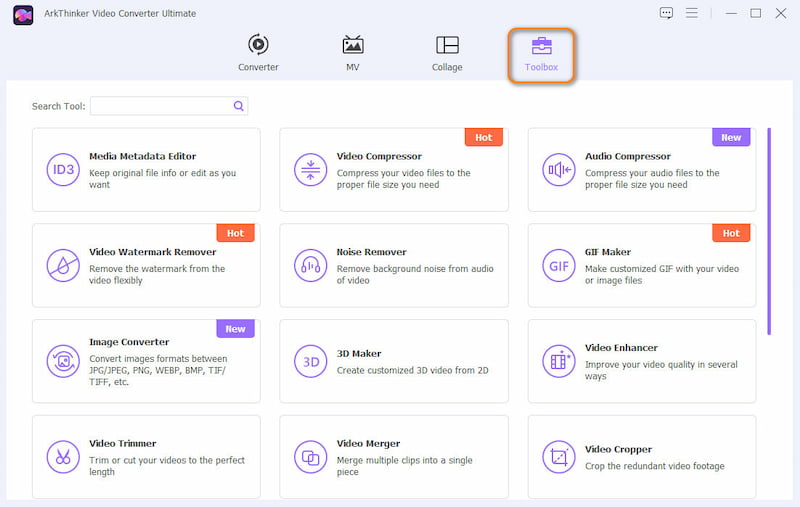
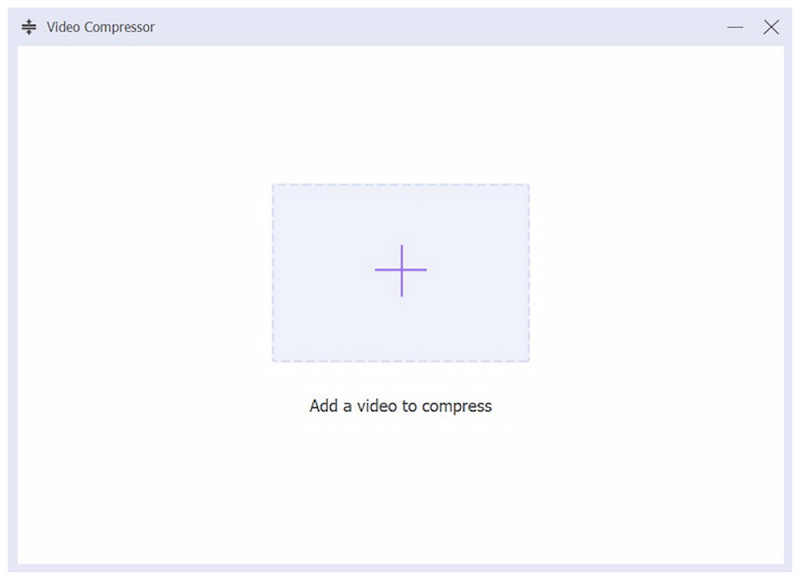
After clicking on the Video Compressor, select Add File from the import pop-up menu that appears.
With the video imported into the tool, you can now process your file using the Compression Slider to achieve an accurate compression rate. For manual editing, you can also change the Format, Resolution, and Bitrate of the program. Click Compress to initiate the file size reduction process.
Once your video has been compressed using ArkThinker Video Converter Ultimate, you can ensure that it will have a significantly smaller file size while still having a quality close to the original. This is a significant factor for users with storage concerns who are unwilling to compromise their viewing experience.
Part 3. FAQs About Compressing Video in Shotcut
Is it hard to compress videos in Shotcut?
Yes, it is. Since there are no compression options in Shotcut, video size reduction alternatives built into the tool are technical to use. This is especially true for the quality reduction option.
Can I compress video in Shotcut?
Technically, yes. Although traditional compression is not available in Shotcut, the tool offers options to reduce file size. However, they are far from being efficient and practical.
What is the best codec for creating a video with a smaller file size?
The H.264 option works the best. This codec option offers the best balance between quality and file size compression. Some of the popular formats using this codec are MP4, which are usually designed for file sharing on messaging apps, making it perfect for Discord video compression.
Should I use Shotcut as a video editor?
Yes, you may. Shotcut is a good video editor. This is highly impressive as the program is completely free to use.
Is Shotcut available for mobile devices?
No, it is not. Shotcut is only available for desktop operating systems. Fortunately, it is available for Windows, macOS, and Linux operating systems.
Conclusion
Now that we have provided the best options for compressing videos in Shotcut, we hope you will be able to achieve effective file size reduction with the software, despite its unconventional approach. If you want a solution that is both more efficient and easier to use, be sure to opt for ArkThinker Video Converter Ultimate, which can be downloaded using the link below.
What do you think of this post? Click to rate this post.
Excellent
Rating: 4.9 / 5 (based on 508 votes)


