


How to Trim M4A Files Online and in Desktop Software in 2026
Trimming audio files has numerous uses today, as they are an excellent choice for entertainment or as cues for specific notifications. Today, modifying audio files is a key skill for adding your personal touches to your phone’s notifications or for making podcast consumption easier offline. One of the most practical options for editing audio for personal needs is trimming; as such, this article will feature a detailed guide to trimming M4A files for specific uses, such as ringtones, podcasts, or short clips for editing projects.

- GUIDE LIST
- Part 1. Why People Trim M4A Files
- Part 2. How to Trim M4A Online
- Part 3. Trim M4A on Windows and Mac
- Part 4. FAQs About Trimming M4A
Part 1. Why People Trim M4A Files
Before proceeding to the tutorials on using the programs for M4A trimming, let us first discuss why trimming M4A files is necessary. Simply put, cutting M4As is not an essential step to make your audio easier to consume. However, trimming their duration is necessary if you want to use the audio file for specific uses. For example, editing audio files for personal use as alarms or to create editing assets. Moreover, video trimming is simply an essential media editing skill that all multimedia practitioners should learn how to use.
Part 2. How to Trim M4A Online
Best For: Online audio trimming without setup or installation.
We will start this article by featuring the most reliable tool for trimming M4A files online: ArkThinker Online Video Cutter. Although labeled as a video cutter tool, this software natively supports audio files as input and output formats. As such, the software makes a great case for being a practical choice for trimming audio.
In addition to the program not requiring any installation or setup, the online tool is very easy to use, letting you trim audio or video with simple sliders. This significantly simplifies the steps for editing multimedia files, making the process extremely simple.
To learn why ArkThinker Online Video Cutter is a good choice, read its pros and cons below.
- Beginner-friendly video and audio trimmer tool.
- Easy-to-use duration trimming sliders.
- Optional advanced settings for manual media quality editing.
- It has a file size limit of 100MB.
- Not available for offline trimming of audio or video.
For a quick guide on using the tool, make sure to read our three-step guide below.
Go to ArkThinker Free Video Cutter Online’s website. Then click on the Start Trimming Video button to import the M4A file you want to cut.

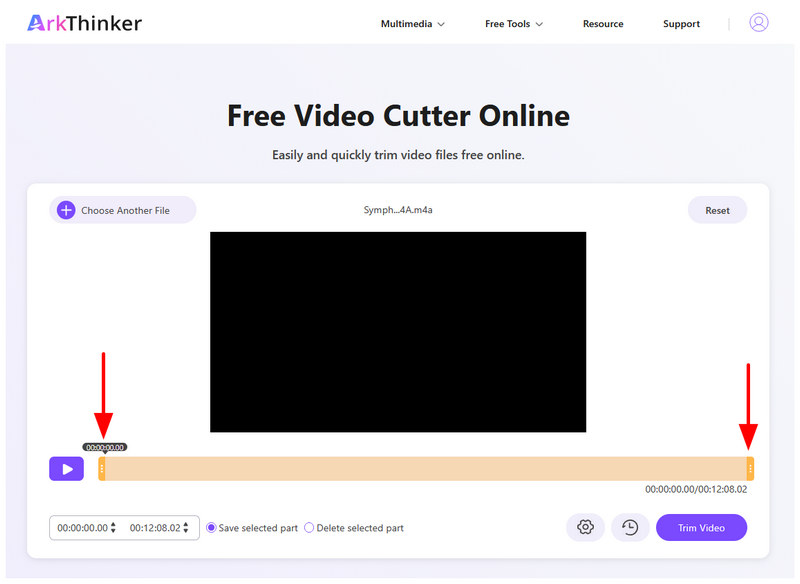
Once the audio file is uploaded, you can adjust the Slider Bars at each end to trim the audio. Make sure to play the audio to preview how the trimming adjustment is applied.
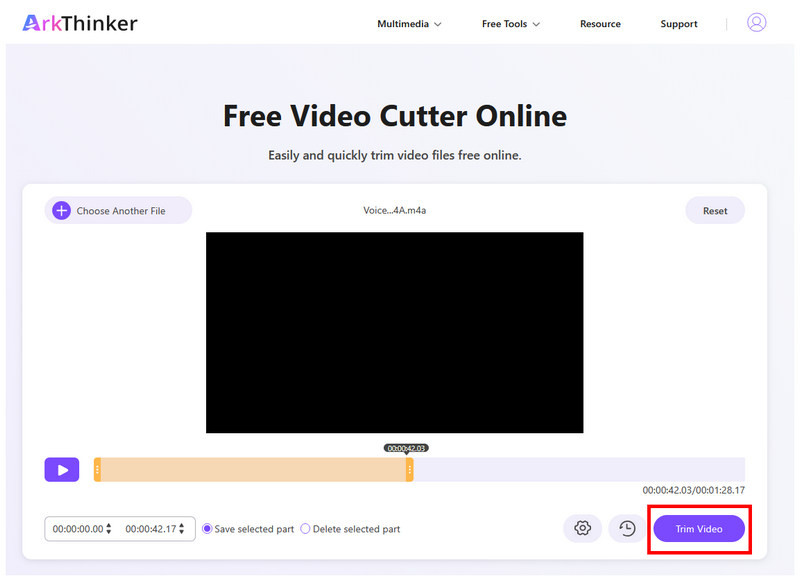
After applying the correct trimming adjustment to your audio, click Trim Video to apply it. Simply download the file after the trimming is applied to save the cut M4A audio to your device.
Now that we have discussed the best program for online audio cutting, we hope you can move forward managing your own audio files on your local storage without worrying about the intricacies of traditional editors.
Part 3. Trim M4A on Windows and Mac
Audacity
Best For: Precise M4A trimming for removing specific parts and audio sections.
Moving forward with a desktop-based solution, we will now feature the Audacity audio editor. If you are an experienced multimedia user or you have enough skills to apply basic media editing. This software may suit your needs; as such, it is a good option for users who want to learn how to trim M4A files on Windows.
Although Audacity is slightly harder to use, it is an advisable option for users who want more precision when trimming audio files. This is because the software is built exclusively for open-source audio editing.
To learn more about Audacity, make sure to read its strengths and limitations below. As well as our quick guide on using the program.
- Made exclusively as an audio editing software.
- Open-source freeware program.
- Made for advanced audio editing.
- Importing M4A files may require advanced plug-ins.
- Not made for beginners.
- Interface design may look too technical for amateurs.
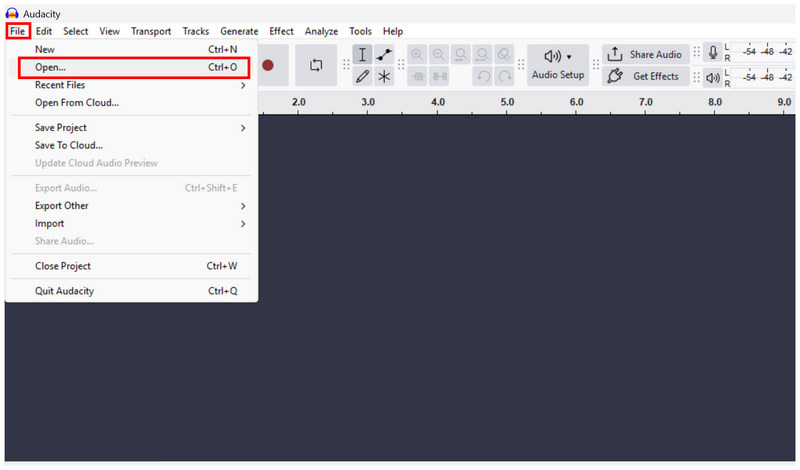
Open Audacity and select File > Open to import the M4A file you want to trim.
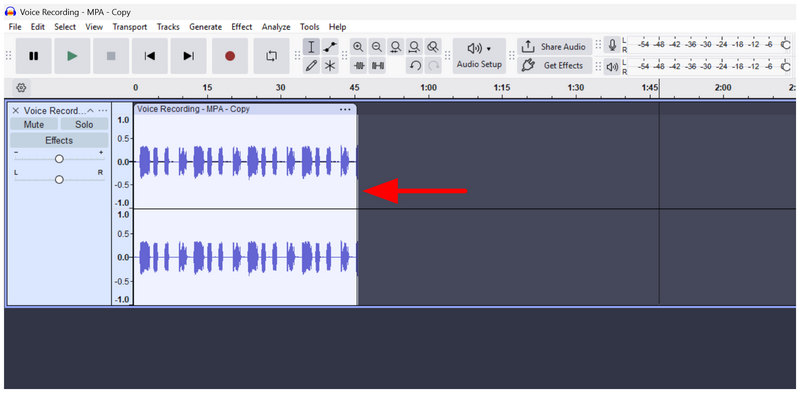
Once the M4A file is uploaded, move your mouse to the start or end portion of your video file. Then click and drag it to trim your audio file.
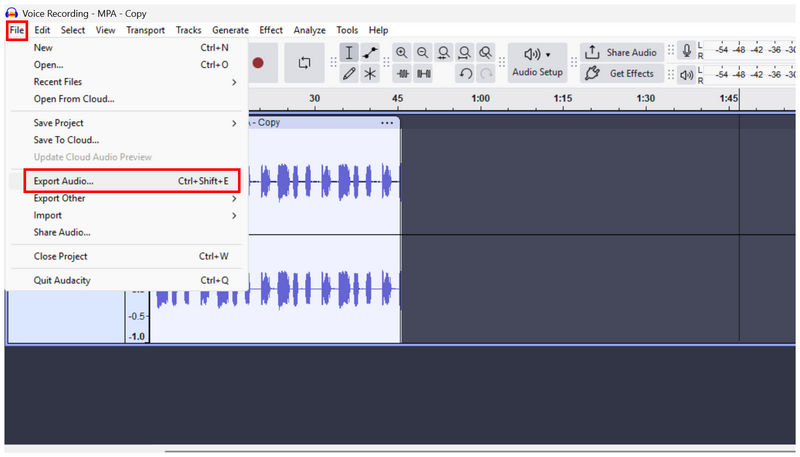
When you are satisfied with the trimming adjustment you applied in the M4A, click on File, then select Export Audio to produce the trimmed audio file.
Now that we have featured the program designed for exclusive audio editing, we suggest using the software only for intermediate users, since it is not designed with accessibility in mind and is better suited to experienced editors. This makes searching for an Audacity alternative a good choice to look for a tool easier to use.
Aiseesoft Video Converter Ultimate
Best For: 2-in-1 solution for M4A trimming and file format conversion.
Since Audacity is a desktop program designed for intermediate to experienced media practitioners, the next program we will feature in this article is Aiseesoft Video Converter Ultimate. Another reliable program for trimming M4A files on Windows or Mac computers.
Aiseesoft, an all-in-one multimedia software suite, includes a media cutter tool for audio editing. As such, the software is a good choice for users looking to cut audio or video files as simply as possible.
If Audacity may be too technical for your skill level, an alternative multimedia option is Aiseesoft Video Converter Ultimate, which is more accessible.
- Natively supports M4A audio files.
- Equipped with audio trimming and editing functions.
- Designed as an all-in-one multimedia tool.
- Aggressive pop-up ads when using the free version.
- Its free version has limited features for advanced trimming.
- May be an overkill option if you only need simple audio trimming.
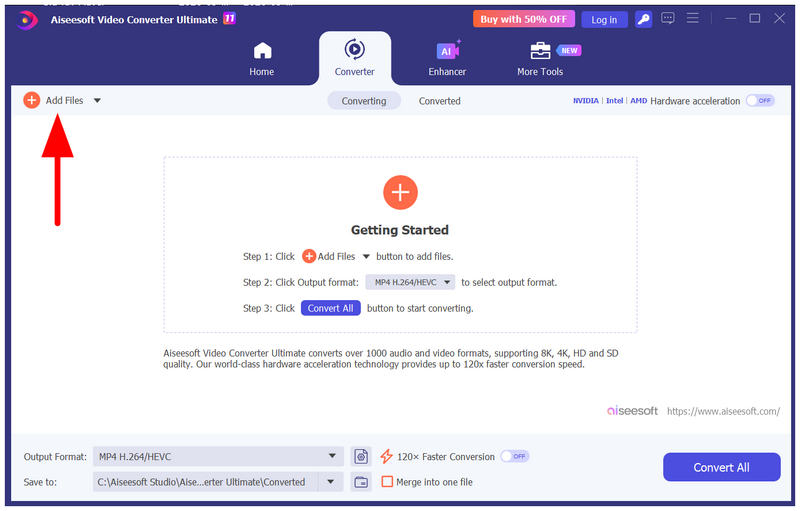
Open Aiseesoft Video Converter Ultimate and select Add Files in the Converter tab to import your M4A file for trimming.
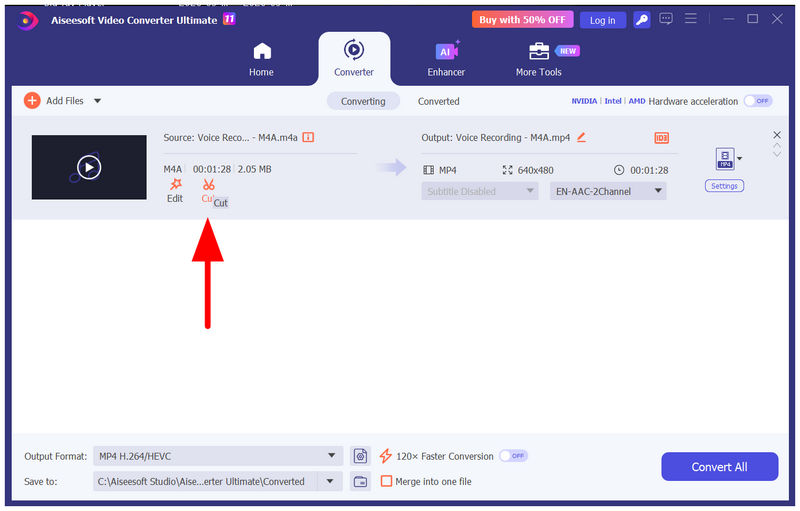
Once the software opens, click the Cut option to access the media trimmer tool.
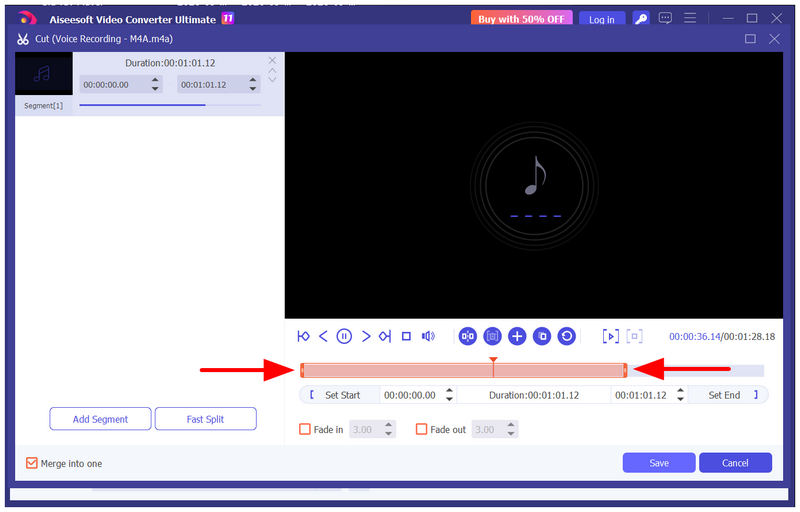
In the media Cut menu, use the Slider Tools in the start and end sections of the audio file to trim the audio. Click on Save to confirm your adjustments.
After selecting Save, you will be redirected back to the Converter section. There, click on Convert All to produce the trimmed M4A audio file.
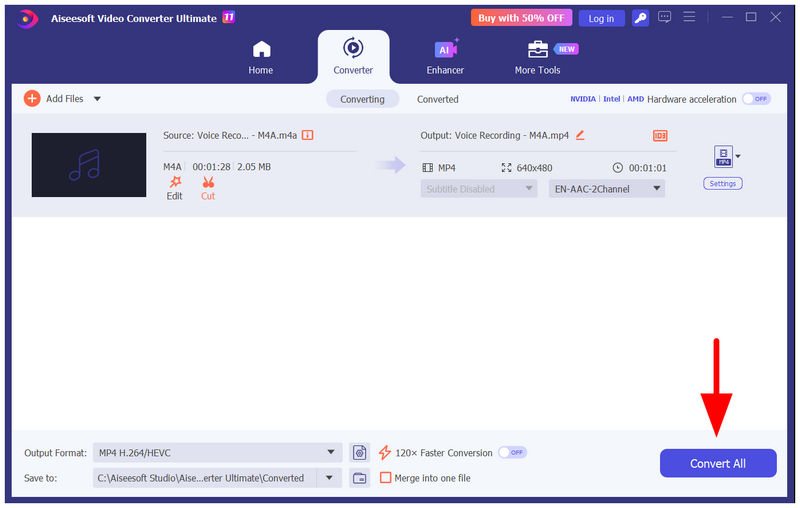
For basic editing adjustments, the free version of Aiseesoft Video Converter Ultimate may be enough for you. However, if you are going to trim audio files longer than 5 minutes, you have to use their paid version, which can be availed in-app and comes with aggressive pop-up ads.
Part 4. FAQs About Trimming M4A
How to trim an M4A file on Mac ?
You can use all the programs on this list to trim M4A files on Mac. On one hand, ArkThinker Online Video Cutter is available on browsers. Meanwhile, both Audacity and Aiseesoft software are available for Mac.
Are audio trimmer tools hard to use?
No, they are not. Dedicated audio trimmers are usually easy to use. However, using traditional audio editors may be intimidating for beginners.
Should I use audio editing tools for basic trimming?
Yes, you can. Audio editing tools are totally fine for basic trimming. However, their interface is usually intimidating, making them hard to use for beginners.
Is it hard to use dedicated editor software?
Yes, it usually is. Most dedicated media editors are made with intermediate and professional users in mind. As such, their interface may be overwhelming for beginners.
Are online tools reliable?
Yes, they are. Online tools are a good option for accessible media editing. A good example of a website with good online options is ArkThinker.
Conclusion
With three reliable ways to trim M4A now discussed for browsers, Windows, and macOS, we hope that you can now reliably adjust and edit your M4A media files. Among the programs on this list, we highly recommend the online tool ArkThinker Online Video Cutter, as it excels in accessibility, ease of use, and overall practicality.
What do you think of this post? Click to rate this post.
Excellent
Rating: 4.9 / 5 (based on 609 votes)


