


How to Crop Video with FFmpeg Using Command and GUI Tools
Do you want to learn how to use FFmpeg as a video-editing tool for basic adjustments, such as cropping and resizing? You are in luck, as this article provides two solutions for using FFmpeg to crop videos, whether for single files or in batches. For beginner video editors, we will also provide a solid web-based tool as a perfect alternative.

- GUIDE LIST
- Part 1. How to Crop Video with FFmpeg Command Line
- Part 2. How to Crop Video Using a GUI Tool Based on FFmpeg
- Part 3. Best Alternative to FFmpeg to Crop Video Free Online
- Part 4. FAQs About Cropping Videos in FFmpeg
Part 1. How to Crop Video with FFmpeg Command Line
Primarily designed for advanced users with extensive command-line knowledge, using FFmpeg to crop and scale video is one of the most efficient options for watermark-free video cropping. whether for single file or batch editing. Using the proper command lines is a prerequisite, and entering the wrong command can mess up not only your file but also your system.
Proceed with extreme caution when using FFmpeg. We recommend using this option only for advanced users, since there are more user-friendly editors for adjusting media files without relying on FFmpeg to crop video aspect ratios or make other adjustments.
In our tutorial below, we use the placeholder names input.mp4 and output.mp4. When handling your own files, make sure to rename the input to the name of the video you want to crop, then rename the output to the name you want the video to be saved.
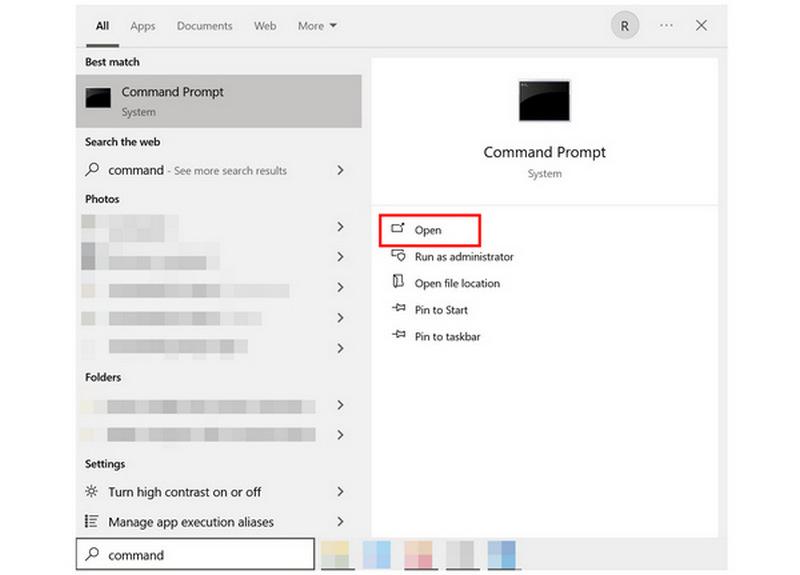
Select the Search Bar on your taskbar. Then, search for Command Prompt, select it, and click on Open.
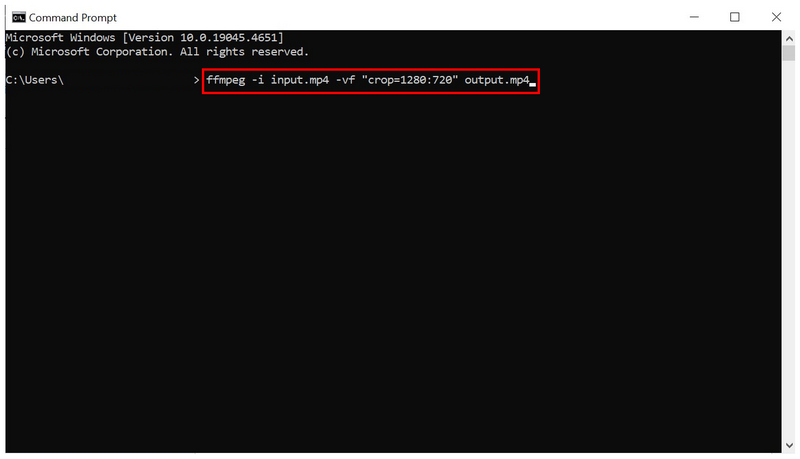
Based on how you want to crop your video, write these command lines in the Command Prompt.
Center Crop: ffmpeg -i input.mp4 -vf "crop=1280:720" output.mp4
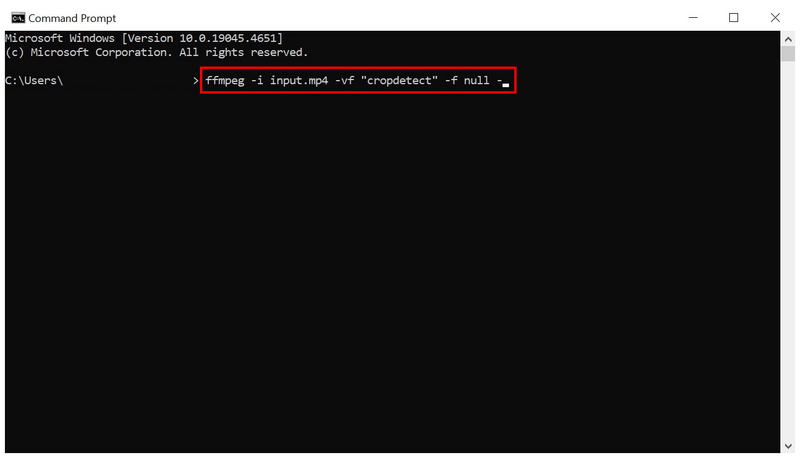
Remove Black Bars: ffmpeg -i input.mp4 -vf "cropdetect" -f null -
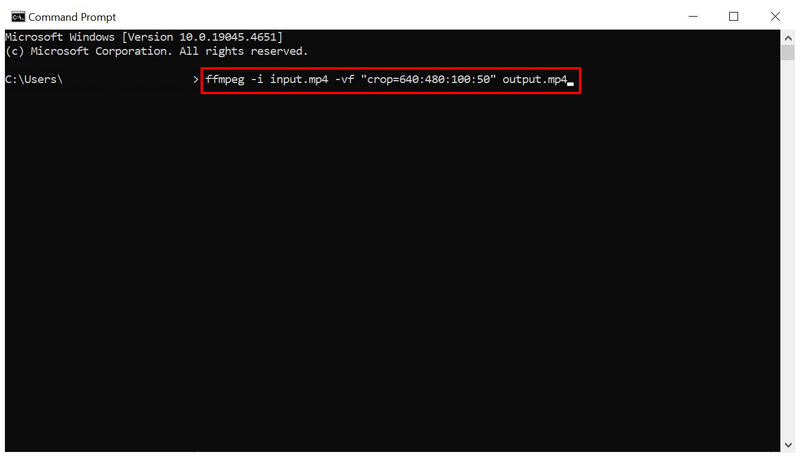
Manual Coordinate Cropping: ffmpeg -i input.mp4 -vf "crop=640:480:100:50" output.mp4
The center crop option is the easiest to use, since it automatically applies the crop command from the center of the video when no coordinates are provided. The removal of the black bar is also a direct effect.
For experienced editors, manual coordinate cropping is the most advanced, since it requires specifying the width, height, and the x- and y-coordinates where you want the video to be cropped. In the example command above, 640 = width, 480 = height, 100 = horizontal axis (X), and 50 = vertical axis (Y).
Based on the crop command that you used, look for the output file you have created to preview the video. To learn whether FFmpeg cropped the video frame based on your preferred adjustment.
If you are an intermediate video editor, we recommend using only the basic center-crop command in FFmpeg. However, if you are a complete amateur, we don’t recommend using FFmpeg commands as your primary tool for video cropping. There are options that are way simpler to use, such as the programs we will discuss in the next sections of the article.
Part 2. How to Crop Video Using a GUI Tool Based on FFmpeg
If you’ve heard great things about FFmpeg for cropping video and adjusting aspect ratio, but using the command line is too steep for your current skills, you can use tools with a graphical user interface (GUI) that use FFmpeg as their engine. A good example is Shutter Encoder.
What could be considered an in-between of traditional editors and command-based editing, Shutter Encoder offers an actual main menu with labeled buttons for basic editing. Unfortunately, it is far from being intuitive and easy to use. It may be easier than FFmpeg commands, but it is harder to use than regular video editing tools.
To learn how to use it, please read our guide below.
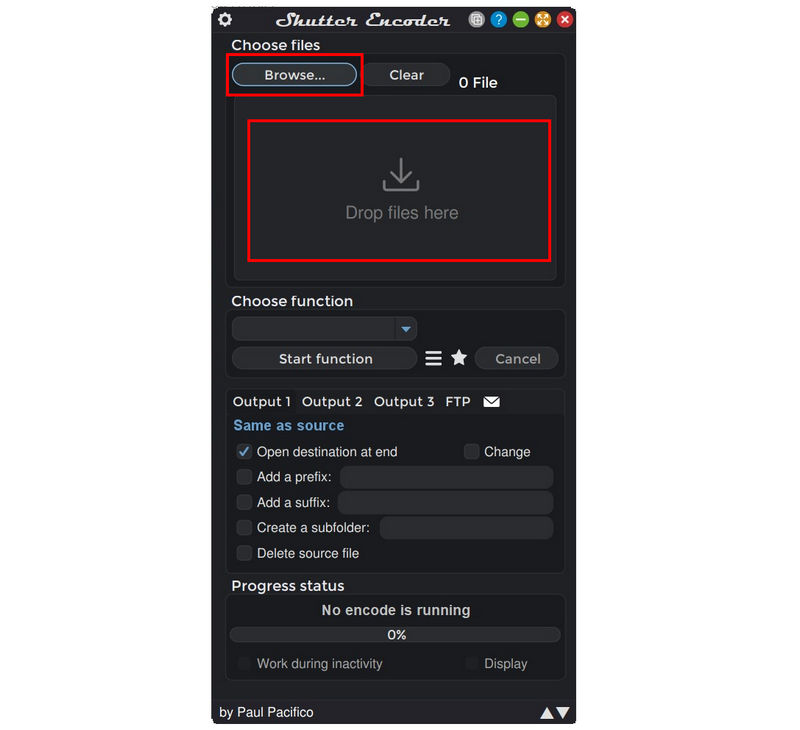
Open Shutter Encoder, then add your video by clicking Browse or by dragging and dropping your file into the Import Box.
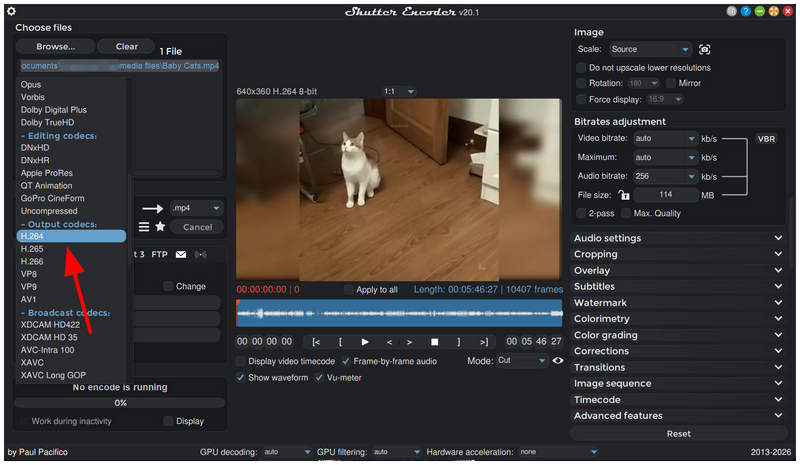
Once your file has been added, click Choose Function and select any option that can edit the video. We recommend selecting H.264 under Output Codecs.
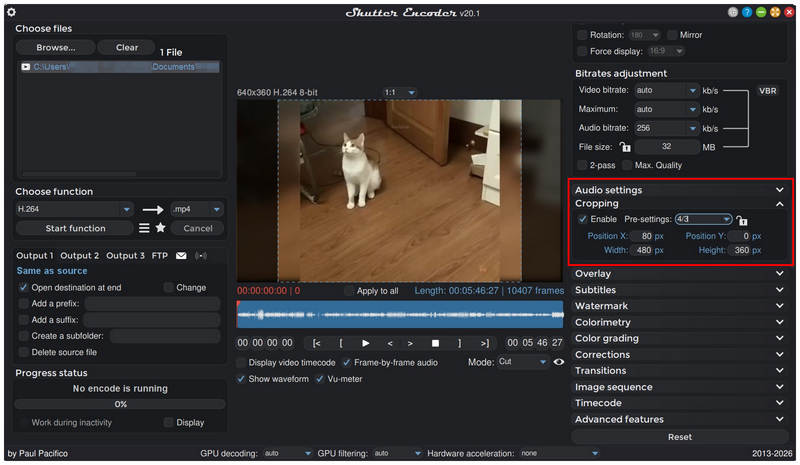
In the main editing interface, select Cropping. Then, click the Enable checkbox. You can then select Pre-settings to choose pre-built cropping options or manually adjust the Position X, Position Y, Width, and Height of your cropping option.
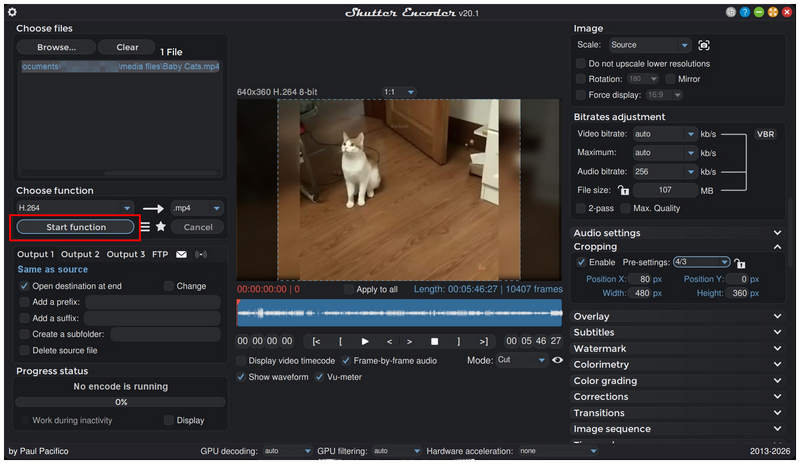
Once your Cropping settings are applied, click Start Function to begin producing the video, now cropped to your selected settings.
Since the Shutter Encoder serves as a bare-bones video editor, it works perfectly as an alternative to FFmpeg for cropping video length. This makes it a good option for intermediate editors.
Part 3. Best Alternative to FFmpeg to Crop Video Free Online
Since both FFmpeg and FFmpeg-based programs are inherently complex and designed for experienced users, the need for a beginner-friendly alternative when selecting video cropping options is hard to ignore. Fortunately, web-based solutions such as ArkThinker Free Video Cropper Online offers a clear advantage over FFmpeg-based options in terms of simplicity and accessibility.
Unlike FFmpeg and Shutter Encoder, no installation or initial setup is required if you plan to use this option. Its interface is also designed to be as intuitive and clear as possible, while offering three video cropping options. However, it has a small setback: a file size limitation of 50MB to 100MB.
With that in mind, ArkThinker Free Video Cropper Online holds a strong case for users who prefer function, simplicity, and a practical solution. To learn how to use the program, please read our three-step guide below.
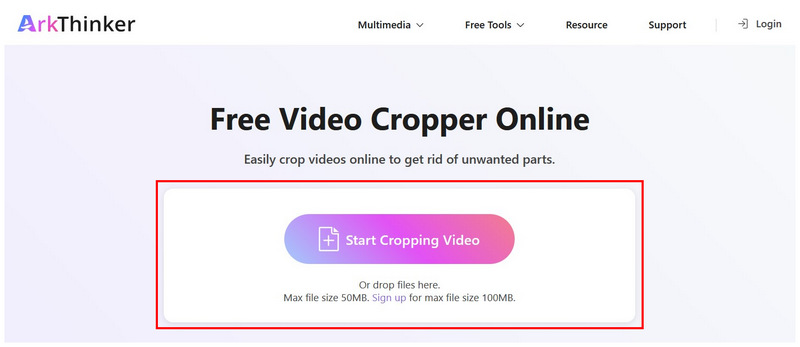
Go to ArkThinker Free Video Cropper Online’s website, then select the Start Cropping Video button or drag-and-drop files in the Upload Box. Wait for the upload process to finish.
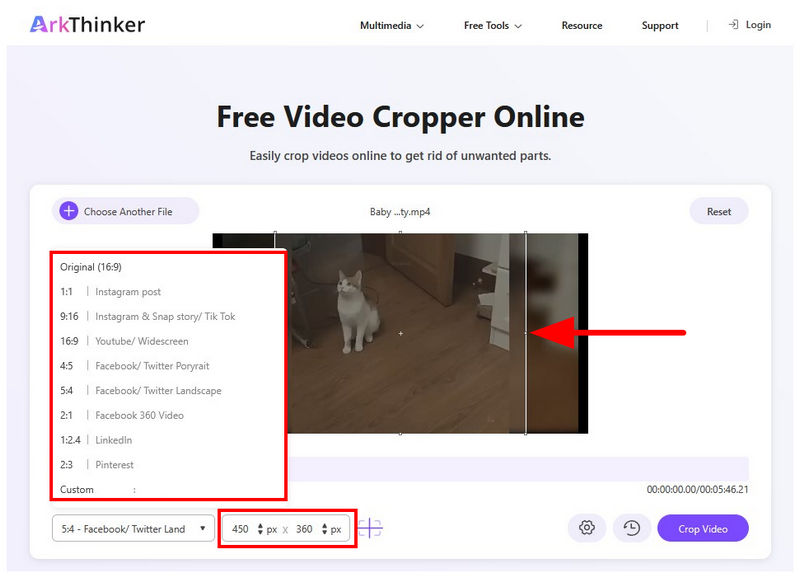
With the video file added to the online tool, you have three cropping options. You may use Presets, edit the Resolution Value, or adjust the Cropping Box in the video preview.
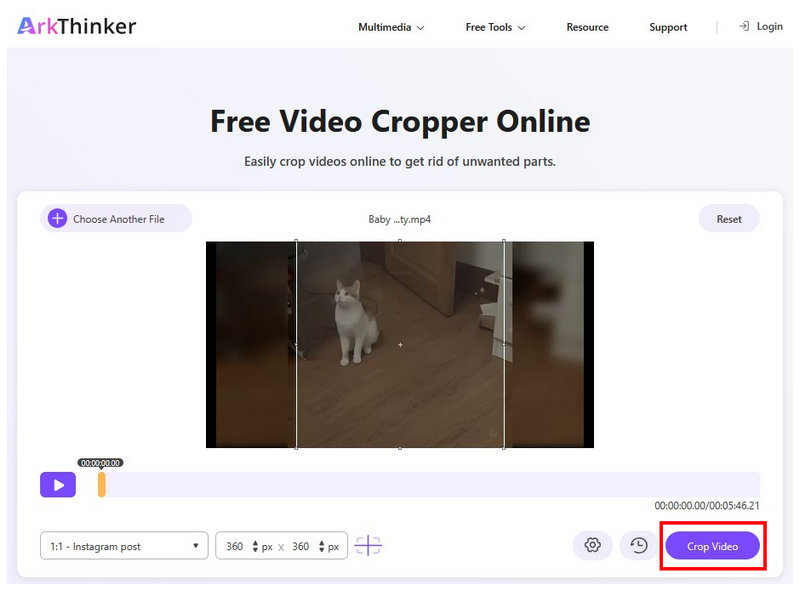
With the cropping option set, click Crop Video to apply the crop adjustment to your uploaded video file.
Among the options in this article, the web-based solution ArkThinker Free Video Cropper is by far the most beginner-friendly, in both accessibility and ease of use. With ArkThinker, you don’t have to learn complex command lines or install any software to begin cropping videos.
Part 4. FAQs About Cropping Videos in FFmpeg
Is FFmpeg beginner-friendly?
No, it is not. FFmpeg is hard and complex. It is advisable to use it only for users with sufficient command-line knowledge.
What are good FFmpeg-based tools?
FFmpeg is widely used as the engine for most open-source multimedia tools. Some of the most popular choices are HandBrake, Shutter Encoder, and Shotcut. For quick editing, Shutter Encoder is a good option.
Should I use Shutter Encoder for video editing?
Yes, you can. However, you will be limited to basic editing options. Its interface is also unique, which may make it intimidating for beginners.
Are web-based solutions reliable enough?
Yes, they are. Most web-based options are optimized for reliability. They are also safe to use for basic video editing. As such, web-based tools like ArkThinker Free Video Cropper Online should be among your best video cropping options.
Are web-based tools safe to use?
It depends on which web-based tool you will use. With that in mind, we recommend using ArkThinker online tools such as Video Cropper, Video Looper, Video Compressor, and more. These options are safe to use since they
Conclusion
Now that we have discussed some of the most popular options for cropping videos using FFmpeg, we hope this article has provided you with useful guidance for learning intermediate to advanced video cropping options. For complete beginners, we highly recommend starting with web-based tools first, such as ArkThinker Free Video Cropper Online.
Find More Solutions
2 Ways to Crop a Video Dimension in CapCut [2024 Guide] How Can You Apply Video Cropping in DaVinci Resolve Can You Crop A Video for Instagram and How to Apply It Best 4 Solutions for Cropping Your Videos on TikTok [Step-by-Step] How to Use Final Cut Pro to Crop Videos Is It Possible to Crop Your Video in PowerPoint & How to Do- Edit Video
- How to Make a Short Video Longer with 3 Different Methods
- Loop a Video on iPhone, iPad, Android Phone, and Computer
- Free Video Editing Software – 7 Best Free Video Editor Apps
- 3 TikTok Watermark Remover Apps to Remove TikTok Watermark
- Video Filter – How to Add and Put a Filter on a Video 2024
- How to Slow Down a Video and Make Slow Motion Video 2024
- Split Your Large Video File with 3 Best Movie Trimmers 2024
- How to Add Watermark to Video on Different Devices 2024
- 5 Best MP4 Compressors to Reduce the Video File Size 2024
- Detailed Guide on How to Slow Down a Video on Snapchat 2024


