


Loop Videos in After Effects in 3 Ways & Alternative Tool
Ever wanted to take your video looping to the next level, whether for video or motion graphics? You'll need to use After Effects, an Adobe professional software developed for creating motion graphics for digital media. This article will explore three methods for looping After Effects video : Expression, Time Remapping, and Interpreting Footage. As complicated as it sounds, we will make the step as user-friendly as possible by keeping it simple yet informative for an effective video looping in After Effects.
Furthermore, to complete the video looping experience in reading this guide, we also included an alternative method for looping a video using a web-based video looper tool, to accommodate users who find After Effects overwhelming for basic video looping needs. Thus, there’s no way for you to loop your video, as this article covers the use of a professional motion graphics tool and a simple yet functional web-based video looping tool.

- GUIDE LIST
- Part 1. How to Loop Video in After Effects
- Part 2. Best Alternatives to After Effects for Looping Videos
- Part 3. FAQs about Looping A Video in After Effects
Part 1. How to Loop Video in After Effects
The Expression Method
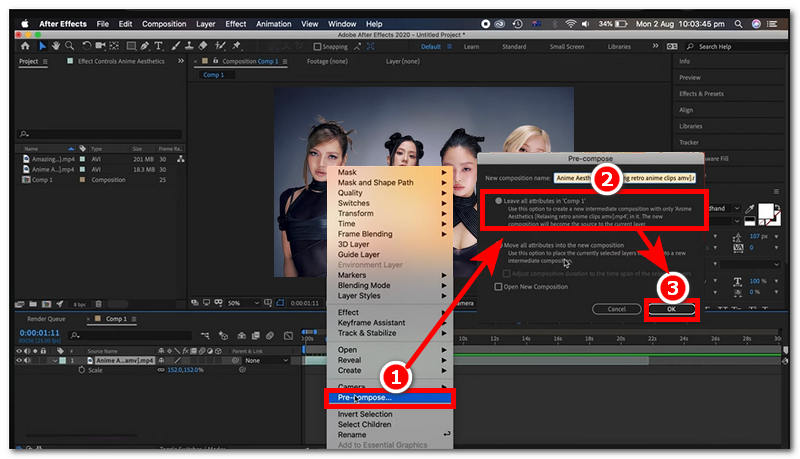
Load your video clips into the After Effects software. From there, select your video clip in the timeline track view and right-click, then select Pre-Compose and select Leave all attributes from the Pre-Compose setting, then click on OK to proceed.
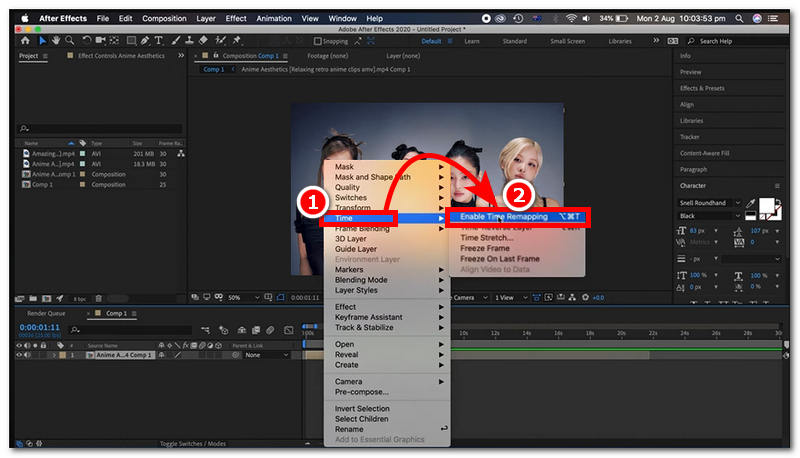
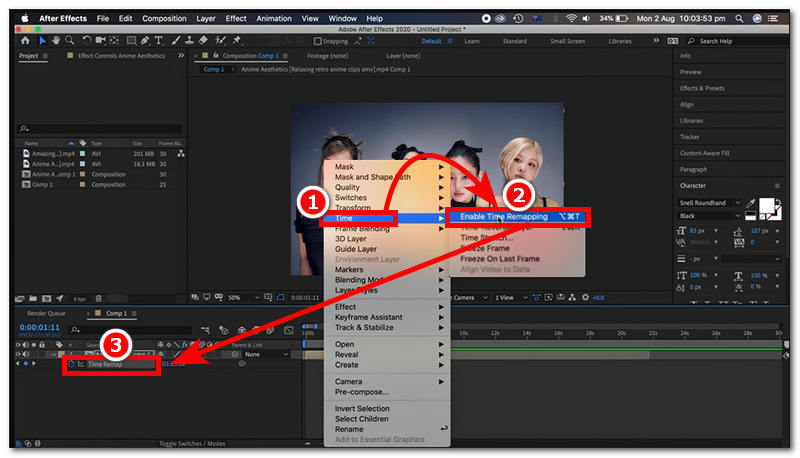
After that, right-click again, then select Time, and from there, click on Enable Time Remapping.
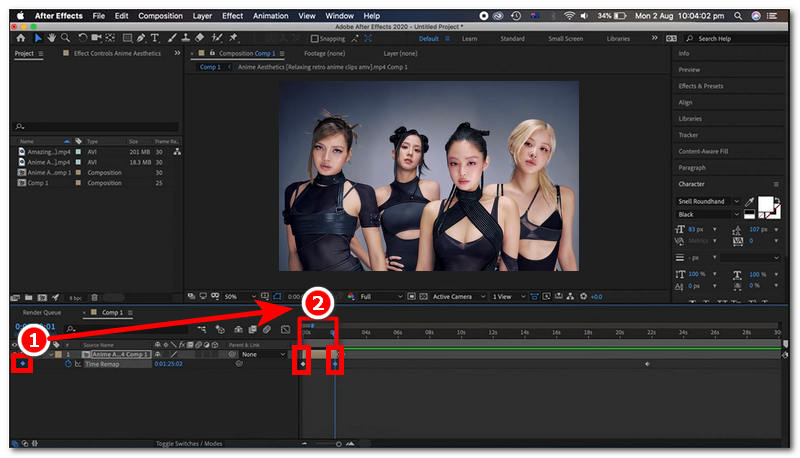
Locate and apply Keyframes to start and end parts of your video clips.
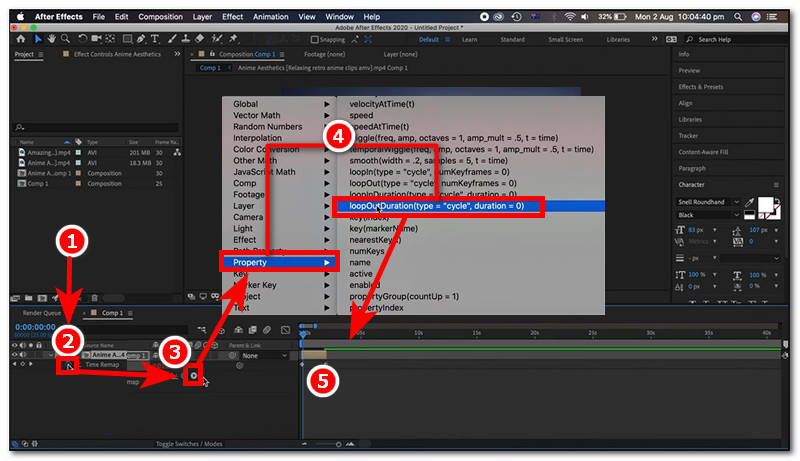
To add Expression, hold Alt (Windows) or Option (Mac), then click the Timer icon, then click the Play icon that appears after clicking the Timer button. After pressing the Play icon, click on the Property, then loopOut from there. You may simply drag your video clip file from left to right in the timeline track view to extend the duration of your video loop in After Effects.
Time Remapping Method
Import your video file into the Adobe After Effects timeline.
Once your video is in the timeline track view, click your video clip, then head over to the Composition Settings situated on the upper-left corner of your screen, and from there, change the duration of your video considering the times you want your video to loop.
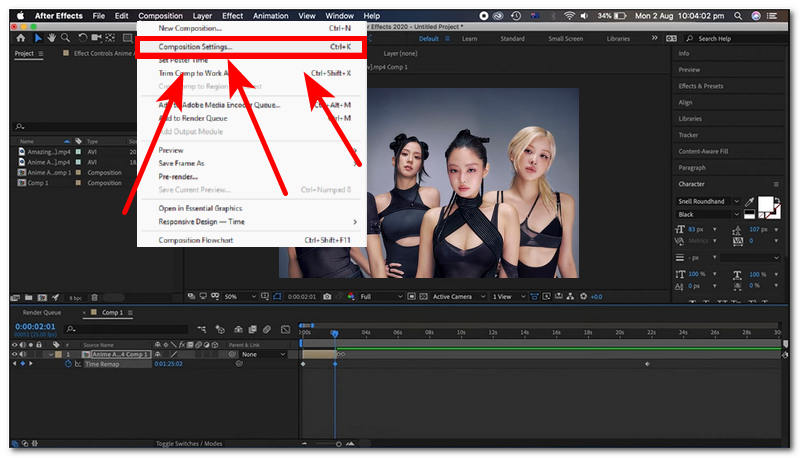
Click your video clip again, then right-click and select the Time > Enable Time Remapping. From there, a new option will appear below the layer. Hold Alt (Windows) or Option (Mac) and click the stopwatch icon in the Time Remap and add the Expression loopOut. After that, drag the end of your video clip to extend the length of your video loop.
Interpret Footage Method
Open your After Effects and from there create new Projects to import your video file you wish to loop in your After Effects program.
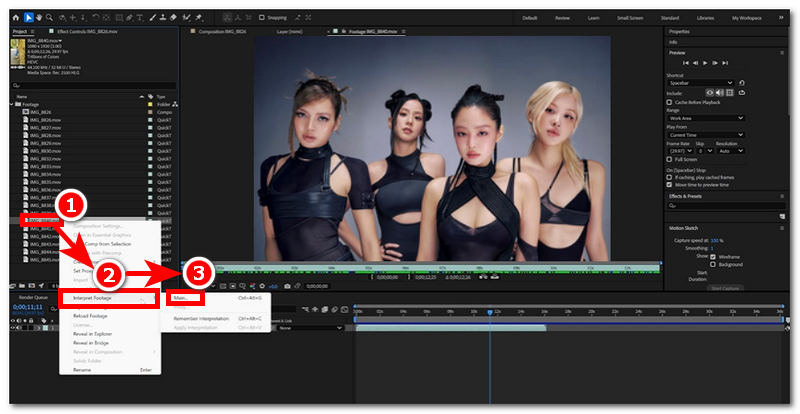
While browsing for your video file on the left side menu of the program, right-click on your video file and select Interpret Footage > Main.
The loop option is on the bottom part of the Main section option from the Other Options. You may type in the number of sets your video will loop in the composition and click OK once done.
Part 2. Best Alternatives to After Effects for Looping Videos
As After Effects is not a free software tool, it is a professional-grade graphic design tool; thus, not everyone may be familiar with using it for video looping, despite the step-by-step guide. A user with no After Effects experience may fail to loop their videos. Thus, that’s why this section offers the best alternative solution for those who doesn’t want to paid subscription for a software tool just for the sake of video looping needs as well as quite overwhelming to use as a novice by coming up of method to still allows user to loop their videos without all the hassle and by that we mean by using an web-based video looper tool.
ArkThinker Free Video Looper Online is a web-based video looping tool that surpasses After Effects' loop video clip capabilities in terms of convenience of use. While After Effects may offer tools and features for customization and control over video clip looping, what ArkThinker specialize is the convenient of easy to acces, no hassle of installation of software tools, and even overwhelming user-interaface as video looping should be an easy task ArkThinker is a go-to video looping tool when users are in dire need of fast processing and straight-up video looping tool.
How to use ArkThinker Free Video Looper Online
Open your preferred web browser and from there go to the ArkThinker Free Video Looper Online official website.
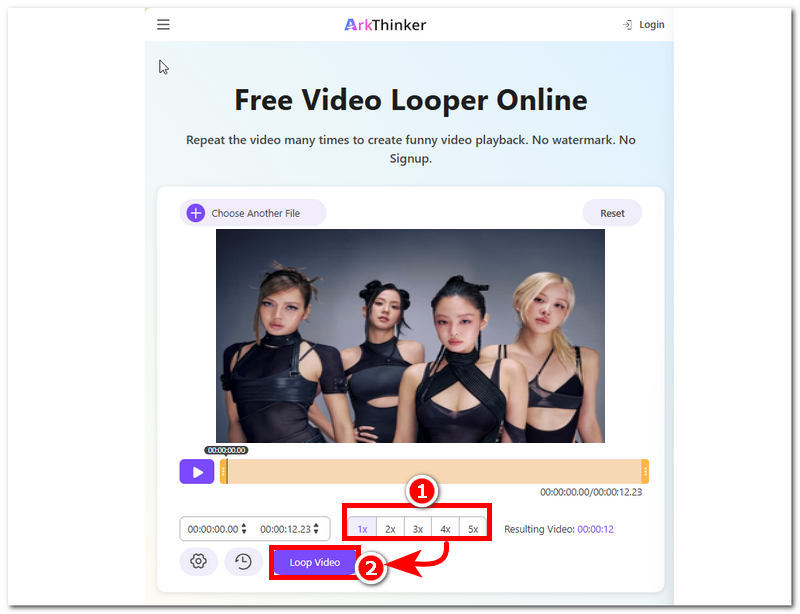
From ArkThinker’s webpage, you will immediately see a simple user interface, yet a very straightforward tool for video looping. At the center of the webpage is a button called Start Looping Video. Simply click on the button to upload the video clip you want to use as a video loop.
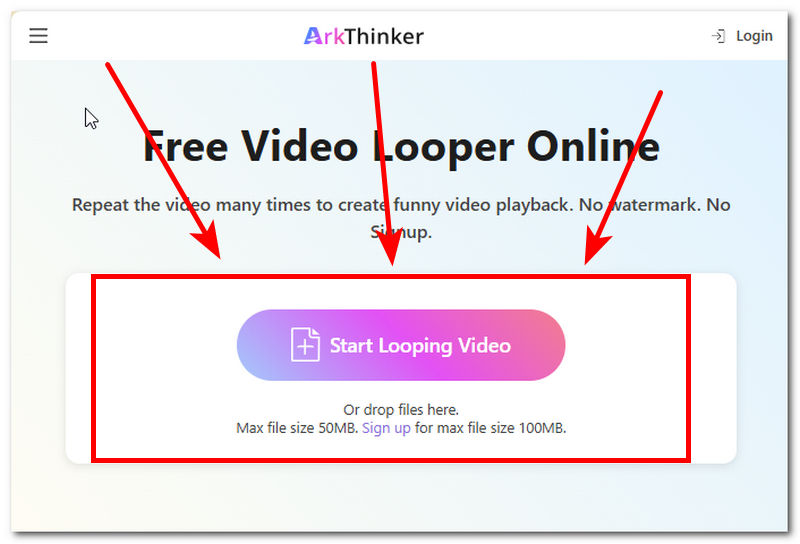
Once you select a video clip, the tool will start uploading it to the program, and once the upload is complete, you can select the number of loops you want for your video clip to characterize, then click the Loop Video button to start the process. Once done, your video will be saved as a looping video on your device.
Part 3. FAQs about Looping A Video in After Effects
What is Time Remapping in After Effects?
Time remapping in Adobe After Effects is a feature that allows users to control the timing of a video. It allows them to manipulate its speed, freeze-frame it, and even set video clips to loop through keyframes.
Can I loop only a specific part of a video?
Yes, you can loop a specific part by setting start and end keyframes, just like some AVI videos can be configured for repeated playback without extra tools. It is capable of simply setting start and end keyframes from the selected part of the video, making the loop play only the parts within those keyframes.
How do I make a seamless loop?
To achieve a seamless loop, ensure the start and end frames are similar, as in the continuous playback approach used in MKV video files, which preserve motion smoothly. This means that the start and end frames of the video clip should at least be similar to trick the eye into perceiving a continuous motion when it is looped in After Effects.
Conclusion
After Effects can really bring out the best video looping edit on video clips by having all kinds of features and tools, which alone is what makes the tool usable for professional use, which, for some,e is not ideal and wise, especially when one is only an occasional user of video looping tools. This article shows three different ways to use After Effects for video looping: the expression method, the time remapping method, and the interpret footage method. These methods have almost the same steps but differ in the loop they create for the video clips. While the steps provided in this article are somewhat straightforward, they are still not enough for novices. That’s why we also included ArkThinker’s video looping tool, which is much easier to use and straightforward, with no overwhelming features or complex tools.
What do you think of this post? Click to rate this post.
Excellent
Rating: 4.9 / 5 (based on 556 votes)


