


Loop Videos on iPhone Camera: Default and Online Tool Method
The iPhone Camera is among the mobile device features users have been eyeing, as it offers a unique quality that makes social media posts look ready. While the iPhone camera has been continuously developed to include various features over the years, is it possible to loop a video or photos using only an iPhone? Luckily, this article will delve into the possibility of how to loop videos on iPhone camera roll without using an application moreover while doing a default method to loop videos in iPhone is the focus of this article this article will also contain an extra method to easily loop your videos whether it is a stock image or videos or taken by an iPhone camera through a web-based video looper tool with complete and easy to follow steps to help user get start with their video looping needs.

- GUIDE LIST
- Part 1. How to Loop A Video on iPhone & iPad (Photos App)
- Part 2. How to Loop Video Online Free
- Part 3. FAQs about How to Loop Videos on iPhone Camera Roll
Part 1. How to Loop A Video on iPhone & iPad (Photos App)
This section will feature two default ways on how to make a video loop on iPhone camera roll easily without using an external or third-party software. To ensure that video looping can be done through the iPhone camera roll app. Thus, following the steps below will help you do it effectively.
The Live Photo Trick Method
Open your iPhone’s Photos App and from there locate or find a photo you recently took or previously took with the Live Camera feature On.
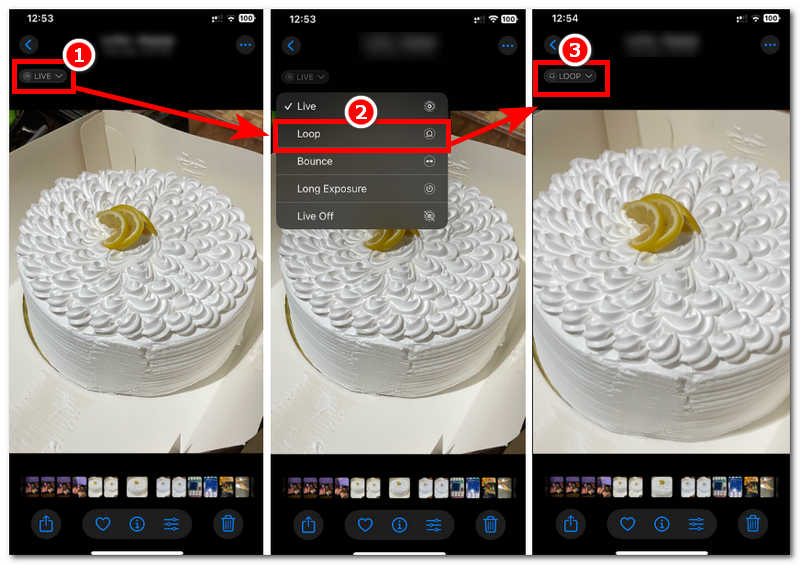
Once you have found the photo you want to loop using the Live Photo method, tap on the photo to view it, and from there, tap on the LIVE Photo icon located in the upper-left corner of your photos to access the Loop feature.
Tap on the Loop feature, and from there, you will see your Live Photo will continuously play. Thus, you successfully managed to turn your photo into a continuous loop image.
The Slideshow Workaround Method
Open your Photos App on your iPhone or iPad, and from there, find a video you have previously taken. Once you see a video from your Photos App, proceed to open the video to enlarge and preview it.
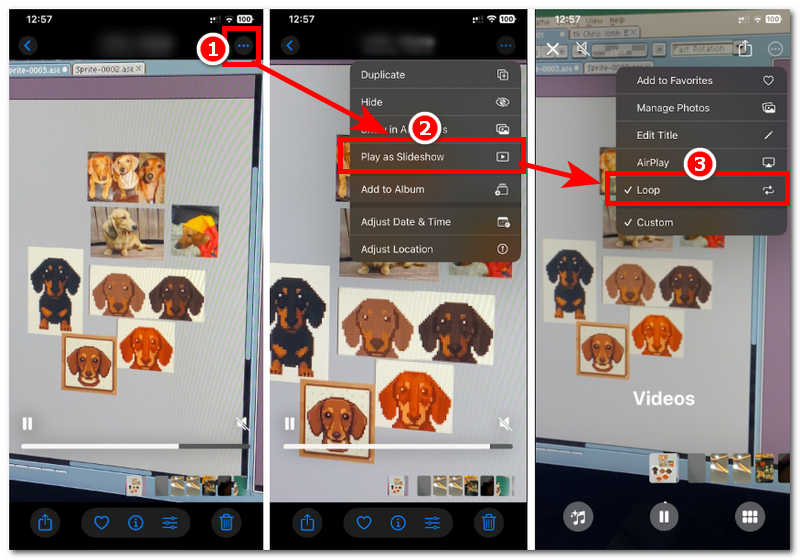
Situated in the upper-right corner of your video screen, tap the three-dotted icon to extend the video settings. From the extended video setting, tap on the Play as Slideshow.
After tapping the Play as Slideshow feature, your video will then be played as a slideshow. While your video plays as a Slideshow, tap on the three-dotted icon again situated on the upper-right corner of your video screen, and from there you will see the Loop function.
Tap on the Loop function. This will make your video in the slideshow play in a loop after it finishes playing. Thus, you managed to loop your video using only your Photos App on your iPhone.
Part 2. How to Loop Video Online Free
While looping a video and photo on an iPhone turns out to be a quick and easy way to do it, the only concern with it is that you can not have an actual copy of your file that is playing in a loop, as soon as you leave or exit the Photos App, your video will revert back to its original playback setting. To loop your video on your iPhone, you need to do the process each time, but that shouldn't always be necessary, right? Luckily, in this section, we will introduce you to a web-based tool that supports formats like AVI videos, allowing you to create a looped version of your video and ensuring you have a copy ready to play every time you want to loop a video. ArkThinker Free Video Looper Online is a free, web-based tool accessible on all devices, including iPhones and iPads. Thus, looping a video is as easy as the default method on iPhone, but ArkThinker offers an option to set the number of loops for a user's video.
Key Features
- • Faster video looper tool
- • Free and easy-to-use video looper tool.
- • Allows users to control the number of video loops.
- • Gives the user a downloadable video loop copy.
- • Create video loops with lossless video quality.
- • Safe and guaranteed to work on video files.
- • User can preview their loops before saving them.
- • There’s no watermark in the exported video loop file.
- • Supports a wide range of video file formats for looping.
How to use ArkThinker Free Video Looper Online
Using your device's web browser, go to the ArkThinker Free Video Looper Online official website to proceed.
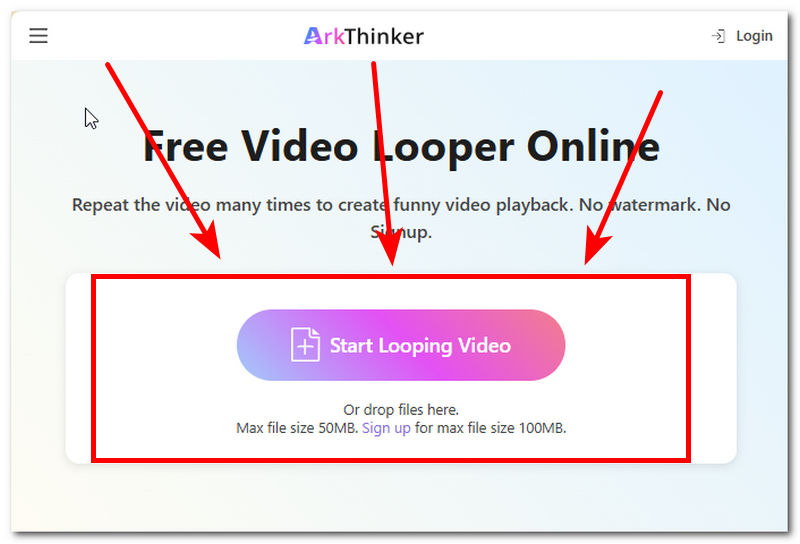
From the ArkThinker’s video looper webpage, load the video file you wish to video loop using the program by clicking on the Start Looping Video button. From there, the program will let you browse your folder for your video file, and once you have found your video file, simply select it to automatically load it in the video lopper program.
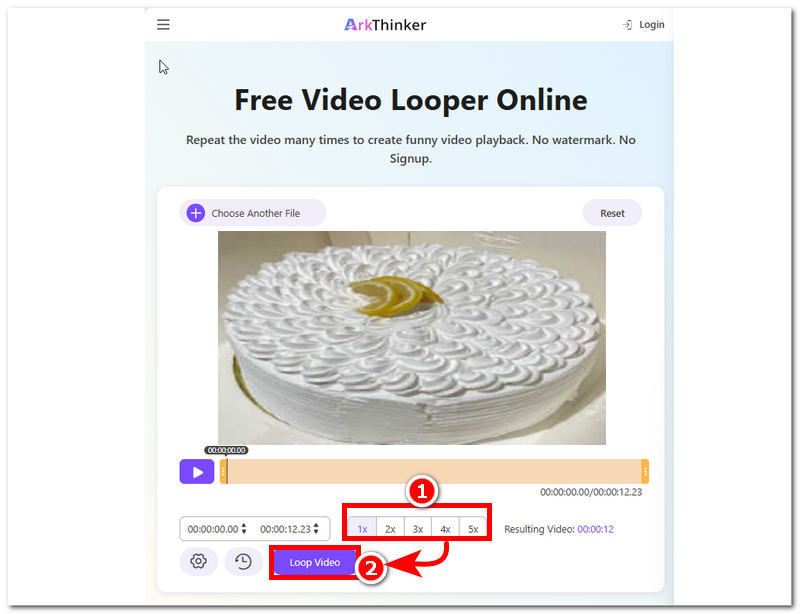
Once your video is loaded into the tool, you may want to customize the number of loops your video has in the bottom part of the program. Once you have decided the number of loops you want for your video, simply click on the Loop Video button to export your video to your device.
ArkThinker Free Video Looper Online is a free, web-based tool accessible on all devices and works perfectly with common formats like MP4 videos, so don’t hesitate to give it a try.
Part 3. FAQs about How to Loop Videos on iPhone Camera Roll
Can I loop a video directly in the iPhone Photos app?
No, the user can not directly loop a video in the iPhone Photos App because it doesn’t have a feature that allows the video to permanently have a copy of a loop version of the video; rather,r it just loops when previewing the video,o and once you exit the app, the video playback will return to normal.
How can I loop a video on my iPhone without downloading apps?
A user can loop a video on their iPhone using a web-based video looper tool like ArkThinker. As a web-based video looper, it works in any web browser with straightforward video looping features and does not require users to install an app before they can use it.
Will looping increase the video file size?
Yes, normally, looping a video will need the video clip to have multiple copies of itself to create a loop by continuously playing the video clip multiple times, and when this becomes the case for your video, looping it is expected to have a higher file size as it contains multiple video frames, making the video longer when exported.
Conclusion
This article has pondered the question: Can you loop a video in the iPhone camera roll? And upon searching for answers, this article has confirmed there are two ways to loop an image and video using only the iPhone’s Photos app. These default methods are through Live Photo and the Slideshow Method. However, as easy as it is to do one thing, the default method is a bit frustrating because it doesn’t allow users to export a loop video. That’s why this article also introduces a web-based tool, Video Looper, to give users the ease of video looping without installing an app, with an actual exported video loop copy they can access anytime.


