


4 Best Roblox Recorders for Gameplay Captures on PC and Mac
The rise in Roblox’s popularity among kids has made content creation for the game a viable social media content for users who want to share gameplay tips and guides for the countless options available in the sandbox game. As such, the first program that aspiring content creators should look for is a good screen recorder for Roblox that captures lag-free gameplay with audio support for microphone commentary and system audio. With that in mind, this article will review four of the most popular screen recorders based on their best uses, pros, and cons.

- GUIDE LIST
- Part 1. Best Roblox Recorders for PC, Mac, and Mobile
- Part 2. Best Roblox Recording Settings for Smooth Gameplay
- Part 3. How to Fix Roblox Recording Lag or No Sound Issues
- Part 4. FAQs About Roblox Recorders
How We Tested and Reviewed
- • The screen recorder programs we reviewed as Roblox recording tools are run on both Windows and macOS computers.
- • We tested the program in modern desktop hardware with the devices running Intel i7 and Apple Silicon processors, respectively. Both are equipped with 16GB of RAM and integrated GPUs.
- • During performance assessment, only Roblox and the screen recorder are active tabs to ensure optimal performance.
- • Each recorded gameplay video is tested side by side to assess whether there are significant differences in quality between the tools.
- • After screen recordings, we also review each program’s video editing options.
Part 1. Best Roblox Recorders for PC, Mac, and Mobile
Top 1. ArkThinker Screen Recorder (Best Overall Roblox Recorder)
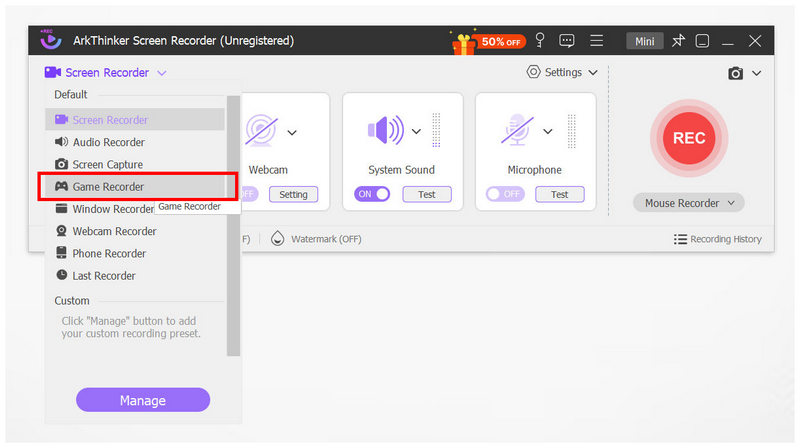
Best Uses: Capturing action-packed Roblox games with its hardware-accelerated Game Recorder mode.
User Rating: 4.5/5
We will start this article by featuring the most balanced screen recorder on the market, equipped with a dedicated game recorder to ensure it serves as an optimal Roblox gaming recorder. This is none other than ArkThinker Screen Recorder.
Thanks to its dedicated Game Recorder feature, Roblox gameplay may be captured in high-quality video at a smooth frame rate. This makes the program one of the best choices for 60 FPS gaming capture in Roblox and even for high-demand video games.
Its consistent recording performance was made possible by the program’s hardware-acceleration feature.
In addition to its game recorder, the software also supports webcam recording for easier production of gaming overlays. Finally, all recording modes in the program feature a multi-channel audio recorder that captures both system and microphone input.
To start using the most balanced screen recorder for both Windows and macOS, download ArkThinker Screen Recorder; it’s more than enough to use as the primary recording software for Roblox.
- Equipped with an exclusive Game Recorder optimised for gameplay captures.
- The Game Recorder feature is hardware-accelerated.
- Multi-channel audio capture for recording microphone and system audio simultaneously.
- Webcam recording mode for commentary videos.
- Easy to use and exclusively designed for beginners.
- Its free version has slightly limited features.
- Basic built-in video editing options after recording.
- The Game Recorder requires the app to run in Administration mode.
Top 2. Xbox Game Bar (Best Free Windows Recorder)
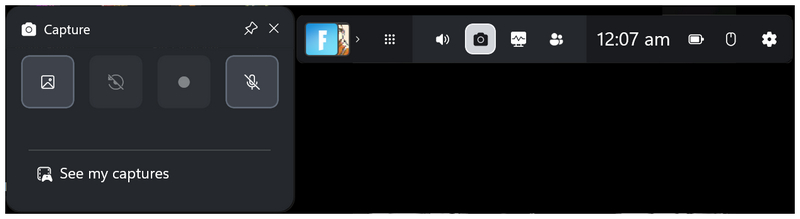
Best Uses: Recording gameplay without relying on third-party programs.
User Rating: 4/5
On to the next option, we will review Xbox Game Bar as a screen recorder for Roblox. The built-in recording tool on Windows computers is a solid choice for gaming screen recording, as it was designed specifically for that purpose.
As its name suggests, this program is based on the gaming console developed by Microsoft itself. This makes it equipped with the essential recording modes that gamers often use, including standard screenshots, 30-second clips, standard screen recording, and microphone capture.
With the help of these features, using the program as a Roblox recording software was made simple by the default Windows desktop recorder. Unfortunately, the program has no post-processing options. Not even as basic as a video trimmer, cutter, or other essential tools.
- No installation required since it is a built-in option.
- Made exclusively to capture gameplay videos.
- Records both game audio and microphone input.
- Limited screen recording controls compared to dedicated third-party software.
- No post-processing tools for basic video editing.
- Does not capture windows outside video games.
Top 3. OBS Studio (Best Free Tool for Roblox Creators)
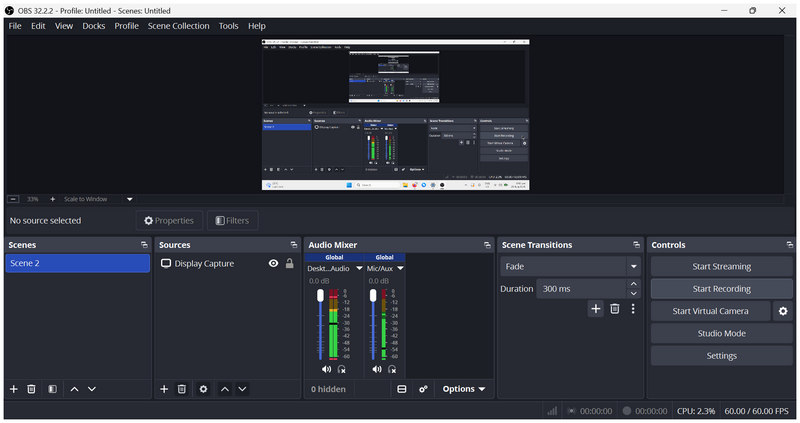
Best Uses: Recording gameplay and livestreaming Roblox content.
User Rating: 4/5
If you are looking for a macro recorder for Roblox to track your gameplay actions and cursor movements, OBS Studio is your best choice. Among the options on this list, OBS is by far the most advanced and offers the most customisation options during recordings.
As such, this makes the tool the most advisable option for users with enough technical skills to use it properly. However, what sets it apart is its livestreaming feature, making it a 2-in-1 solution for producing Roblox content. OBS basically works as your digital studio made for content production.
Unfortunately, OBS Studio has an extremely steep learning curve and consumes significant computer resources, especially when recording high-quality videos, which are usually needed for content creation. As such, we recommend using OBS only if you have the skills to use it properly and a powerful enough device to meet its resource demands.
- Professional screen recorder and livestreaming software.
- Open-source and free to use.
- Extensive screen recording and livestreaming controls.
- Very complex and highly intimidating for beginners.
- May be overkill if you only want to capture basic recordings.
- Extremely resource-intensive.
Top 4. QuickTime Player and Mobile Screen Recorders (Best for Mac and Mobile)
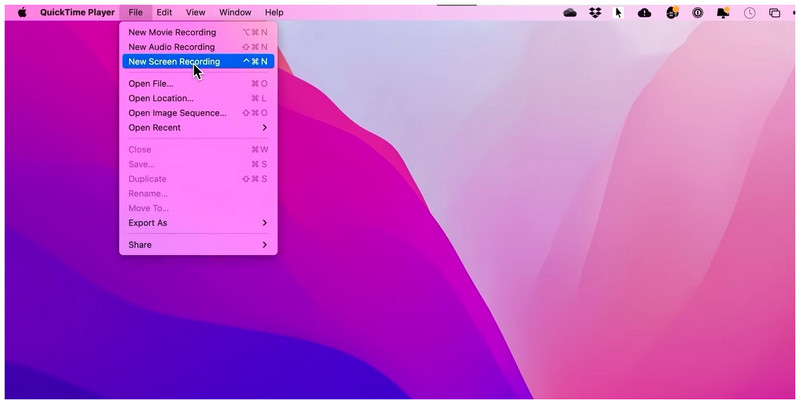
Best Uses: Installation-free screen recording solution for macOS desktops.
User Rating: 3/5
Finally, the last option in this list will be QuickTime Player as a screen recorder, along with most built-in mobile screen recorders on both Android and iOS devices. We decided to review these software tools in one go since they function much like built-in recorders.
Although these tools are not the best macro recorders for Roblox, they can still get the job done if what you are looking for is a program that captures how you play, with no further intention for the clip aside from personal performance review or entertainment.
Simply put, using either og QuickTime Player or the default screen recorders of mobile devices is only suitable for simple recordings of Roblox gameplay. These screen captures will not meet the resolution, frame rate, and other requirements for enjoyable gameplay footage.
- Built-in solution and optimised for their built-in devices.
- Extremely simple and beginner-friendly interface.
- Minimal setup required to capture screen recordings.
- Very basic screen recording mode.
- Zero control over important elements like resolution, frame rate, and codec settings.
- Not designed for gameplay recordings.
Part 2. Best Roblox Recording Settings for Smooth Gameplay
With four screen recording software now reviewed and featured in this article, the next step is to learn how to configure your recording settings before recording your Roblox sessions.
As such, we have featured the ideal recording settings for Roblox to keep your video game running smoothly while maintaining high-quality, stable video and frame rates. Learning these settings is required to learn how to record smoothly on Roblox.
Resolution: 1920x1080 (1080p)
Frame Rate: 60 FPS
Encoder: H.264 video with AAC audio codecs
Video Format: MP4
Part 3. How to Fix Roblox Recording Lag or No Sound Issues
To avoid or fix recording lag or no-sound issues on Roblox, keep our recommended recording settings above in mind. If you are sure these settings are correct, make sure your Roblox game settings are properly configured. Double-check how your screen recorder tool settings are applied as well.
When there is recording lag and no sound issues occur, it is most likely due to subpar settings or improperly configured adjustments.
Part 4. FAQs About Roblox Recorders
Does Roblox have built-in screen recorder mode?
Yes, Roblox have a built-in screen recorder mode. It is available in the game’s settings. Unfortunately, Roblox’s recorder is limited to 30-second clips at a time.
Should I use OBS for Roblox screen recording?
Yes, you can. OBS Studio is an excellent screen recording tool for Roblox. Unfortuantely, it has an extremely steep learning curve, making it not the most reliable solution for intermediate users, let alone beginners.
Is it hard to record gameplay videos?
No, it is not. Whether screen recording is hard depends on the tool you use. There are beginner-friendly recorders such as ArkThinker Screen, as well as more complex options like OBS Studio.
Is OBS beginner-friendly for capturing gameplay videos?
No, it is not. If you only plan on using OBS for basic screen recordings, it is not worth it. The program is simply too complex for a basic function like screen recording.
What is the best recording software for Roblox for beginners?
Beginner multimedia practitioners who want basic recorders are advised to use ArkThinker Screen Recorder or Xbox Game Bar. Both options are easy to use. Simply choose ArkThinker for more balance or Xbox Game Bar for direct game recordings.
Conclusion
Now that we have reviewed some of the most popular Roblox recorders, we hope this article will help you decide which program best suits your recording needs. With the best uses, strengths, and limitations of each tool now out of the way, choosing the right recorder for you will be very simple. For a direct recommendation, we highly recommend using ArkThinker Screen Recorder, which is well-designed for both ease of use and a balanced feature set.
What do you think of this post? Click to rate this post.
Excellent
Rating: 4.9 / 5 (based on 579 votes)


