


How to Screenshot on HP Laptops: Hotkeys and Built-in Tools
When learning to take screenshots on Windows computers, the variety of screen capture options may confuse new users looking to capture images of their computer’s display. This is no different from HP laptops, since the variety of screenshot-taking options via hotkeys and built-in tools can be overwhelming. In this article, we will aim to fix this problem by featuring comprehensive tutorials to help our readers learn how to take screenshots on an HP notebook, including detailed instructions on using keyboard shortcuts and built-in screenshot software.

- GUIDE LIST
- Part 1. How to Take a Screenshot on an HP Laptop in Seconds with Hotkeys
- Part 2. Use Built-in Tools to Take HP Screenshots
- Part 3. Record Your HP Screen with ArkThinker Screen Recorder
- Part 4. FAQs About Taking Screenshots on HP
Part 1. How to Take a Screenshot on an HP Laptop in Seconds with Hotkeys
Save a Full Screenshot with Windows Key + PrtSc
The most basic way to take a screenshot on a Windows laptop is to press the Windows Key and the Print Screen key. This method will automatically capture the full screen captures and save it to the Screenshots folder.
Press the Windows Key + PrtSc key combination.
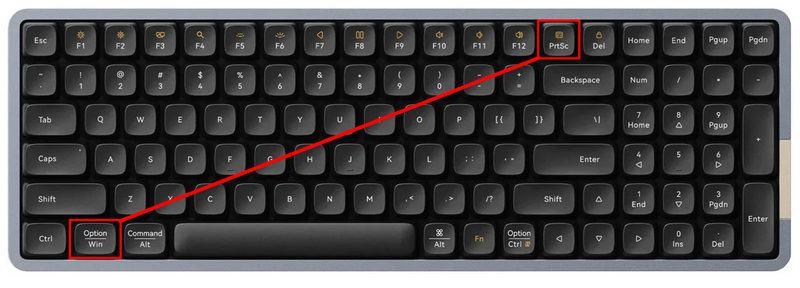
After using the combination, the full screenshot will be saved automatically in the Screenshots folder in Pictures.
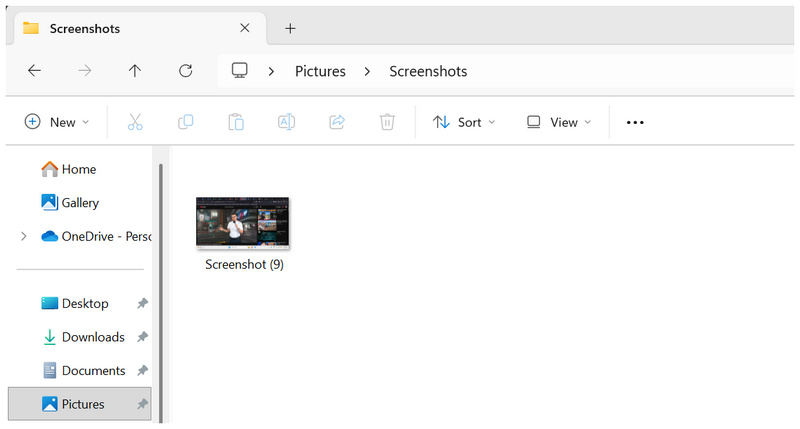
This is the most direct option for full-screen capture when learning how to screenshot on HP (Hewlett Packard) desktops.
Copy to Clipboard with PrtSc and Paste Into Paint
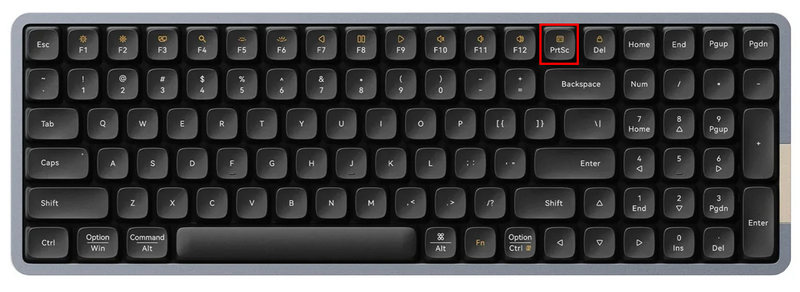
If you want to apply editing options to your screenshots, you may also use the Print Screen button to copy the image to your clipboard and paste it into Paint. Then the tools in Paint will handle all the image-editing options you want to apply.
Press the PrtSc key to capture a screenshot.
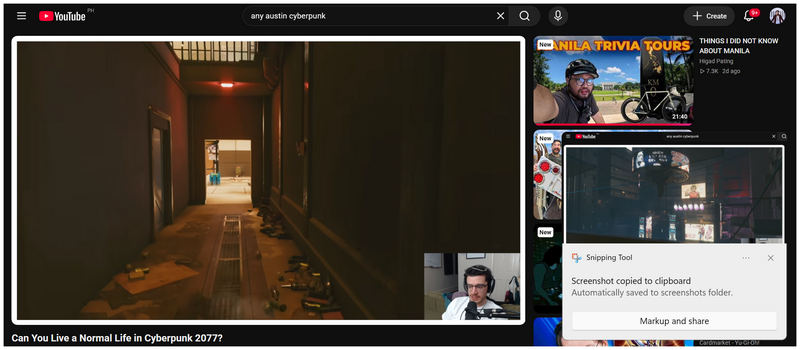
To confirm whether the screenshot is captured, wait for the Snipping Tool notification to pop up.
Then open Paint and press Control + V to paste the captured screenshot.
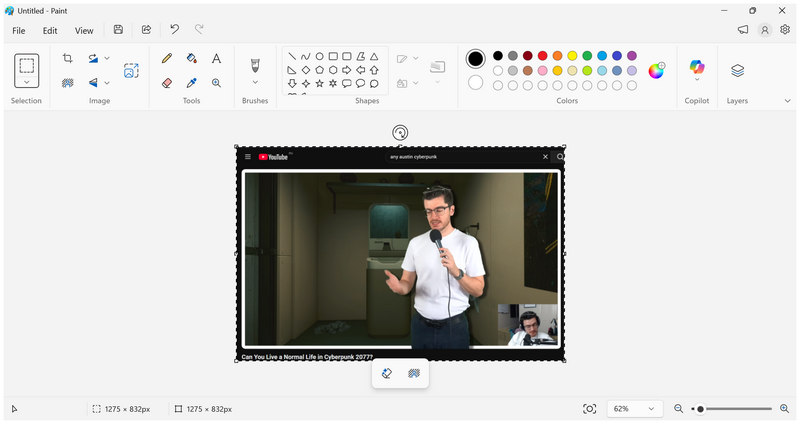
This is the direct solution for learning how to take screenshots on HP laptops and apply edits on the spot, such as resizing images in Paint.
Capture Only One Window with Alt + PrtSc
To screenshot the window where you are located, simply use the Alt + Print Screen button combination. This will automatically capture only the software or browser tab where you are and save the image in the Screenshots folder.
Use the keyboard combination Windows Key + Alt + PrtSc.
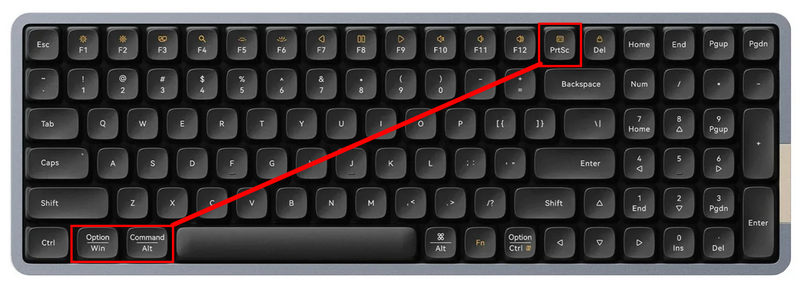
After pressing the hotkey, the window you are in will be captured as a screenshot. The image will be saved to the Screenshots folder in Pictures.
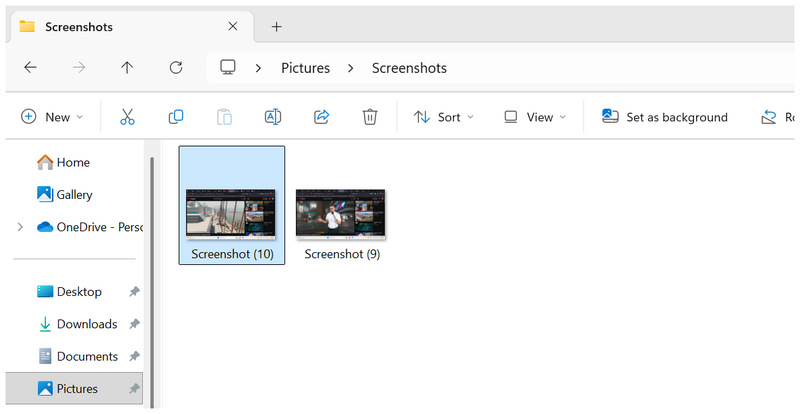
This option is ideal if you want to save a full screenshot of the software you are currently using.
Grab Just a Part of the Screen with Windows + Shift + S
Finally, the last hotkey or keyboard shortcut we will feature is the option to only capture a selected region of the screen. This feature uses the Windows + Shift + S keyboard combination. This is a good way to ensure you can customize your screenshot.
Use the keyboard combination Windows Key + Shift + S.
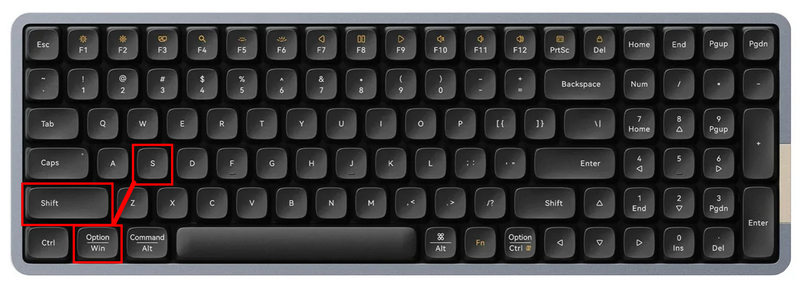
Then, select the portion of the screen you want to capture by clicking and dragging it. Afterward, the screenshot may be accessed in the Snipping Tool.
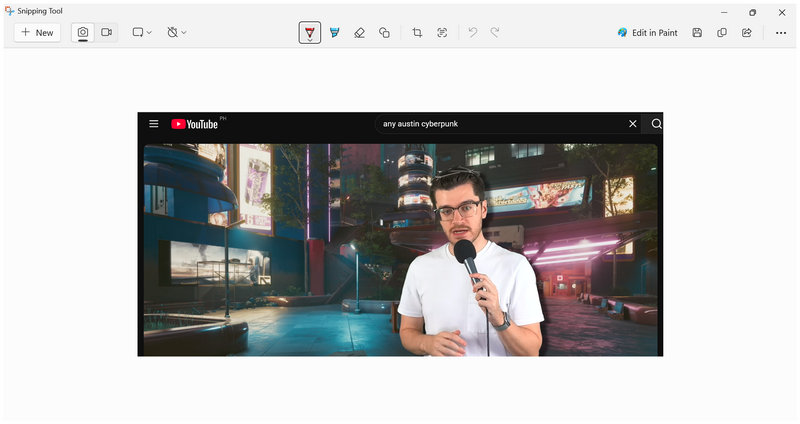
Now that you have learned the shortcut options for taking screenshots on HP EliteBook laptops in Windows 10/11. Let us now move on to the steps for taking screenshots in HP using the built-in tools on Windows computers.
Part 2. Use Built-in Tools to Take HP Screenshots
Snipping Tool
The built-in Windows program to take screenshots is the Snipping Tool. You can simply open this program and use its keyboard shortcut to start capturing your screen.
Open Snipping Tool; you can use the shortcut Windows Key + Shift + S to start.
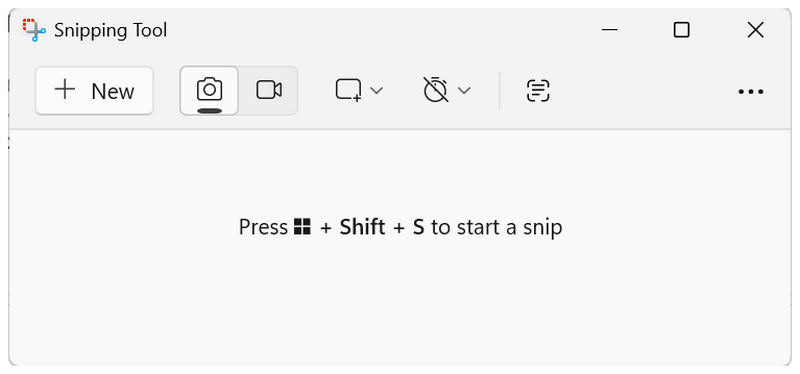
You may also use the other screenshot modes available in the tool with Snip, Snipping Area, and Delay Snip.
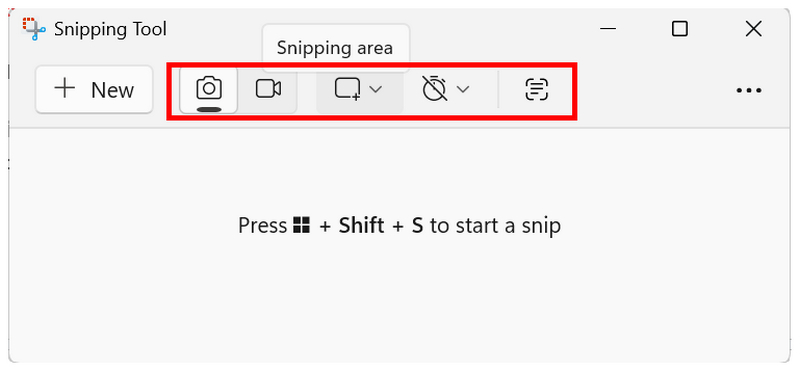
The Snipping Tool is a direct upgrade over the previous screenshot tools on Windows computers, as it offers many more screenshot modes beyond the basic full-screen capture.
Snip & Sketch
For more customization, you can use the Snipping Tool to sketch on your screenshot. This was made possible by the program's brush tool. You can use it to simply add sketches to your image, such as basic lines and shapes.
Capture a screenshot using Snipping Tool.
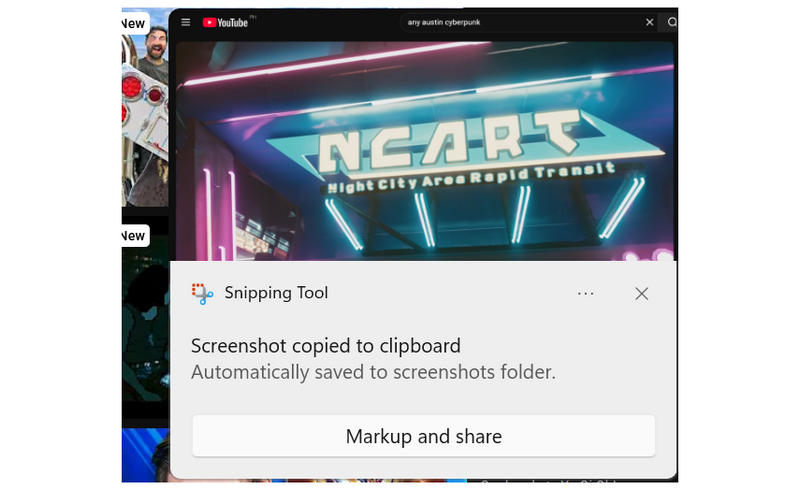
In Snipping Tool, select the Brush tool.
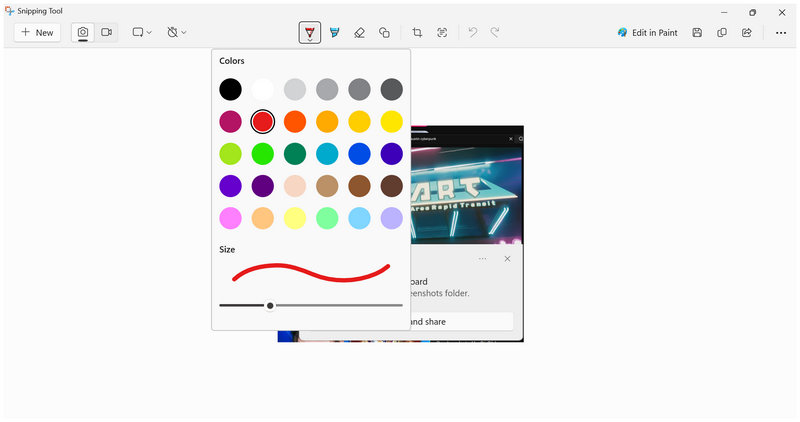
With the Brush tool active, use your cursor to sketch in the captured screenshot.
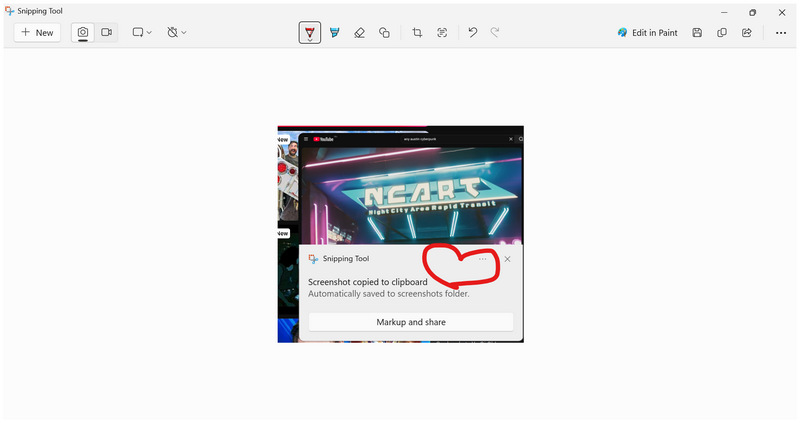
This is a solid choice to ensure your screenshot can be adjusted to your personal preferences, as customizable as manual drawings.
Xbox Game Bar
Finally, the last piece of software we will discuss is the Xbox Game Bar. Originally designed to record gameplay footage, this option also includes a capture mode for taking screenshots. With that, we highly recommend using it to capture images from your games, since it was designed for that purpose.
Press the keyboard combination Windows Key + G.
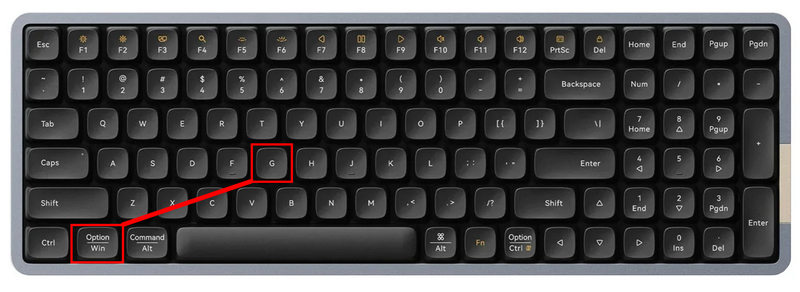
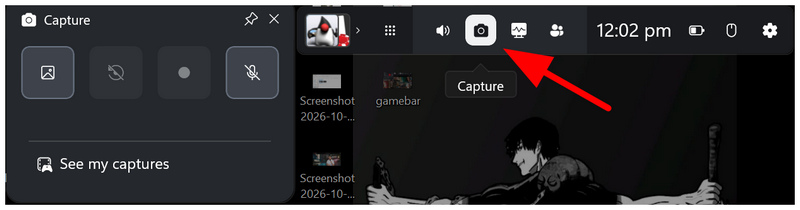
In the Xbox Game Bar overlay that will appear on-screen. Click the Capture tool, then use your cursor to click-and-drag to take a screenshot.
Now that we have discussed the options for taking screenshots on HP computers using keyboard shortcuts and dedicated programs, let us proceed to the best third-party tool for taking screenshots on your computer.
Part 3. Record Your HP Screen with ArkThinker Screen Recorder
The best option for recording screenshots on HP using third-party tools is ArkThinker Screen Recorder. Although it was designed to capture screen recordings, the program also has a built-in screen capture tool with versatile, customizable options.
As such, we strongly recommend using this tool if you want more editing options for your screenshots or to capture more than basic screen captures. This is because ArkThinker’s software has a scrolling screenshot mode that can capture browser tabs and extended screenshots.
In addition to these advanced modes and editing capabilities, the program offers more, including the following practical main features.
Main Features:
- • Dedicated Screen Capture tool.
- • Customizable tools to modify captured screenshots.
- • Scrolling screenshot option to capture long browser tabs.
- • Pin to Screen function to add a screenshot overlay on-screen.
- • Equipped with six screen-recording modes for advanced functionality.
To learn how to use the program, make sure to read our three-step guide to taking screenshots in the software, as well as a quick overview of the editing options after taking a screenshot.
Make sure to download it first to make it easier to learn to use the tool.
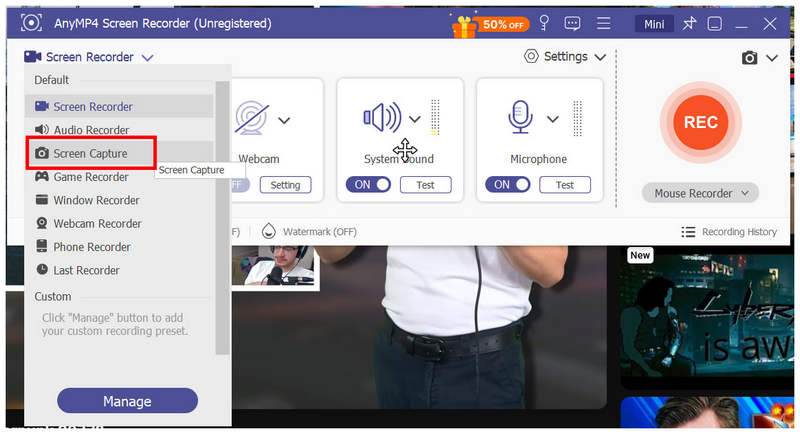
Open ArkThinker Screen Recorder and select the dropdown menu in the recording modes. Then, click on the Screen Capture option.
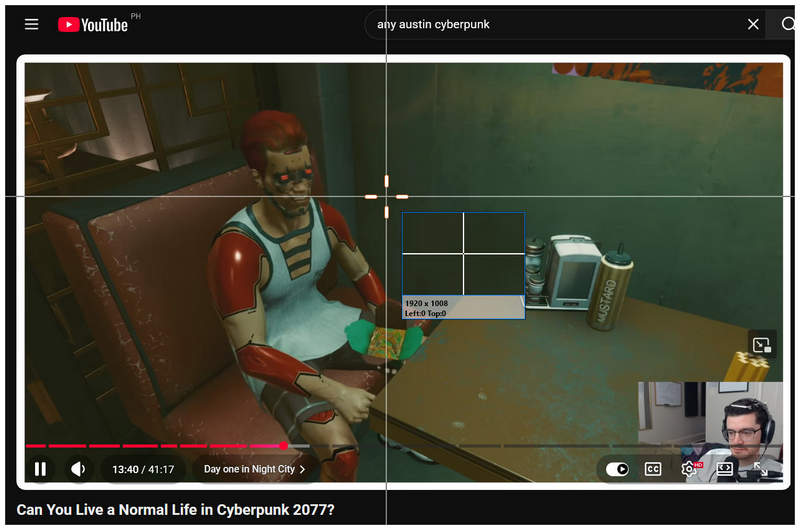
Once the Screen Capture option is selected, your cursor will transform into the screenshot tool. Click and drag it to take a screenshot of the screen.
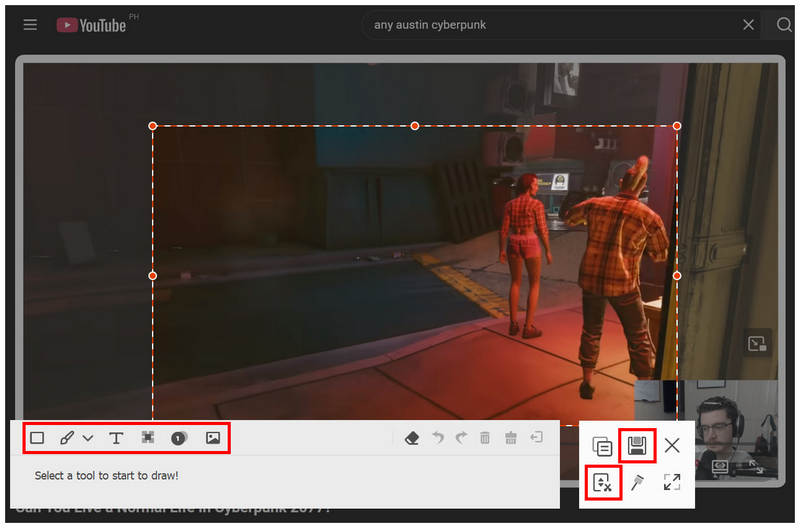
After capturing a screenshot, a post-processing menu will appear. Here, you can use the Shape, Brush, Text, Blur, and Callout tools to edit your screenshot. You may also use the Scrolling Screenshot option to take extended browser tabs or use Pin to Screen to keep the screenshot as an overlay. To save the screenshot, select the Save button.
If you want more advanced screenshot-editing options or if you are simply looking for a scrolling screenshot tool, ArkThinker Screen Recorder checks the boxes you need. It also offers six versatile recording modes for screen recording on HP laptops.
Part 4. FAQs About Taking Screenshots on HP
Are there options to take screenshots on HP?
Yes, there are. Since HP devices run on Windows, all OS options are available on HP hardware. These options range from keyboard shortcuts to screenshot programs.
What screenshot option on Windows is the easiest?
The most direct tool to use is the Print Screen button. This option is the most direct, as it was designed to capture screenshots. It is used together with programs like Snipping Tool.
Should I use keyboard shortcuts or programs to take screenshots?
It depends on your skill level or usage. For quick screenshots, keyboard shortcuts are the way to go. For more detailed editing, using programs may be better.
Is there a built-in scrolling screenshot tool on Windows?
No, there is not. Windows only captures basic screenshots. Only third-party tools like ArkThinker Screen Recorder, offer scrolling captures.
Are third-party screenshot options reliable?
Yes, they are. In fact, most third-party screenshot tools are better than built-in choices. They are a direct upgrade to built-in options in Windows.
Conclusion
With the best tools to capture screenshots on HP now discussed, we hope taking screenshots on your computer will be easier. As such, we suggest choosing which option best suits your needs, whether using keyboard shortcuts or dedicated programs. You may also consider using third-party tools like ArkThinker Screen Recorder for advanced screen capture and recording.
What do you think of this post? Click to rate this post.
Excellent
Rating: 4.8 / 5 (based on 490 votes)


