


OBS Cropping Video Guide for Effective Video Resizing
OBS, also known as Open Broadcaster Software, is an open-source video capture program used for video recording and live streaming. Functioning as a program for seamless live video recording, it is also packed with some useful video capture functionality, like cutting out parts of the recorded video for highlights and more. While OBS may appear complicated to use with the right guide, such as this article, users will be able to know OBS how to crop video capture through three methods, as well as the use of a free online or web-based video cropper tool for fast video cropping tasks. So if you use OBS for capturing longer Windows screen video for live streaming or gaming, and you want a straightforward and not complicated way to crop or shorten them, then be sure to read this article's ways of cropping videos via OBS's built-in crop function as well as a web-based tool.

- GUIDE LIST
- Part 1. How to Crop Video on OBS
- Part 2. Best Free Online Alternative to OBS in Video Cropping
- Part 3. FAQs about How to Crop Videos on OBS Studio
Part 1. How to Crop Video on OBS
Method 1: The Alt-Key Shortcut (Quick Crop)
The Alt-Key shortcut method is the simplest to do for video cropping in OBS. While this offers the fastest one and not complicated it’s main function is for quick crop functionality without having the need for precise control.
Open your OBS Studio from your desktop device (Windows or Mac) and be sure to select the correct Scene.
After selecting the scene right-beside the Scene section is the Sources panel. From there select the desired video source you wish to crop in OBS.
Once you have managed to choose your video Sources, proceed to click on your video and make sure that a rectangular outline appears from your video.
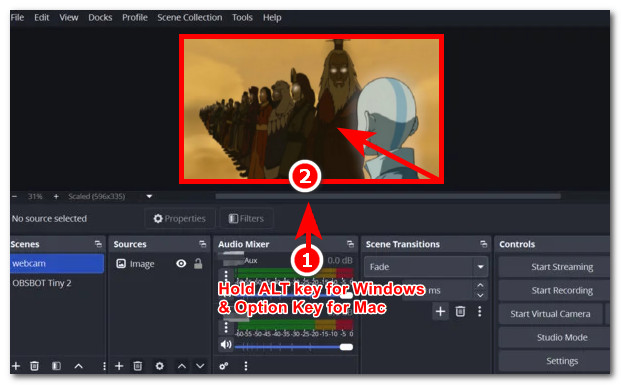
Once the rectangular appears from your video after clicking it proceed to Hold down Alt key for Windows or Option key for macOS. While holding the key proceed to drag the edges of the rectangular outline inwards to start cropping your OBS videos. Once satisfied with the cropping release the key to apply the changes from your video.
Method 2: Using Edit Transform (Precise Pixel Cropping)
Edit Transform method is another type of cropping technique in the OBS Studio in which it has extra steps to be able to precisely do a pixel cropping on the OBs video. This method works by simply allowing users to put crop values on the designated crop setting to have that control on the crop of the video.
In your OBS Studio timeline, navigate to your OBS Sources section.
Once you locate the Sources section from your OBS timeline right-click on your preferred video source and proceed to click on the Transform then Edit Transform to proceed.
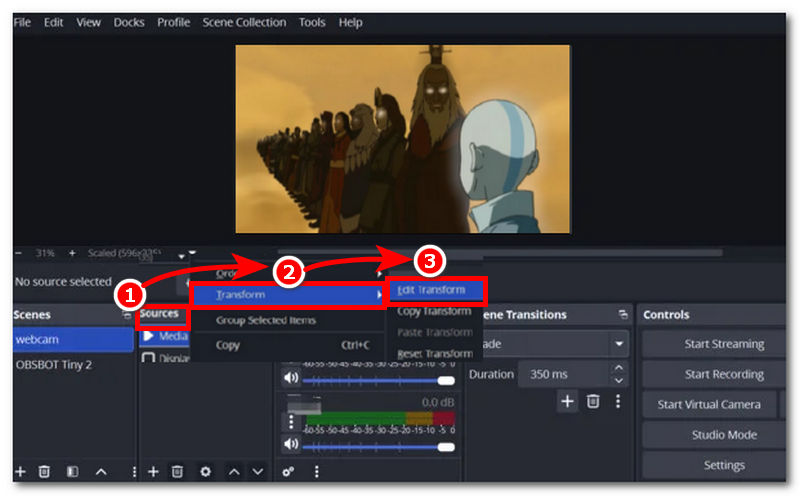
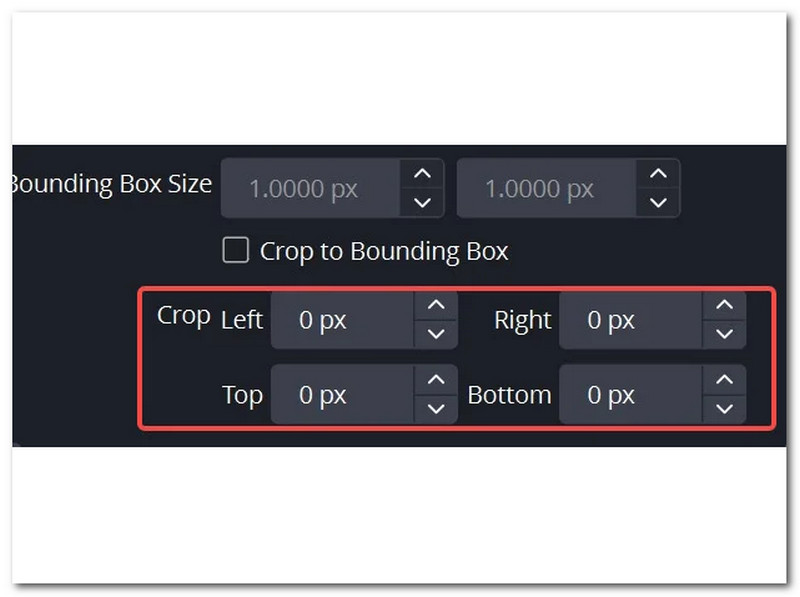
In the Edit Transform section, find the Crop section to be able to do a precise pixel video cropping of your OBS video.
From the Crop section, you will see the precise cropping value from there simply put your preferred value of cropping. In doing this users have more control on the crop as it is based on numerical value.
Method 3: The Crop/Pad Filter
The crop/pad filter is the third method to do for a precise video cropping on the OBS Studio. This technique is usually designed for a more consistent and repeatable cropping across video especially with longer videos in OBS Studio.
Open your OBS Studio and from your Mac or Windows device. From there navigate and right-click on your video Sources to proceed.
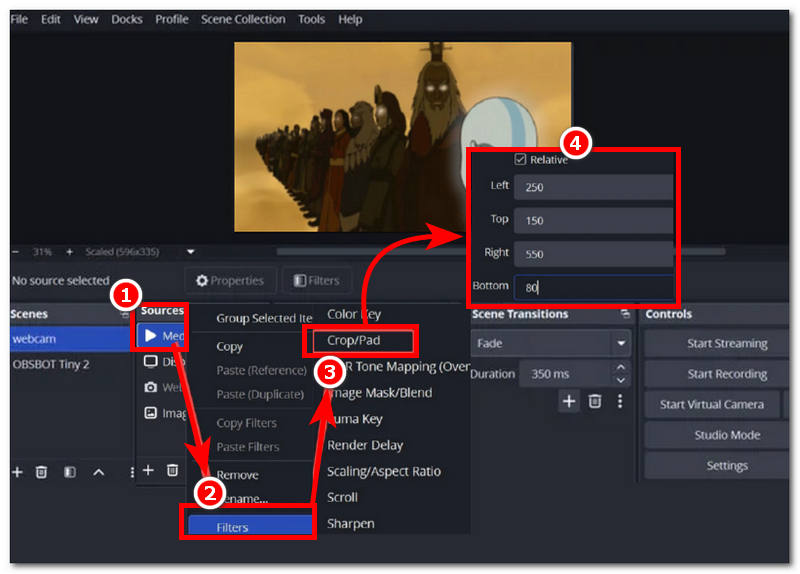
After right-clicking your video Sources it will show you and extension menu and from there locate and click on Filters.
After clicking Filters another extension menu will appear and from there click on the Crop/Pad.
After clicking on the Crop/Pad, and the Crop/Pad setting appears you will be able to see the settings for video cropping OBS videos from there simply put the crop values you preferred to adjust and crop your video once done simply close the filter window to save the changes.
Part 2. Best Free Online Alternative to OBS in Video Cropping
As OBS Studio is basically a tool composed of other functions and tools for Windows screen or live streaming recording, it may come out as a complicated and quite overwhelming tool for some users, resulting in not being able to do proper video cropping when needed. Thus, if you are a newbie or find OBS Studio confusing but still want to crop videos, then another method is available for you to use, and that is the use of an online video cropping tool like the ArkThinker Free Video Cropper Online tool.
ArkThinker is a web-based video cropping tool that allows users to access its service for free all across all browsers and devices. Moreover, it does not require users to install an application, meaning it is lightweight and easy to use. Apart from its accessibility, Arkthinker can crop any video file format like MKV at the click of a button making it an effective and usable video cropper for all kinds of video including OBS videos.
How to Crop Video in iPhone Using Online Tool
In your web-browser go to ArkThinker Free Video Cropper Online website to access the video cropper tool.
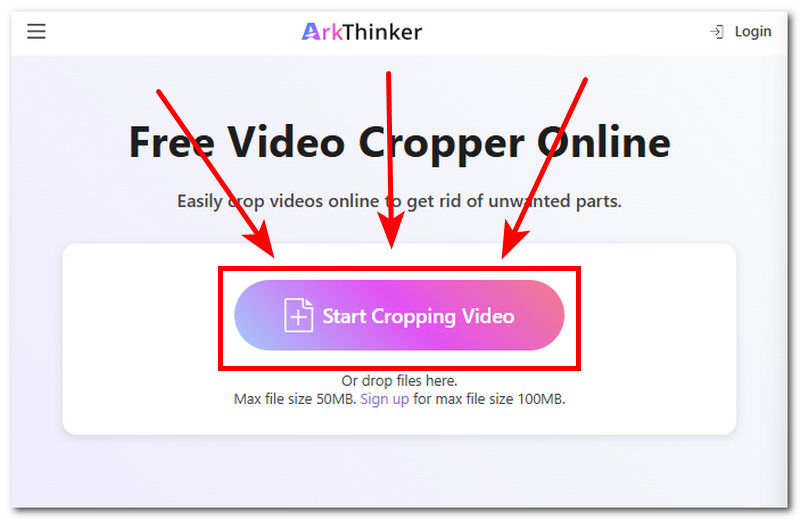
Once you are in the webpage main interface, proceed to tap on the Start Cropping Video button and load the video file into the tool that you want to crop.
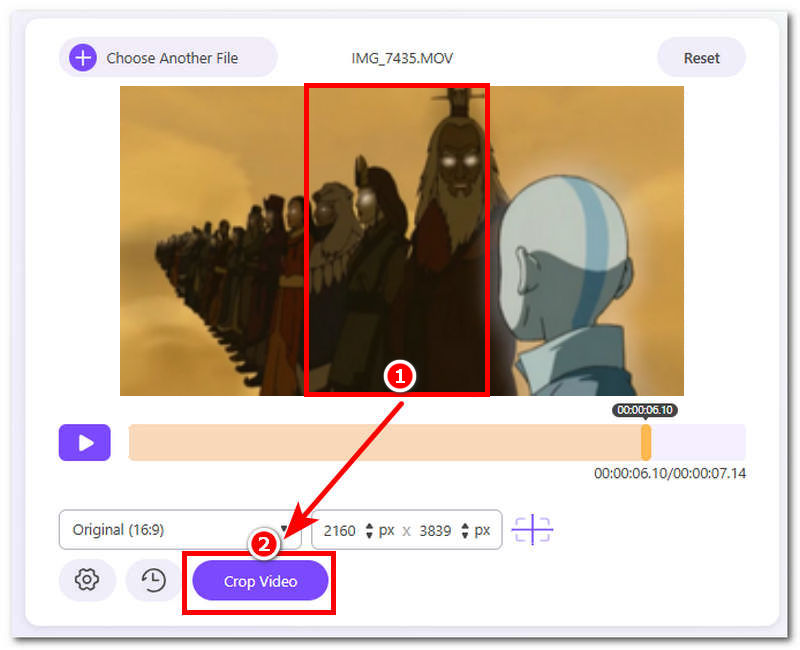
Once the video is in the tool, simply adjust the video aspect ratio to your preferred crop by dragging the crop border that appeared in your video file.
Once you are satisfied with the crop that you do in your video file you may now proceed to tap on the Crop Video button to have it be exported in your device.
Verdict
Using a web-based video cropper tool such as ArkThinker is the ideal method to do for when wanting a reliable video cropping tool yet maintain its usability by having it free to use and easy to navigate around. Moreover, ArkThinker does cropping in a way that users will not look for advanced cropping control, as ArkThinker can do precise cropping without complicated settings and methodology.
Part 3. FAQs about How to Crop Videos on OBS Studio
Does cropping in OBS reduce video quality?
Cropping a video in OBS, in terms of resizing the video, can reduce the overall video quality of the video. As the user crops the video, it stretches out or zooms in on a certain part of the video, resulting in a loss of clarity, which sometimes makes the video blurry.
Can I undo or reset a crop in OBS?
Yes, the user can undo or reset the crop they just did in OBS for the Crop/Pad filter and Edit Transform by going to the same settings when you enable them and remove or reset the crop values you enter.
Conclusion
OBS Studio is indeed a helpful tool for managing Windows screen capture video for gaming and live stream and as video recoding usually has longer duration and standard aspect ratio sometimes the need for cropping is needed and with this article we listed all possible ways to crop video OBS studio as well as the use of a web-based video cropper tool as some forms of alternative for a quick and straightforward video cropping.
What do you think of this post? Click to rate this post.
Excellent
Rating: 4.9 / 5 (based on 719 votes)


