


Loop Videos in iMovie: Manual, Playback Looping, & Exporting
iMovie is a user-friendly video editing program developed by Apple and available on all Apple devices (Mac, iPad, and iPhone) that allows users to perform basic to moderate video editing or enhancement without using a third-party tool. As a video editing program, iMovie offers plenty of ways to loop video. It has features that enable this, and this article will list three of those methods with a step-by-step guide for users to loop their videos effectively in iMovie. Furthermore, as iMovie is not accessible on other devices, this article will also feature a web-based video looping tool, which can be considered an alternative to iMovie for producing video loops. So what are you waiting for? Read on below and start looping your video in iMovie with ease.

- GUIDE LIST
- Part 1. How to Loop A Video in iMovie with Manual Looping (Mac & iOS)
- Part 2. How to Loop iMovie Video Using Playback Looping (Mac)
- Part 3. How to Loop Video in iMovie via Exporting (Mac & iOS)
- Part 4. Best Free Online Alternative to iMovie for Video Looping
- Part 5. FAQs about How to Create A Loop Video in iMovie
Part 1. How to Loop A Video in iMovie with Manual Looping (Mac & iOS)
How to Loop iMovie video using iOS
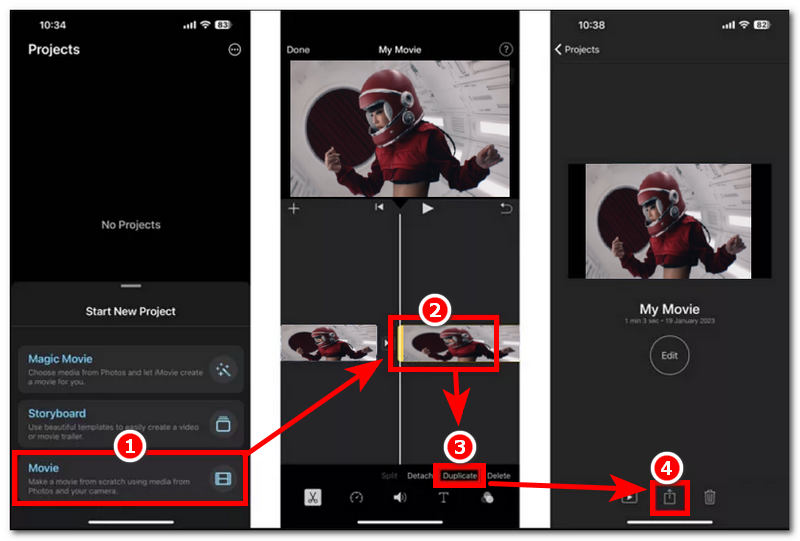
Open your iMovie on your iOS device, and from its main interface, proceed to create a new project and from there select Movie as your project to proceed.
After selecting Movie as your project, proceed to load your video file into the iMovie app by uploading it.
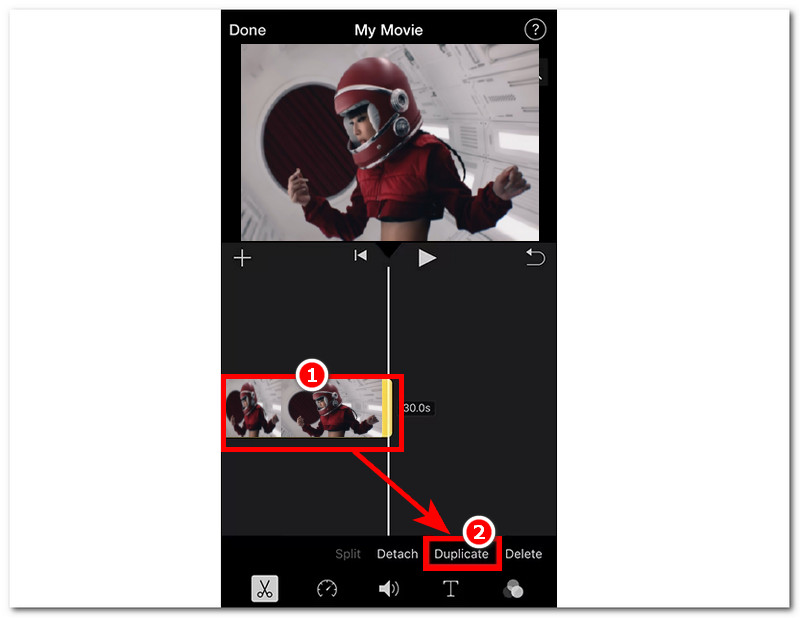
Once the video file is in the iMovie application, select your video clip in the timeline, and from there you will gain access to the video settings and from there tap on the Duplicate feature. Duplicate your video clip multiple times, depending on how long you want your video loop to have.
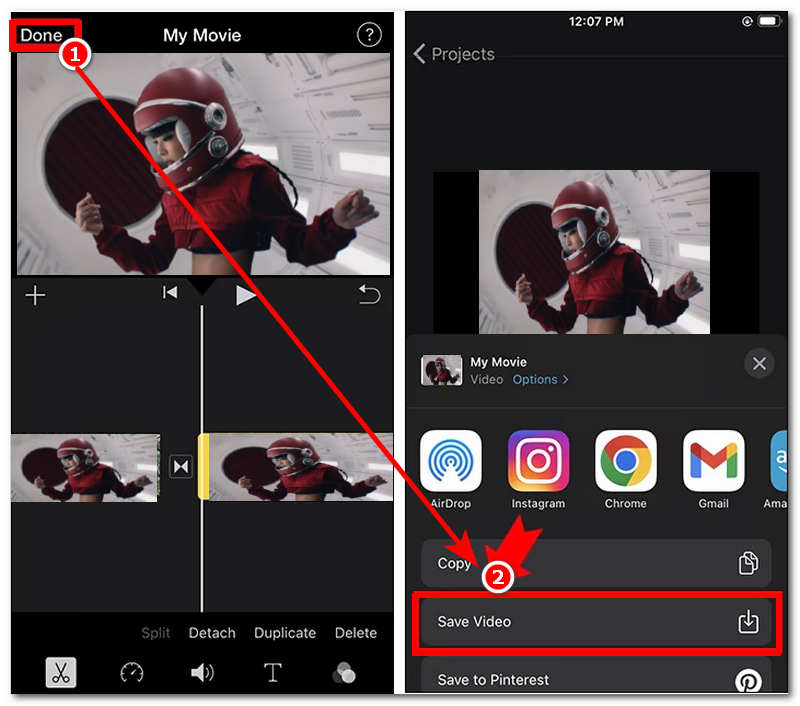
Once you are satisfied with the duration of your duplicated video clips, export them as a loop video. Proceed to export your video loop by tapping on the Share button and saving it to your device.
How to Loop iMovie video using a Mac
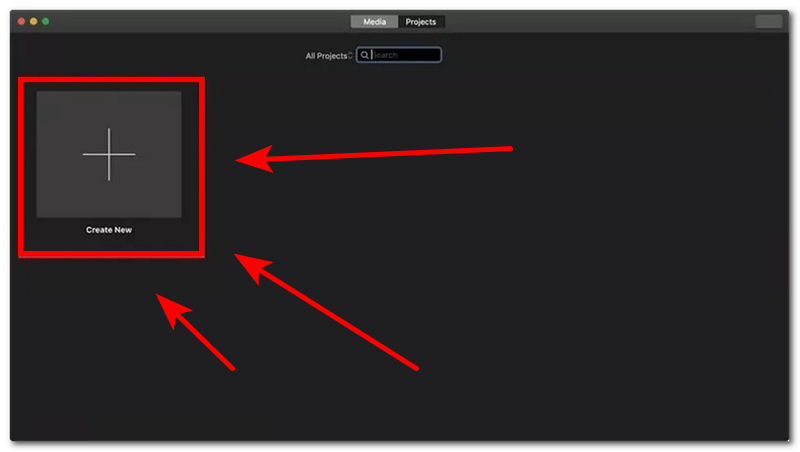
Open your iMovie Mac and from its main interface, proceed to click on Create New to start a new project.
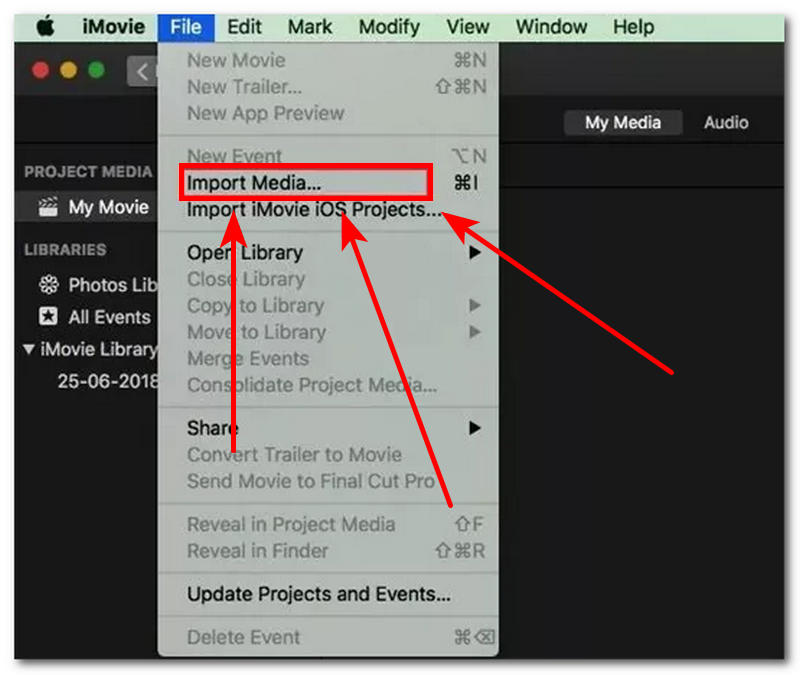
Once you proceed to creating a new project, proceed to import your video file you wish to loop using iMovie in your Mac by clicking on the Import Media under the File section situated in the upper-left corner of your screen.
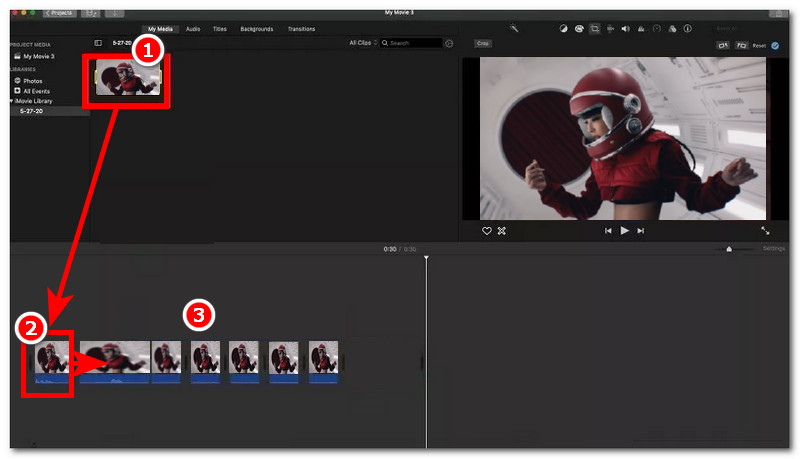
Once your video file is in the project, proceed to drag your uploaded video into the iMovie timeline.
After dragging the video into the timeline, to manually create a video loop of your video file, proceed to click on the video file in your timeline and from there copy and paste your video file by pressing Command + C and Command + V to duplicate your video. You may do this multiple times, depending on the duration you want your video loop to be in iMovie. Once you are satisfied, you may now proceed to export your video loop.
Part 2. How to Loop iMovie Video Using Playback Looping (Mac)
Open your iMovie Mac and from there import the video file you want to Playback looping with using the program to proceed.
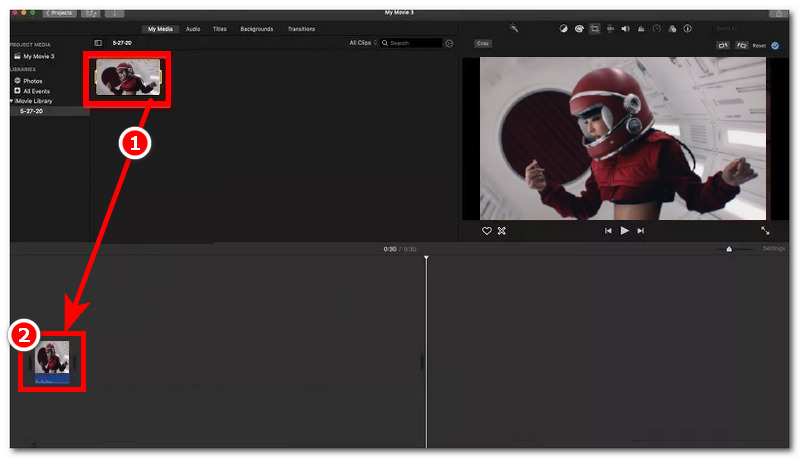
Once you are in the program, proceed to select your video file, and once you have found the video file you want to playback loop using iMovie, simply drag it into the timeline, and once the video file is in the timeline, click on it.
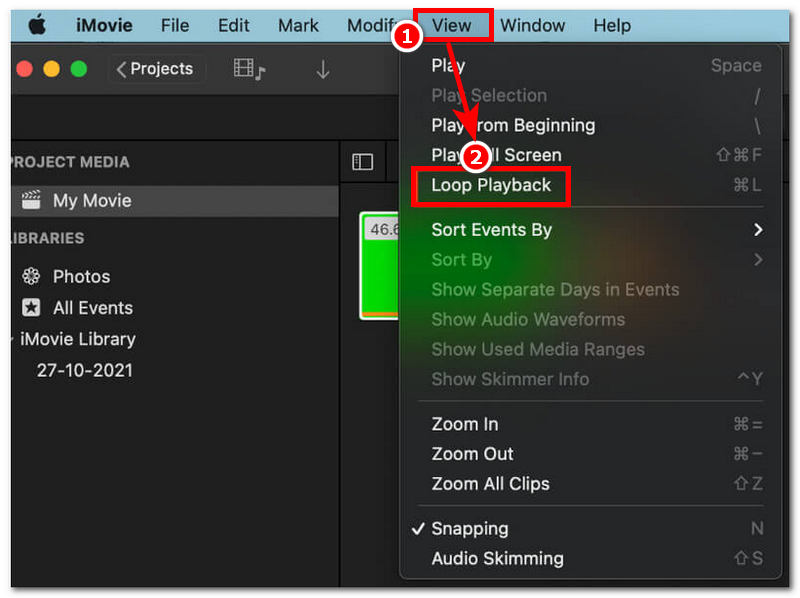
From there, to enable the video loop playback, head over to the upper-left corner of your screen and click on the View menu, and under the View menu, click on the Loop Playback. This will allow your video to play nonstop until you exit the playback.
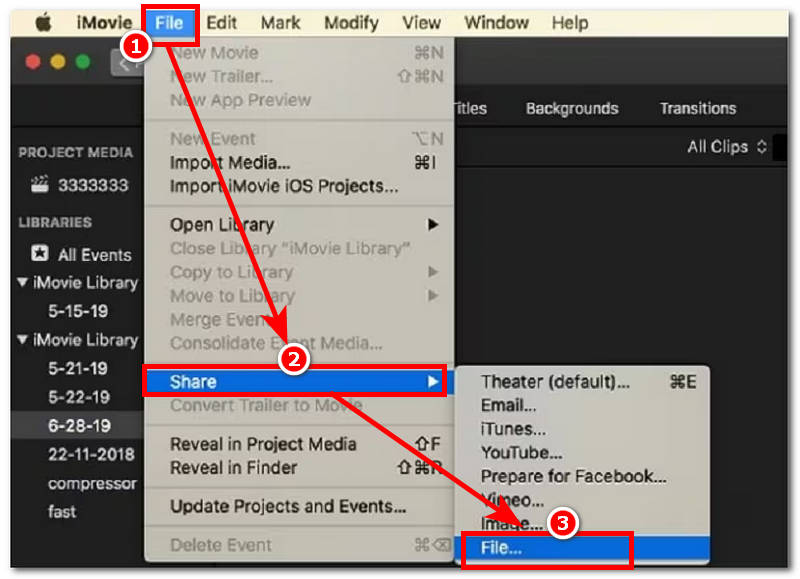
Finally, export your video loop playback video by going to your upper-right corner menu setting, following these navigation: File > Share > File, then have your video file save to your desired location.
Part 3. How to Loop Video in iMovie via Exporting (Mac & iOS)
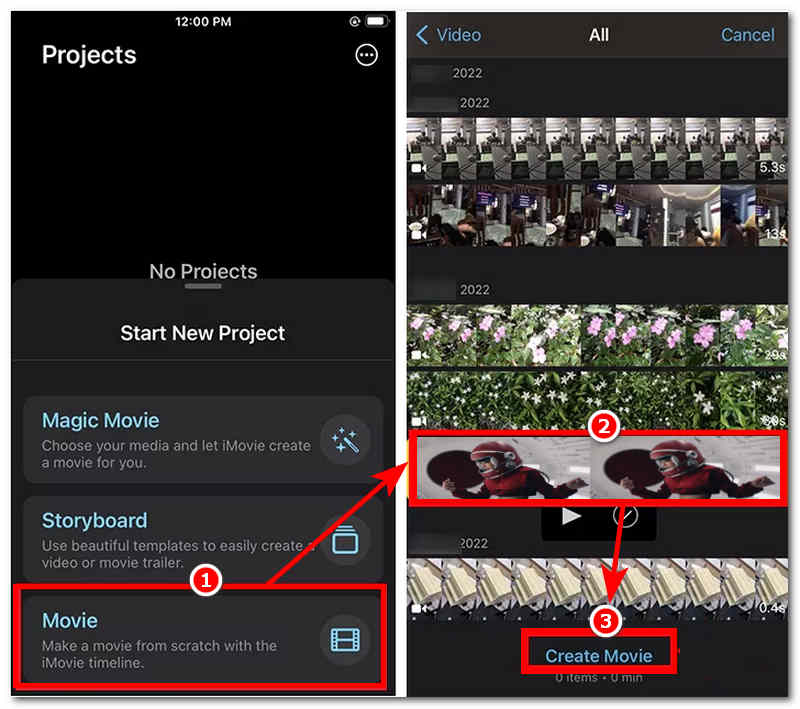
Open your iMovie app from your Mac or iOS, and from its main interface, start a new project under Movie.
From there, the app will then let you browse your folder of video files, find and select the video file you want to loop using iMovie via exporting accordingly and tap on the Create Movie to proceed.
Once the video file is in the iMovie app/software, simply drag it down to the timeline and from there click the video file that is in the timeline to gain access to the video menu. From the video menu, you will find the Duplicate option. Simply press on it to duplicate your video file numerous times, depending on the duration you want your video loop to have.
Once satisfied with your video loop duration, proceed to export your video loop by clicking on the Done button, then Save Video to your device.
Part 4. Best Free Online Alternative to iMovie for Video Looping
If you find iMovie loop video methods quite overwhelming for you, then you might like this additional method of looping a video using the ArkThinker Free Video Looper Online. This web-based video looping tool is free to use and straightforward, with no installation or premium subscription required to access its video looping capabilities.
Key Features
- • Fast processing video looping capabilities.
- • Fast processing video looping capabilities.
- • Free and safe to use tool.
- • Create video loops with lossless video quality.
- • Lightweight to use on the device.
- • User can preview their loops before saving them.
- • There’s no watermark in the exported video loop file.
- • Supports a wide range of video file formats for looping.
How to use ArkThinker Free Video Looper Online
Go to the ArkThinker Free Video Looper Online official website to proceed.
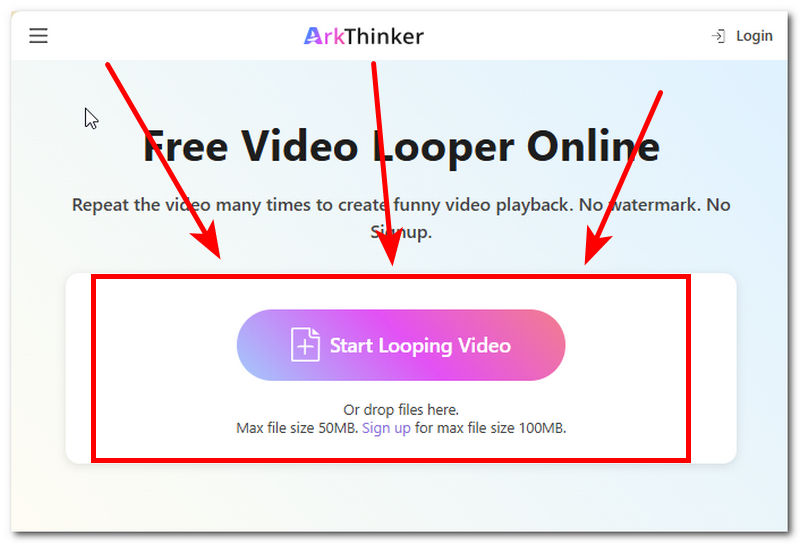
Load the video file you wish to loop using the program by clicking on the Start Looping Video button.
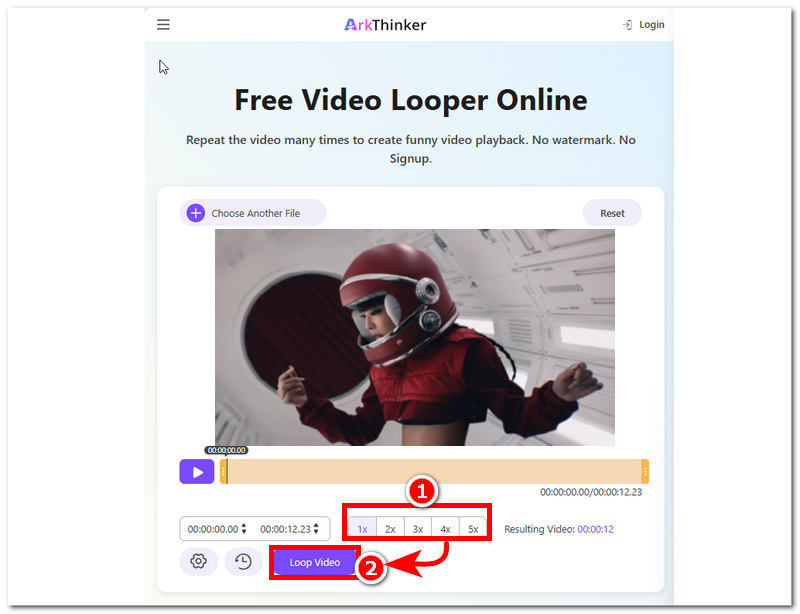
Customize the number of loops you want your video to have from the bottom part of the program. Once you have decided the number of loops you want for your video, simply click on the Loop Video button to export your video to your device.
Part 5. FAQs about How to Create A Loop Video in iMovie
Can you loop a video directly in iMovie?
Yes, users can use iMovie to loop videos, but it's a one-click process. The looping video process within iMovie requires copying and pasting of video clips and arranging them into a single video file to create the loop.
How can I make the loop seamless?
To make a loop more seamless, be sure to trim your video clip properly, avoid abrupt cuts, and apply dissolve or transition effects if needed to smooth the transition between video files.
Conclusion
This article shows three ways to loop video in iMovie on Mac and iOS devices, as both have almost identical steps, making the process easier, especially when users have both devices to try looping a video on their own. Moreover, in looping a video using iMovie, it can be done through manual looping, playback, and exporting, which are all listed above. While it is quite easy, if users still want a simpler approach, a web-based video looper tool like ArkThinker may be handy, as it is accessible on all devices and can loop videos in any format in seconds without hidden charges.


