


Ultimate CapCut Tutorial: How to Speed Up Your Videos Like a Pro
CapCut has become the must-have video editing app everyone is talking about and used by creators to quickly edit their content, especially for social media. Whether you're editing a fun TikTok, YouTube video, or any other project, speeding up your video is a simple yet powerful way to make it more engaging. In this guide, we'll show you how to speed up a video using CapCut on different platforms, including mobile devices like iPhone and Android, as well as on a computer (PC or Mac). Get ready to level up your editing game!

- GUIDE LIST
- Part 1. How to Speed Up a Video on CapCut Mobile for iPhone & Android
- Part 2. How to Speed Up a Video in CapCut on PC (Windows/Mac)
- Part 3. How to Speed Up a Video in CapCut Online
- Part 4. Best Alternative to Speed Up a Video in CapCut
- Part 5. FAQs
Part 1. How to Speed Up a Video on CapCut Mobile for iPhone & Android
Whether you’re using an iPhone or an Android device, CapCut is a user-friendly mobile video editor that allows you to speed up your videos in just a few steps. The mobile version is particularly useful because you can edit on the go, and speeding up your video can make your content more dynamic, which is perfect for fast-paced platforms like TikTok.
Launch & Start
Open the CapCut app and tap the big + New Project button. Go ahead and select those camera roll video clips you’re looking to speed up and tap Add.
Select the Clip
Your video will now be in the timeline. Tap once on the video clip itself (it will be outlined in white) to bring up the editing menu at the bottom.
Find Speed
Please scroll through the bottom menu until you see the Speed icon (represented by a speedometer). Tap it.
Adjust Video Speed
Select the Normal option, which applies a uniform speed change to the entire selected clip.
A slider will appear. Drag the slider to the right to increase the speed. I usually start with 2x or 4x for a standard time-lapse effect, but CapCut lets you go all the way up to 100x!
Export Video
Once you’ve adjusted the speed, tap the play button to preview your video. If you’re happy with the result, tap the checkmark to apply the changes.
Tip: If you only want to know how to speed up parts of a video in CapCut, use the Split tool first! Find the start and end points of the section you want to speed up, tap Split at those points, and then apply the speed change only to that middle, isolated clip. It keeps the rest of your video at normal speed for a cool, dramatic effect!
What I love most about using CapCut on mobile is how fast and intuitive the entire process is. I can quickly increase a video speed with just a few taps with this video speed-up app, which is great when I’m editing a last-minute project for social media. The app also provides a nice range of speed options. However, the limitation is that the mobile app doesn't have all the super-advanced tools the PC version does, such as multi-track editing, which are available in the desktop version.
Part 2. How to Speed Up a Video in CapCut on PC (Windows/Mac)
If you want to edit the video on a larger screen, CapCut’s PC version provides the same easy-to-use features for speeding up a video. Whether you're working on a detailed video project or just want to create a quick, fun video, CapCut on PC offers more room for fine-tuning and control.
Open CapCut PC or Mac
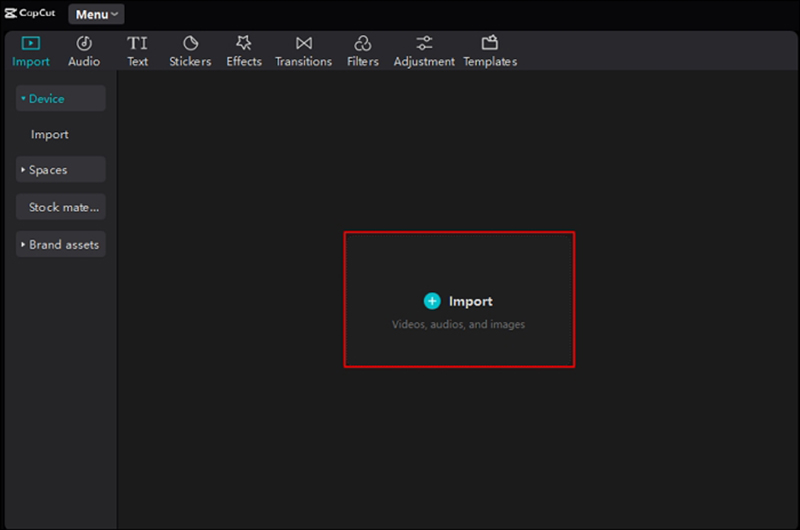
Launch the CapCut application on your Windows PC or Mac. Click the Create New Project button and add your video from your local drive.
Drag your imported video from the Media panel down to the primary editing timeline.
Access Speed Panel
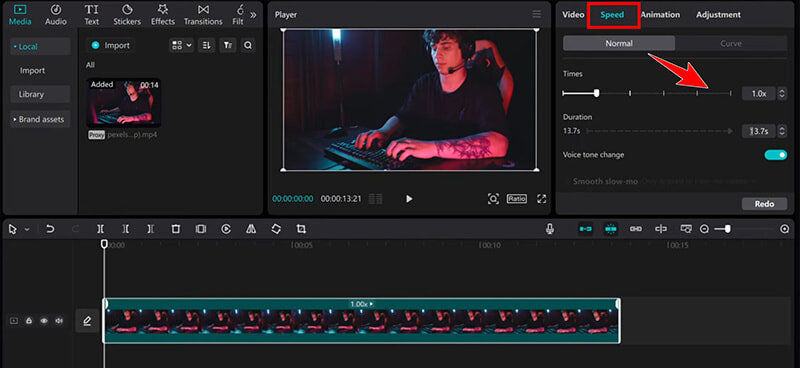
Click once on the clip in the timeline. Look at the upper-right panel (the one usually dedicated to properties). Select the Speed tab.
Choose Your Method
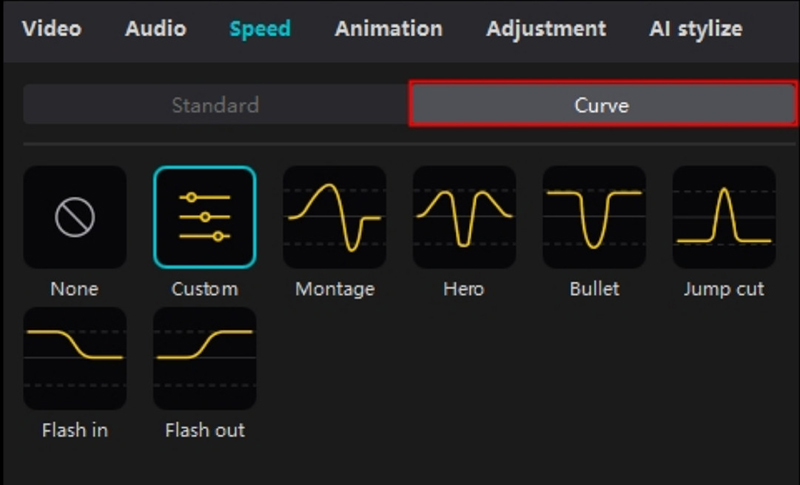
You will see two main options: Normal (for uniform speed) and Curve (for variable speed). Let’s try Curve this time for that cool cinematic look.
Click Curve, and then select Custom. You will see a graph with several dots. These dots represent speed points.
• To speed up a section: Click and drag a dot up the graph. The higher the dot, the faster that part of the video plays.
• To slow down a section: Click and drag a dot down the graph.
Review and Export
CapCut will show you a real-time preview of your speed changes. Once you are satisfied, click Export to save your accelerated video.

Editing on a PC with CapCut is extremely smooth, and having a larger screen allows me to make precise adjustments, as the interface is more expansive. I also like that I can export higher-quality videos on the PC version. The downside is that the desktop app requires space on your computer, and video export time may be longer, depending on your hardware specifications.
Part 3. How to Speed Up a Video in CapCut Online
If you prefer to work in a browser instead of downloading an app, CapCut offers an online version that allows you to change your video speed up or down with the same simple steps. This can be a great option for users who want to edit quickly without needing to install any software.
Access the Editor
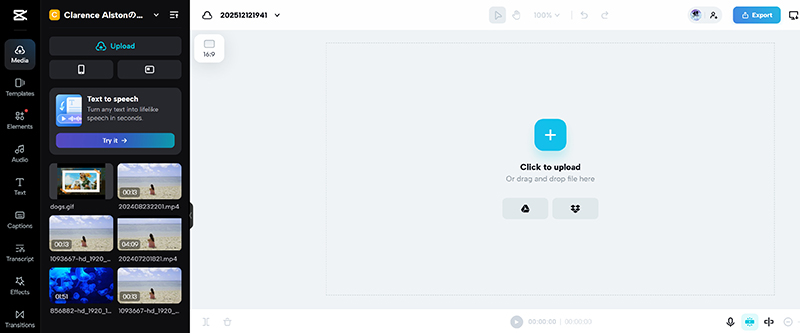
Go to the official CapCut website and log in to your free account. Click Create new and choose your canvas format (e.g., 16:9 for YouTube or 9:16 for TikTok).

Upload
For a quick operation, you can drag and drop your video file directly into the Media panel, or click Click to upload to select it from your computer. Then, drag the file onto the timeline.
Locate Speed Settings
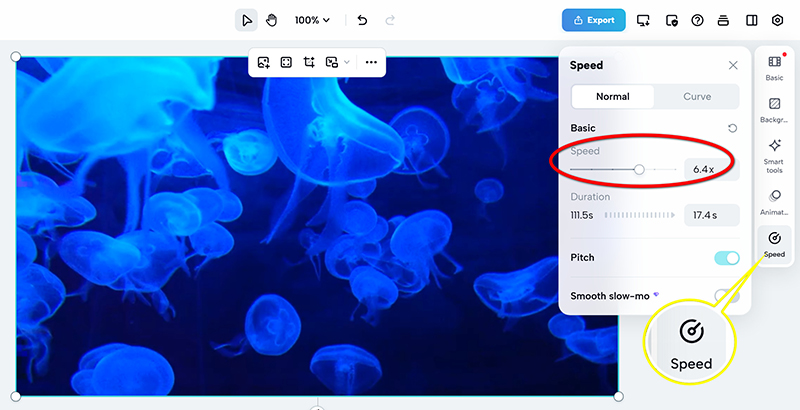
Click the clip on the timeline. On the right-hand panel, click the Speed option.
Select the Normal tab. Just like the other versions, you will see a slider and an input box for the speed multiplier (e.g., 1.5x, 2x, 8x).
Drag the slider to your desired speed. The preview window will update in real-time.
Export from Browser
Click the blue Export button in the top-right corner, select your resolution, and download your newly accelerated video.

The online version of CapCut is convenient if you prefer not to download any software and want to work directly in the browser. It works similarly to the mobile and PC versions, and I appreciate its accessibility. However, the online version has some limitations like editing options, and the performance can sometimes be slow, especially with larger files or complex edits.
Part 4. Best Alternative to Speed Up a Video in CapCut
While CapCut is amazing and handles 99% of my speed-up needs, there are times when a dedicated, professional-grade tool is necessary, especially if maintaining lossless quality at extreme rates is a concern. For those moments, I've had great success with a software called ArkThinker Video Converter Ultimate. It’s designed specifically for advanced, frame-accurate time remapping. It is a powerful alternative for speeding up videos, with a unique focus on video optimization and speed adjustments.
Features:
• Fine-tune the video speed more precisely than CapCut, including the ability to speed up specific parts of a video.
• Maintain the original video quality even after extreme speed changes.
• Over 20 built-in video editing tools to improve footage quality and effects.
• Friendly interface to enable even beginners to complete video speed changes quickly.
Import Video
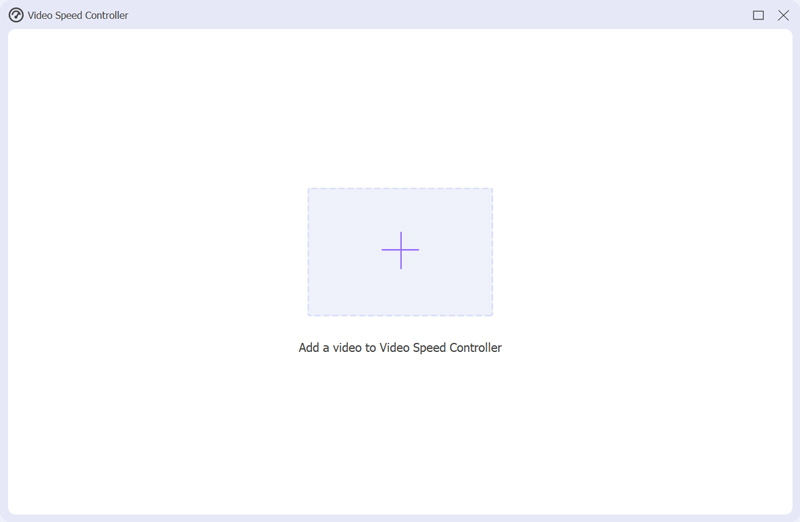
Launch ArkThinker Video Converter Ultimate, locate the Toolbox tab, and find Video Speed Controller.

Import your video file into the tool. It supports nearly all popular video formats, including MP4, MOV, MKV, WMV, AVI, and more.
Set Video Speed
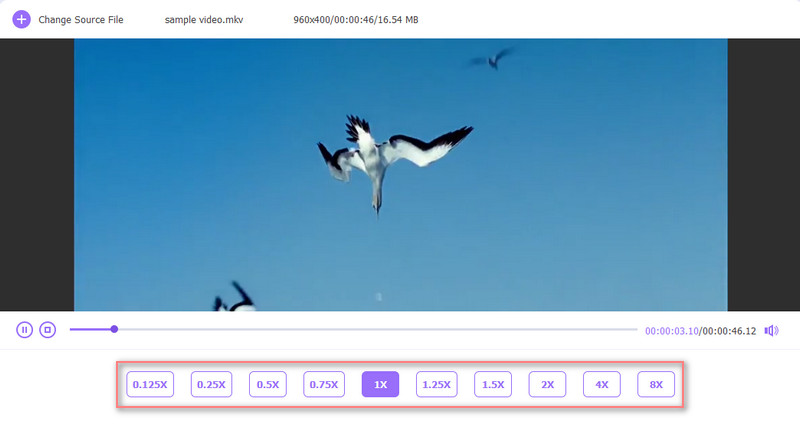
Find the Speed Multiplier and change the value (e.g., from 0.125 to 8.0). The software will automatically create a transition speed ramp between the two keyframes, allowing your video segment to accelerate seamlessly.
Preview and export
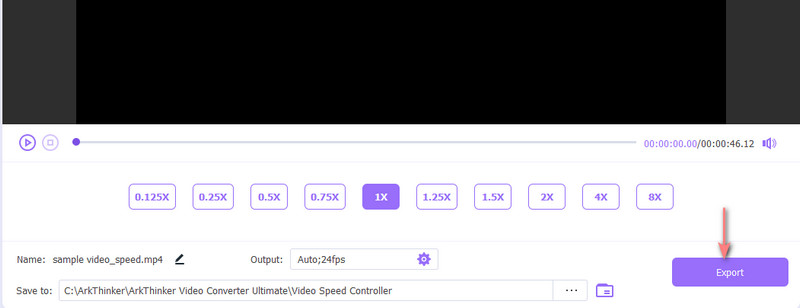
Click the Output drop-down option to select your output format, resolution, quality, and other settings. Finally, once all are ready, just click the Export button to save the sped-up video file.
Now, you have completed the process of speeding up a video file, and it's very easy, right?
Part 5. FAQs
Can CapCut speed up a video?
Yes, CapCut allows you to speed up your video with a simple slider feature, available on mobile and PC versions.
How do I speed up parts of a video in CapCut?
CapCut allows you to speed up the entire video or specific clips by splitting the video and applying different speed settings to each part.
Can I use CapCut on a computer to speed up videos?
Yes, CapCut has PC versions for Windows and Mac, which allow you to easily speed up videos.
Conclusion
CapCut is an excellent tool for speeding up videos, whether you’re using your phone or a computer. Its user-friendly interface makes it easy to make your videos faster and more engaging. If you're looking for more advanced features or alternatives, tools like ArkThinker Video Converter Ultimate can offer extra control. No matter which platform you choose, speeding up your videos with CapCut is a fun and efficient way to edit your content.
What do you think of this post? Click to rate this post.
Excellent
Rating: 4.9 / 5 (based on 499 votes)


