


How to Loop a Video on Mac Using 4 Methods (2026 Guide)
When it comes to multimedia work, macOS is often the recommended hardware platform. Apple desktops are optimized for efficient performance in video editing thanks to modern Apple Silicon chips. In this article, we will explore one of the most basic video editing functions with video looping. We will highlight four different video editing tools you can use to learn how to loop a video on a Mac, ranging from built-in solutions, open-source software, and web-based options.

- GUIDE LIST
- Method 1: Loop Video in QuickTime Player Automatically
- Method 2: Loop Video on Mac Using ArkThinker Free Video Looper Online
- Method 3: Use VLC Media Player for Mac Looping
- Method 4: Create a Looping Live Photo in the Photos App
- FAQs About Looping Videos on Mac
Method 1: Loop Video in QuickTime Player Automatically
We will begin this article by featuring a tutorial on the loop video function in QuickTime Player, macOS's built-in multimedia software. Simply put, this program is designed as the most basic option for Mac users to watch or listen to their multimedia files.
When used as a video player, it offers a looping function to make watching short videos smoother and more enjoyable. Unfortunately, it cannot add or edit the video itself, unlike traditional editors like iMovie, which can loop videos during editing.
To learn how to use QuickTime for smooth video entertainment, please read our two-step guide below to loop videos in it.
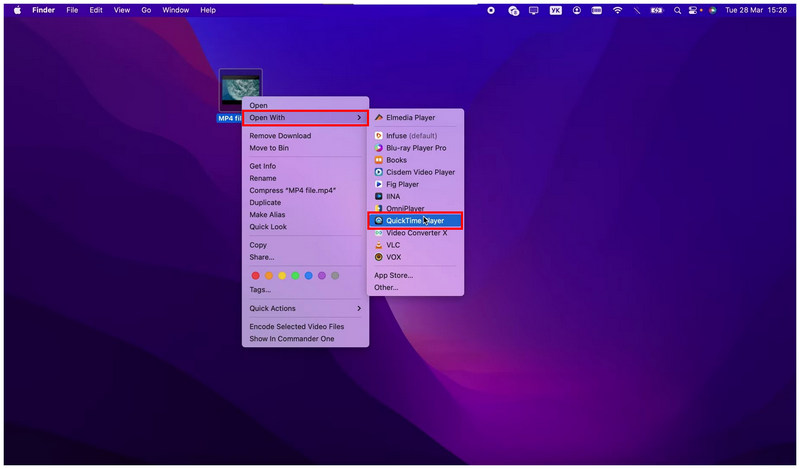
Locate the video you want to loop on QuickTime and right-click on it. Then, hover on Open With, and click QuickTime Player.
Once the video is opened, click on View and select Loop.
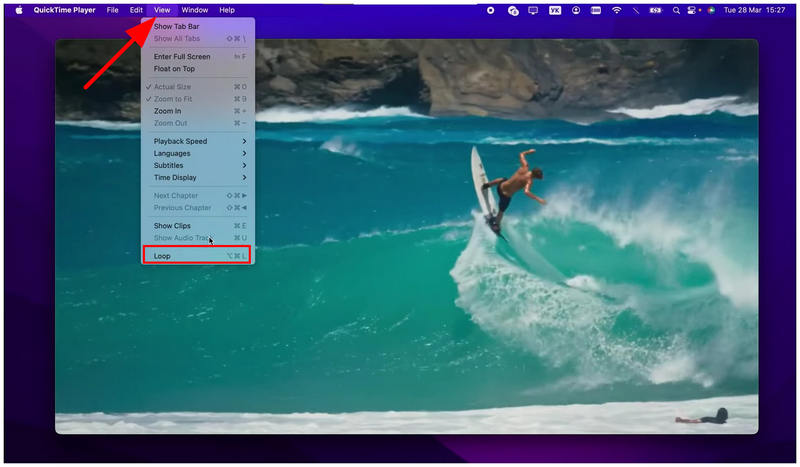
If you want to watch videos natively on your device in a loop, simply use the View function in QuickTime Player. Unfortunately, the program does not support creating video playlists, so it can only loop single videos at a time.
Method 2: Loop Video on Mac Using ArkThinker Free Video Looper Online
With looping in macOS's built-in multimedia player now discussed, let us proceed to web-based solutions for directly applying the video looping effect permanently to media files. In this case, we highly recommend using ArkThinker Free Video Looper Online.
Similar to traditional video player tools, ArkThinker’s tool applies the video repeat effect to the media file itself once it is edited. This sets your files in a loop without relying on the repeat function of multimedia players.
However, unlike traditional video editors, it does not require any installation or setup, as it is fully online and only requires users to upload the file, optionally apply basic adjustments, and start producing the video now with the loop effect active.
To learn how to use this web-based alternative, make sure to read our quick three-step guide below.
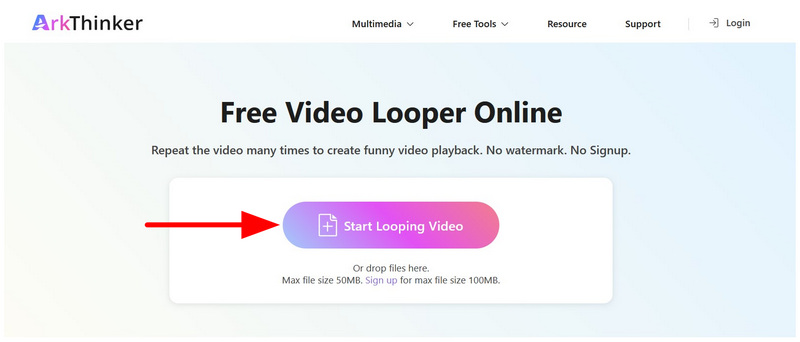
Click on the link to go to ArkThinker Free Video Looper Online’s website. In the online tool’s main menu, select the Start Looping Video option to import the file you want to loop. Wait for the upload process to finish.
Once your video is uploaded, you may use the Trim Sliders or the Playback Speed options to shorten your video or adjust its playback speed.
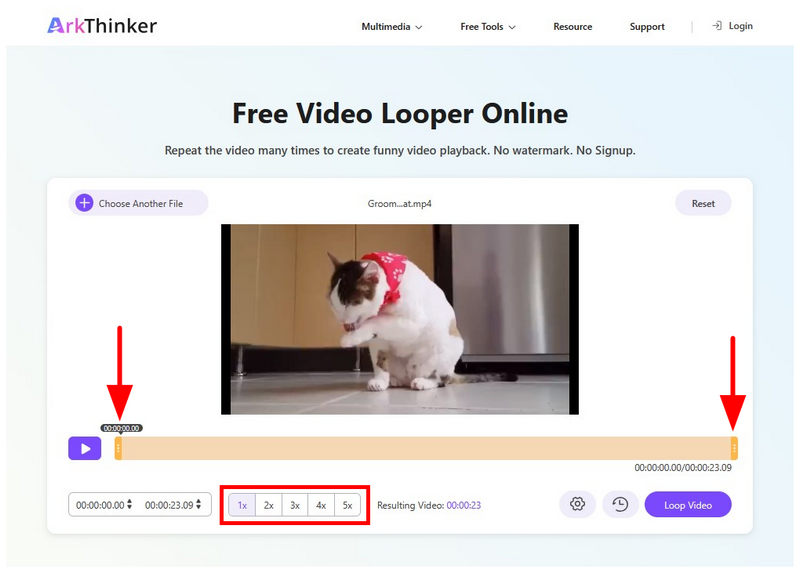
With your video now adjusted, click Loop Video to start applying playback repeat to your media file.
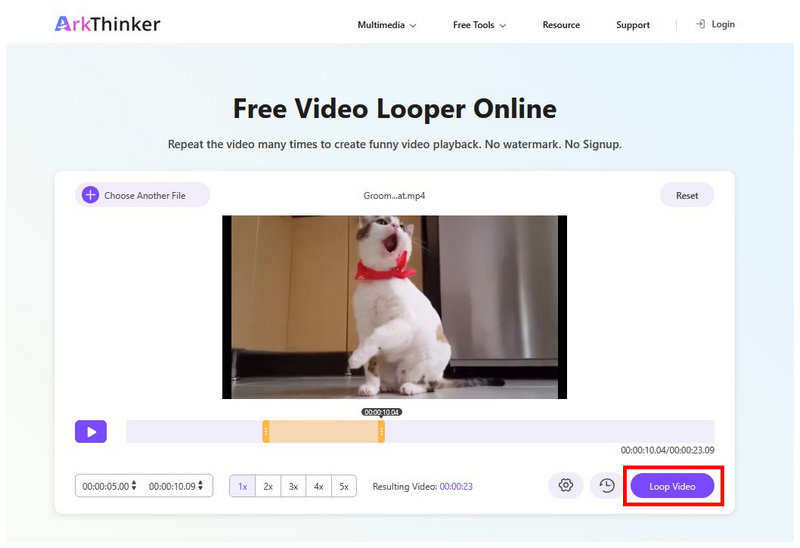
Once the looped video is produced, you can download the modified media file back onto your computer. You can now use it for video editing or for posting short-form video content since your file is now playing on loop seamlessly.
Method 3: Use VLC Media Player for Mac Looping
Moving forward to another third-party option, we will discuss how to loop a video in VLC for Mac . Unlike the web-based tool we discussed as a video-editing option, VLC Media Player is more of an alternative to QuickTime Player, as it offers more video repeat options.
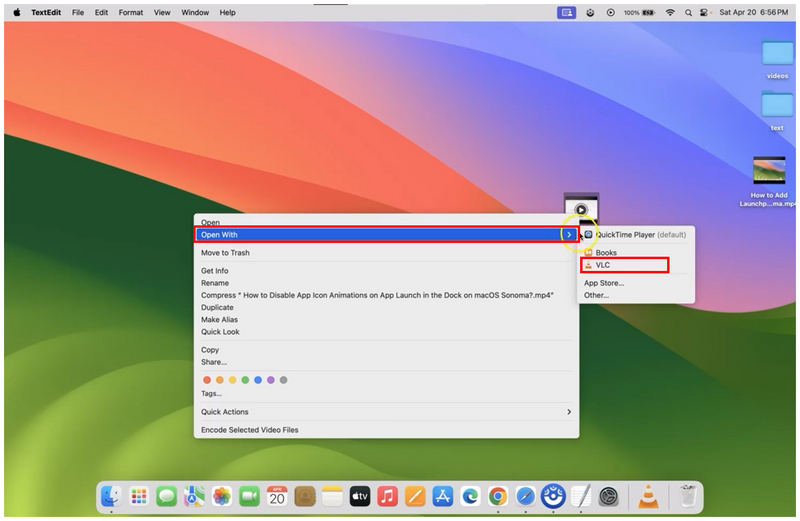
Right-click on the video you want to open on VLC Media Player. Then, move your cursor to Open With and select VLC.
In VLC Media Player, select Playback on the taskbar, then select either Repeat One for a single video loop or Repeat All to loop multiple videos in a playlist.
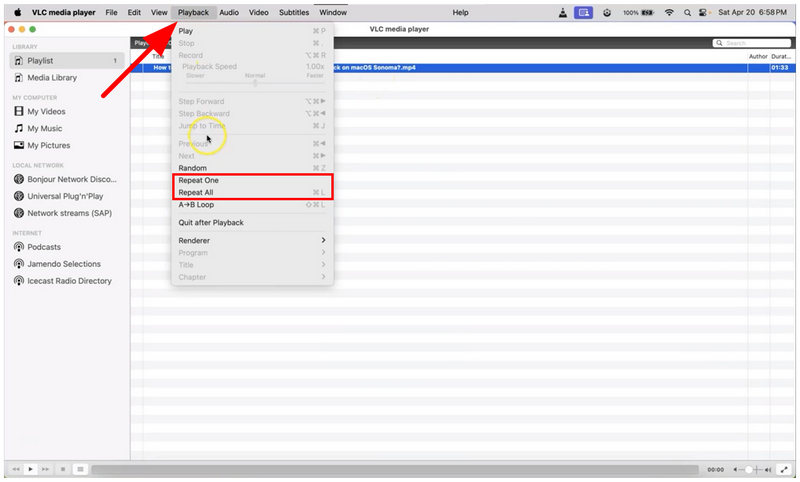
Unlike QuickTime, VLC offers a Repeat All option that automatically loops video playlists. This is a good addition to the more basic single video looping.
Method 4: Create a Looping Live Photo in the Photos App
Finally, let us proceed to Apple's Live Photo feature. Although live photos are not videos per se, they still play and are considered animated. As such, these files can also be set on a loop.
To learn how, please read our quick guide below.
Open your Photos app and locate the Live Photo you want to adjust. Then, tap on the Live icon.
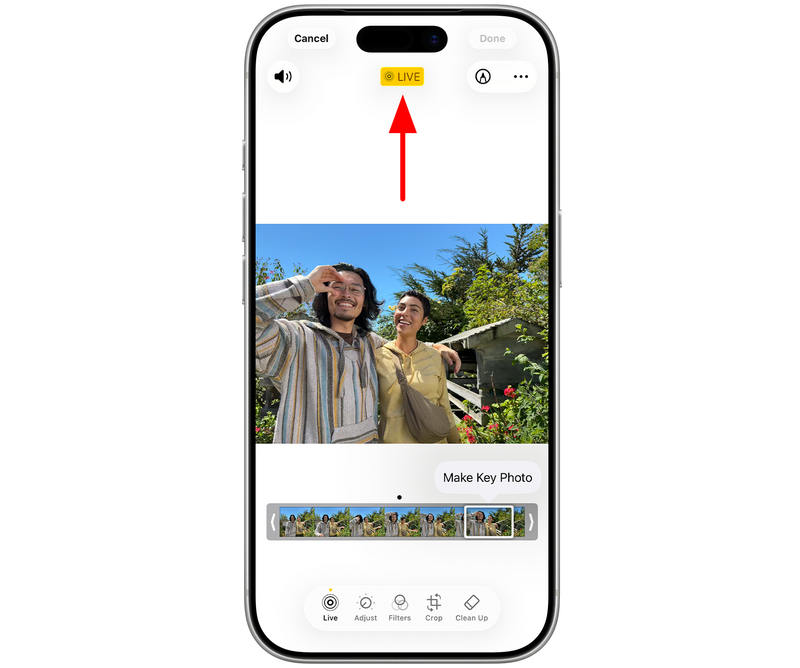
In the Live photo settings that will open, select the Loop option to enable looping on your Live photo.
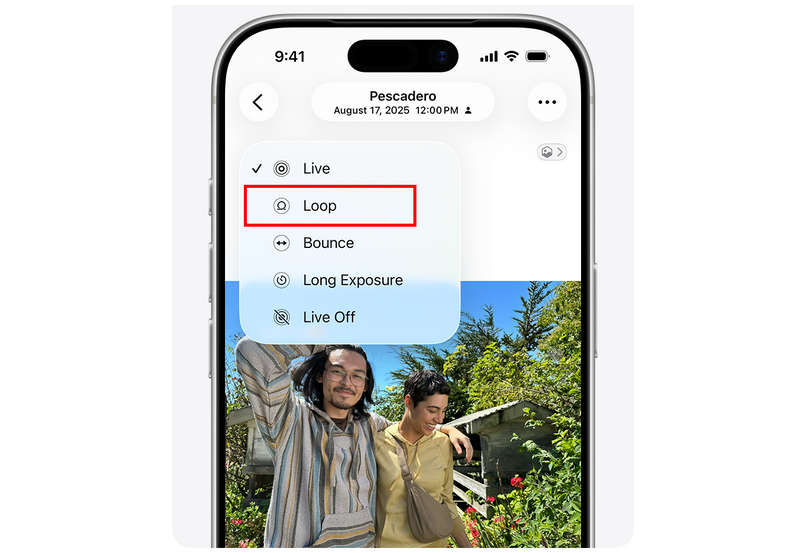
To enhance the seamless transition of live photos, it is recommended to set them on loop. Fortunately, iOS devices can apply a looping effect on these files with a few adjustments.
FAQs About Looping Videos on Mac
How to loop a YouTube video on a MacBook?
You can loop YouTube videos on a Mac using the default looping option. Simply right-click on the YouTube player and select Loop. This is the same whether you are watching YouTube on Windows or Mac.
How to loop a video in PowerPoint on Mac?
To loop PowerPoint videos on Mac, go to Insert and add a video first. Then, select the video file. Go to Playback and select the Loop option.
How to play multiple videos in a loop on a Mac ?
You have to download a third-party video player. The built-in media player of Mac in QuickTime does not support creating video playlists. We recommend using VLC Media Player for looping multiple videos.
Should I loop short-form videos?
Yes, you should. Short-form videos look best when they are perfectly looped. They are also more entertaining to watch.
Are online video editing tools safe to use?
Yes, they are. Online tools are generally safe to use since uploaded files are usually deleted within 24 hours. However, make sure to still avoid uploading sensitive files for your own privacy.
Conclusion
Now that we have discussed the most accessible video looping options on Mac, we hope that this article will help improve your general viewing experience. For video editing needs, we highly recommend using ArkThinker Free Video Looper Online to add permanent and smooth looping, both for files used as video editing assets or for short-form content upload.
What do you think of this post? Click to rate this post.
Excellent
Rating: 4.8 / 5 (based on 486 votes)


