


How to Take a Screenshot in Minecraft: A Full Guide in 2026
Among popular video game titles, Minecraft has a unique strength: it gives its players creative freedom. As such, sharing in-game builds and fun moments, whether in Survival or Creative mode, is one of Minecraft’s key strengths. In this article, we will provide a tutorial on how to take screenshots in Minecraft and where they are saved. We will feature a detailed guide and tutorial on different versions of the game: Java, Bedrock Edition, Console, and Mobile, as well as a third-party option to capture longer Minecraft gameplay.

- GUIDE LIST
- Part 1. How to Screenshot in Minecraft: The Fastest Ways on Every Edition
- Part 2. Where are Minecraft Screenshots Saved and How to View Them
- Part 3. FAQs About Screenshots in Minecraft
Part 1. How to Screenshot in Minecraft: the Fastest Ways on Every Edition
The options we will discuss in this article all feature the fastest and easiest ways to take in-game Minecraft screenshots for free. As such, the programs we have featured are all built into the game version. Meanwhile, the third-party program we have featured is also free to use, making it an easy solution for recording gameplay videos, not just static images.
Take a Screenshot in Minecraft Java with the F2 Key
To get started with Minecraft screenshots, we will first discuss how to take screenshots in Minecraft Java Edition, the primary version of the video game for desktop platforms like Windows and macOS.
Although both operating systems have dedicated tools to screenshot on Windows with PrintScreen and Shift + Command + 3 on Mac, the Minecraft Java version uses the F2 key as the screen capture tool.
Press F2 or Fn + F2 on your computer’s keyboard.
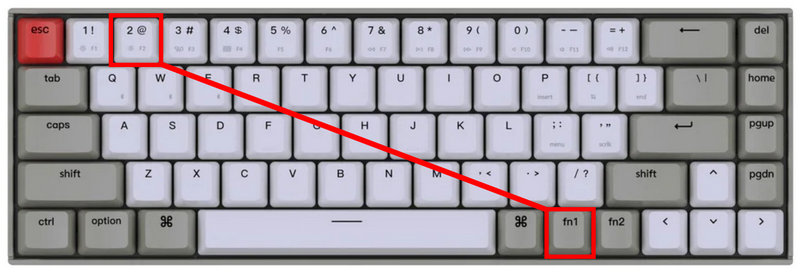
After pressing the F2 button, a notification will pop up in-game to confirm your screenshot has been captured.
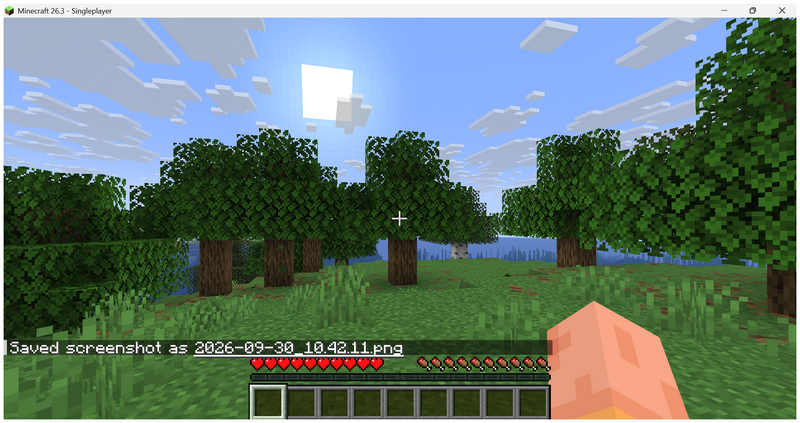
The F2 key is another alternative for the built-in screenshot option on your keyboard. It has a unique advantage since it can capture screenshots instantaneously, and the notification confirms it as well. This is a good alternative if you use Apple desktops, since taking screenshots on Mac requires learning specific shortcuts.
Use the Camera Icon to Screenshot in Minecraft Bedrock
In the next version of Minecraft Bedrock, the cross-platform version of the game will feature a built-in tool to capture in-game images. Unlike the previous Java version of Minecraft, the Bedrock edition has a dedicated Minecraft screenshot button right in the pause menu.
As such, to learn how to capture images in Minecraft Bedrock, all you need to know is how to pause your game on your platform.
Pause the Minecraft Bedrock game. For PC, press Escape. For Xbox, press Menu. For PlayStation, press Options.
In the Pause menu in Minecraft Bedrock, click the Camera (Screenshot) icon in the lower-left section of the screen.
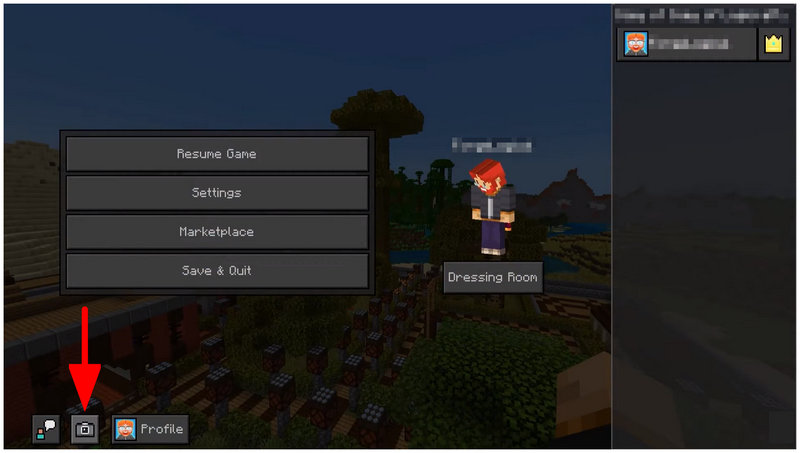
After taking a screenshot, a notification will appear confirming it was captured.
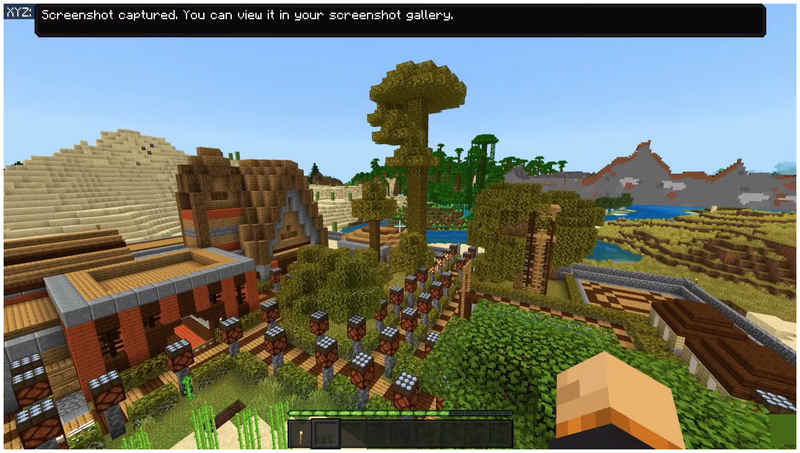
Fortunately, although Minecraft Bedrock has minor differences from other versions of the game, the screenshots are saved in the same location as on your platform.
Screenshot Minecraft on Console and Mobile
When playing Minecraft on Xbox consoles, PlayStation consoles, or mobile devices, the easiest way to capture a screenshot is to use the built-in screenshot option on the platform you are using.
As such, we have provided a full tutorial on taking screenshots using Xbox and PlayStation controllers, along with screenshot button combinations for iOS and Android smartphones.
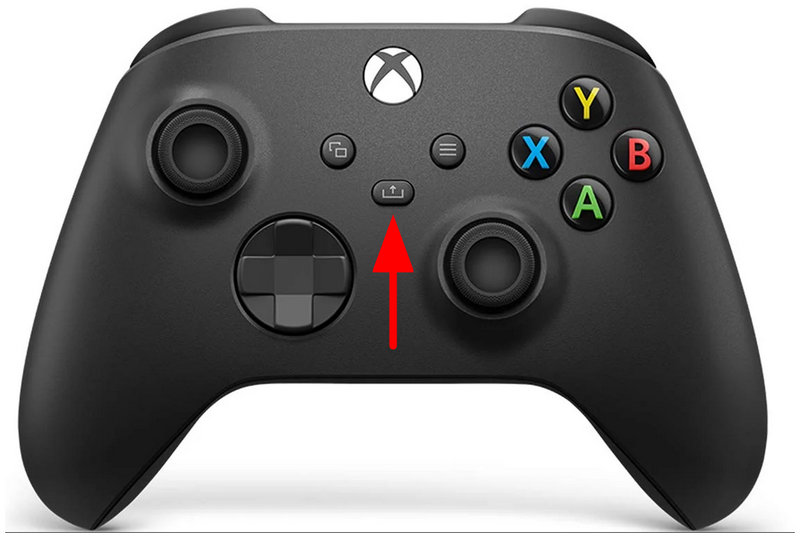
For Xbox:
To take a screenshot on Xbox, tap the Share button once.
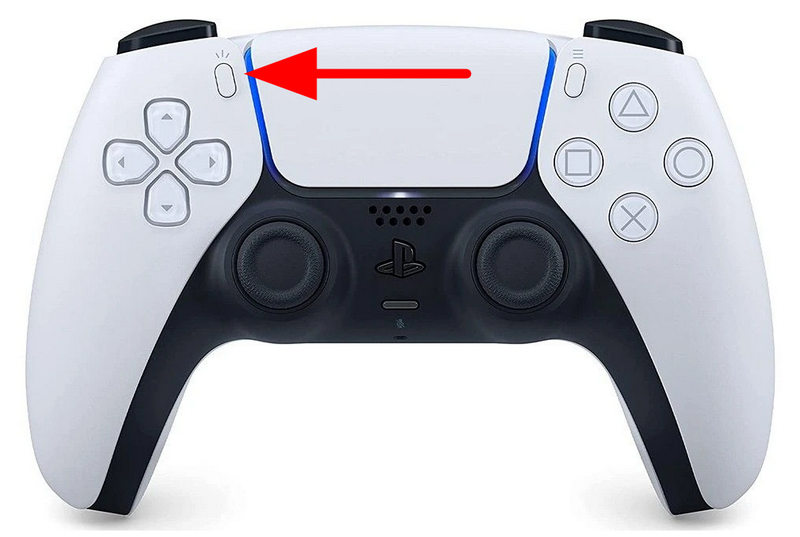
For PlayStation:
To capture a screenshot on PlayStation, press the Create button on the DualSense controller.
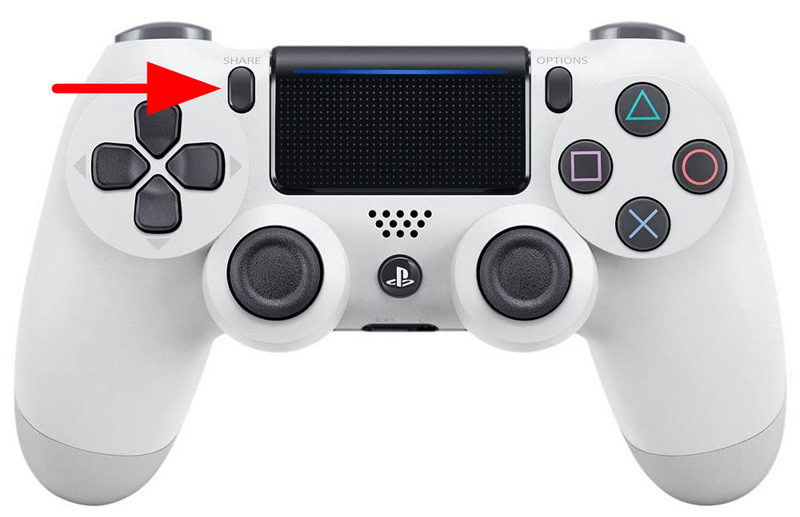
For DualShock controllers, press and hold the Share button.
For Mobile:
To take a screenshot on iOS, press and quickly release the Side Button + Volume Up button.
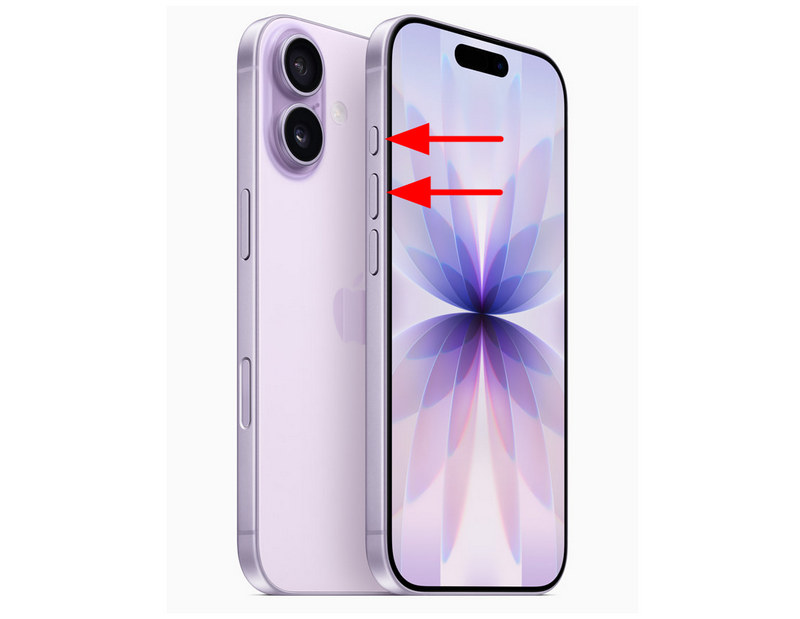
To take screenshots on Android, press and hold the Power + Volume Down button.
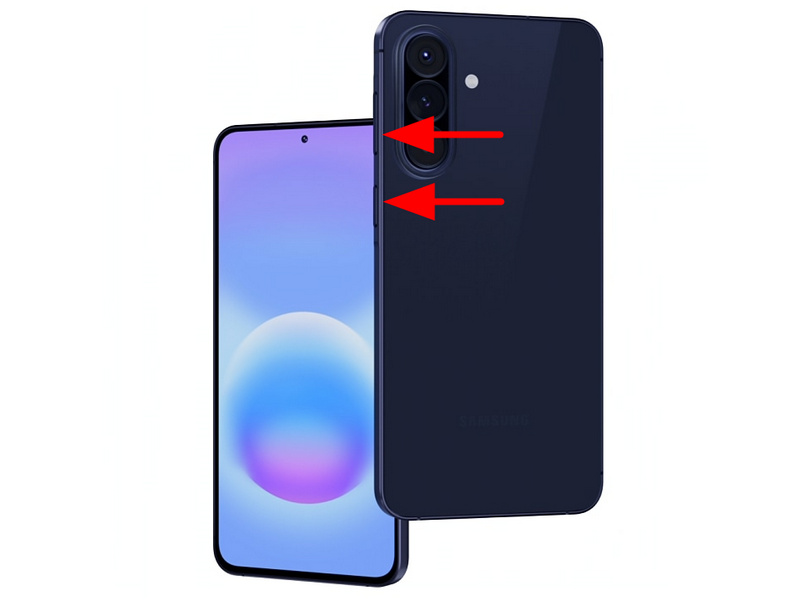
Unlike in Minecraft Bedrock, using the built-in screenshot option on the platform you are playing is more practical, since you don’t have to learn the specific key to take screenshots in Minecraft.
Capture Longer Gameplay with ArkThinker Screen Recorder
Now that we have reviewed and provided a tutorial for taking screenshots across different versions of Minecraft, let us move on to the best third-party tool for recording Minecraft gameplay on Windows and Mac: the dedicated ArkThinker Screen Recorder.
As its name suggests, this program is a dedicated screen recording tool, making it a direct upgrade to regular screenshots on Minecraft. Additionally, it has a dedicated Game Recorder mode, making it fully capable of handling long gameplay recordings while running in the background.
Moreover, the tool’s Game Recorder mode includes a dedicated hardware acceleration feature that enables smooth recordings regardless of the content you capture. This feature is highly apparent in the program’s Game Recorder mode, as it can record video games that demand high hardware performance, such as limitless Minecraft worlds.
To learn how to use ArkThinker Screen Recorder, make sure to read our three-step guide featuring the tool’s dedicated Game Recorder mode. Make sure to download it as well to make it easier to follow our tutorial.
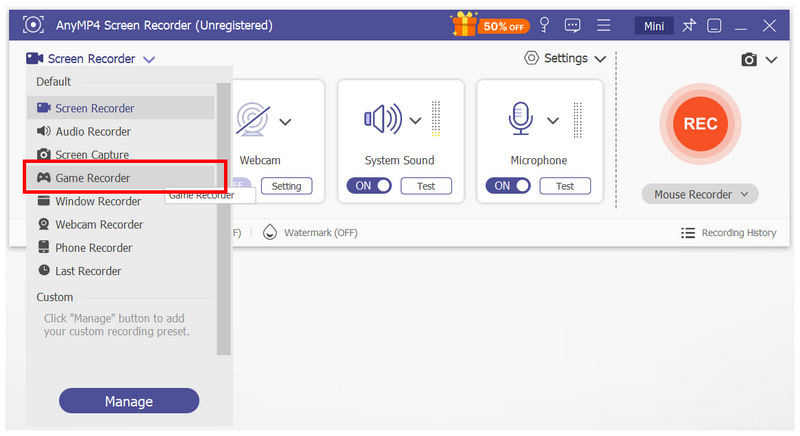
Open ArkThinker Screen Recorder and then select the recording mode dropdown menu. Then, choose the Game Recorder mode.
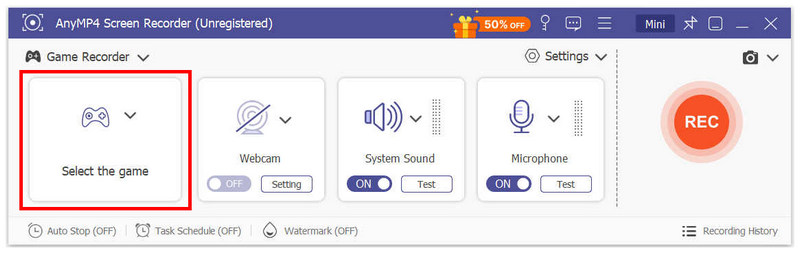
In the Game Recorder mode, click Select the Game and choose Minecraft.
With Minecraft now set in the Game Recorder, you can now adjust the Webcam, System Sound, and Microphone capture of your recording. Once set up, click REC to begin playing Minecraft while ArkThinker Screen Recorder records in the background.
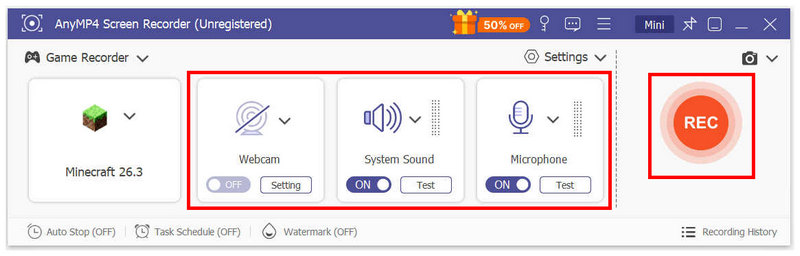
By following three simple steps, you can now capture high-quality, smooth Minecraft gameplay with ArkThinker Screen Recorder. This is a perfect upgrade if regular screenshots won’t be enough for the Minecraft content you want to produce.
Part 2. Where Are Minecraft Screenshots Saved and How to View Them
Now that you have learned how to capture in-game screenshots in Minecraft, let us move on to the steps for finding Minecraft screenshots on different platforms. Fortunately, locating the Minecraft screenshots on consoles and smartphones is very easy. All you have to check is the Gallery app on your smartphone or the Media Library on your console.
However, locating screenshots in Minecraft for PC, whether on the Java or Bedrock edition, is trickier. As such, a dedicated tutorial on locating where screenshots in Minecraft for PC are saved is warranted.
For an easier time locating Minecraft screenshots on PC, follow our quick guide below:
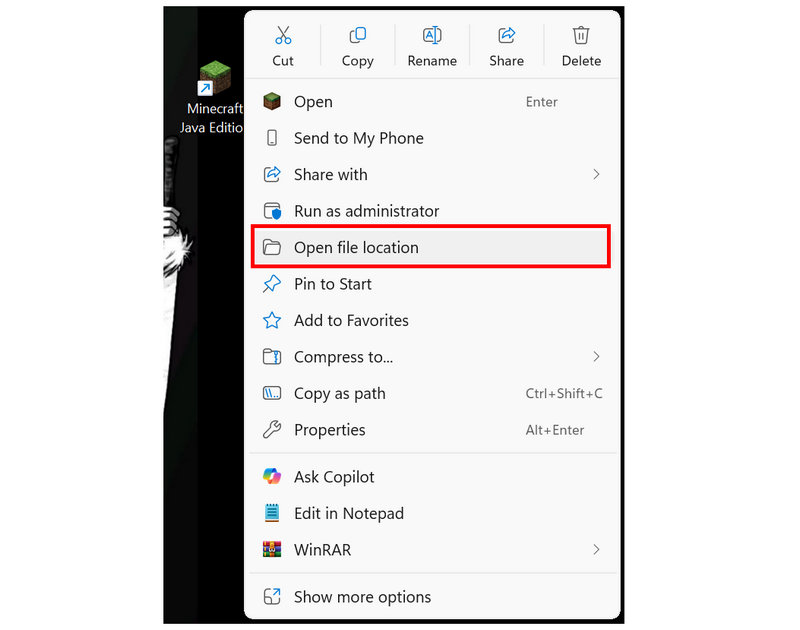
Right-click on the Minecraft app on your desktop, then click on Open File Location.
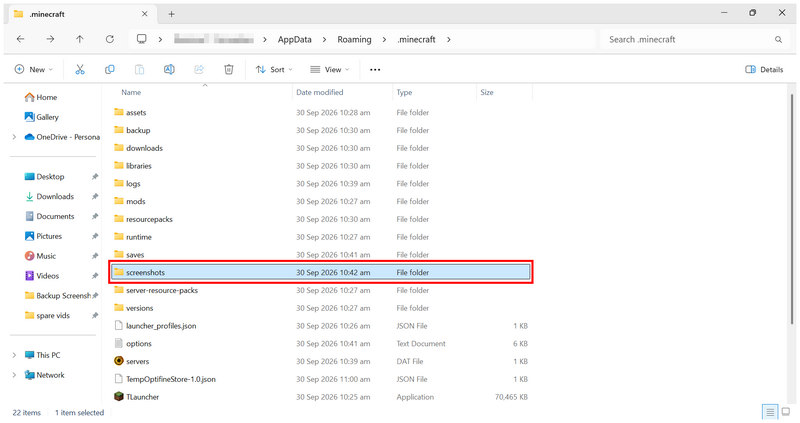
In the folder you are redirected to, select the Screenshots folder.
Inside the folder, all the screenshots you captured in Minecraft for PC are saved.
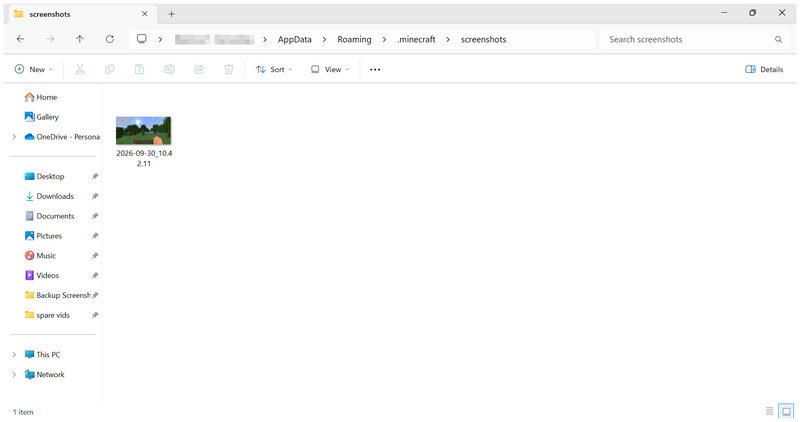
If you want to locate the Minecraft screenshot folder on your desktop, follow this path: C:UsersAppDataRoaming.minecraft. However, it is much more practical to simply right-click Minecraft on your desktop and select Open File Location.
Part 3. FAQs About Screenshots in Minecraft
Where do Minecraft screenshots go ?
It depends on the platform you are playing Minecraft on. For console and mobile, simply check your Media Library or your Gallery app. For PC, it is more complicated. However, all you have to do is click Open File Location in Minecraft, then select the screenshots folder.
Are there in-game options to take screenshots in Minecraft?
Yes, there are. However, not all versions of Minecraft have the built-in screenshot feature. The only version of the game that has a screenshot button is the Bedrock edition.
On which platform is Minecraft best played?
It depends on what you want to do in-game. For maximum customization, the Java Edition of the game on PC is the best. However, for cozy or on-the-go entertainment, console or mobile is better.
Is there a dedicated screen recording feature in Minecraft?
No, there is not. You have to use a third-party program to record gameplay on Minecraft. Fortunately, there are numerous programs you can use to record gameplay videos.
Should I use my device’s built-in screenshot feature to capture Minecraft gameplay?
If you are using Minecraft Bedrock edition, the built-in screenshot feature is a good choice. However, since this option is limited to this edition of Minecraft, it is not the best way to capture gameplay. Using your device’s built-in screenshot tool is still the better option.
Conclusion
Now that we have discussed the full tutorial on taking screenshots across different versions of Minecraft, we hope you can capture more in-game screenshots to make it easier to showcase your creative projects. If you want to create more than standard static images, you may also consider using third-party screen recording tools, such as ArkThinker Screen Recorder, to showcase your Minecraft projects more effectively. You may download the software using the link below.
What do you think of this post? Click to rate this post.
Excellent
Rating: 4.9 / 5 (based on 692 votes)


