


How to Use HandBrake to Crop Video: A Full Tutorial (2026)
When it comes to video encoding tools, HandBrake is one of the most popular options since it is open-source and also easy to use. However, most of their users struggle with the program’s auto-crop feature, which removes pixels they want to keep. In this article, we will provide a full tutorial on using HandBrake to manually crop a video, as well as the settings you need to adjust to turn off the auto-cropping feature. For beginner readers, we will also highlight the best web-based alternative for basic video cropping.

- GUIDE LIST
- Part 1. Why is HandBrake Cropping My Video
- Part 2. How to Disable Auto-Crop in HandBrake
- Part 3. How to Manually Crop in HandBrake
- Part 4. Why Does the Output Resolution Change Unexpectedly
- Part 5. Best Alternative to HandBrake for Video Cropping
- Part 6. FAQs About HandBrake for Video Cropping
Part 1. Why is HandBrake Cropping My Video
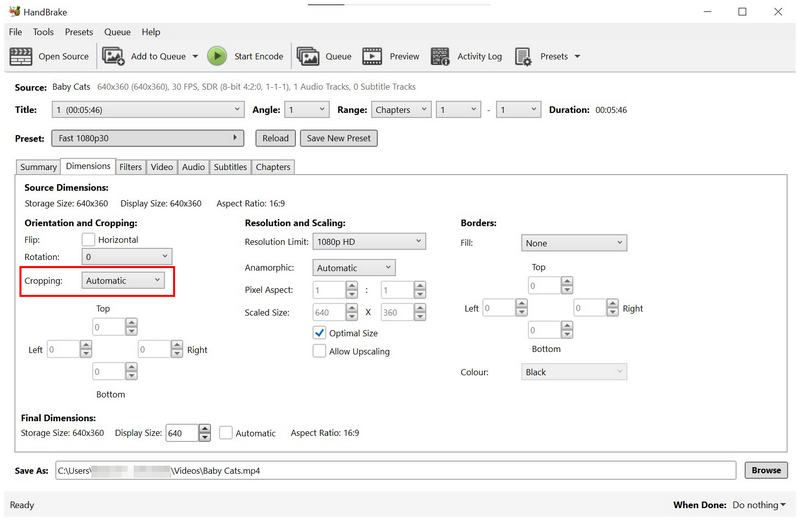
To provide a quick answer for our readers looking for why HandBrake is cropping videos automatically, the reason lies in the program’s default cropping option in the Dimensions tab. Unlike other multimedia tools that only offer manual cropping, HandBrake sets its cropping to Automatic.
Because of that default setting, videos edited and encoded in HandBrake are automatically cropped based on their preview frames. These usually cause black bars and gaps in the video to be automatically removed. As such, HandBrake is a good option for cropping videos on Windows.
Although this is beneficial most of the time, applying automatic adjustment to videos as drastic as cropping is not welcome for most users.
Part 2. How to Disable Auto-Crop in HandBrake
Fortunately, turning off the auto-crop option in HandBrake is easy. All you have to do is know the setting that enables automatic cropping in HandBrake. Then, change it to one of the other options available in the program.
To learn how, please read our guide below.
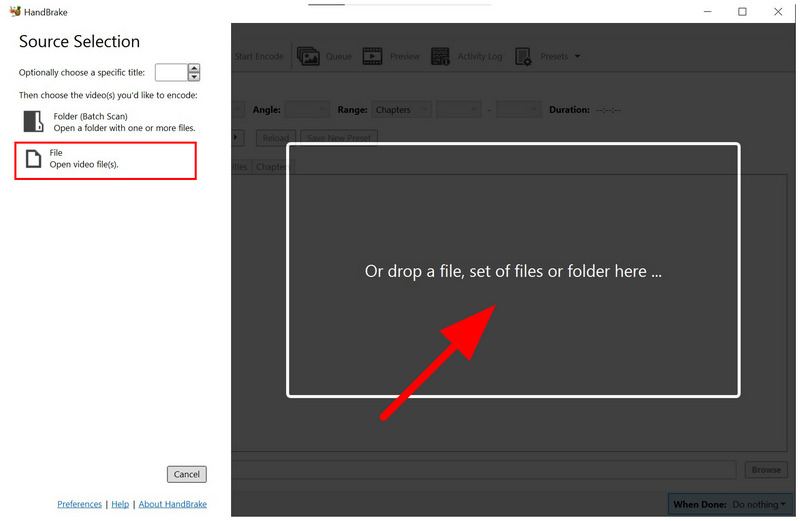
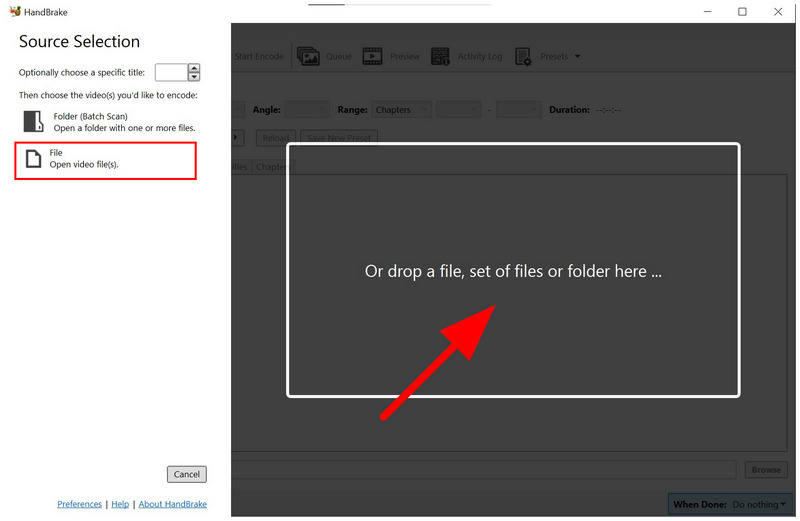
Open HandBrake and click on File, or drag and drop your files into the Upload Box.
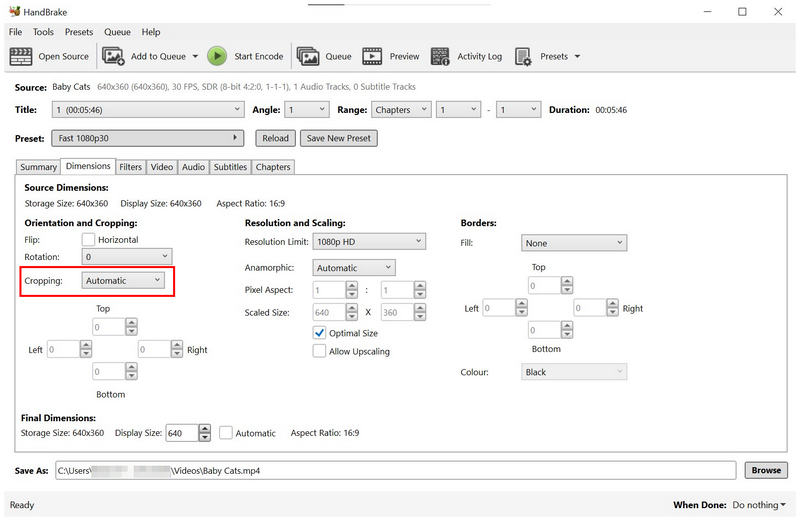
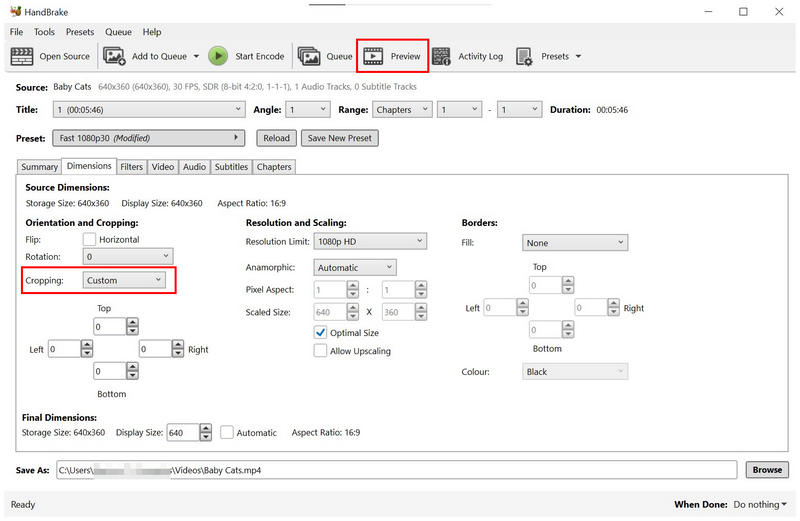
Go to the Dimensions tab. Then select the Cropping dropdown menu, which is set to Automatic by default.
Among the available Cropping options, select Conservative, None, or Custom to turn off auto-crop.
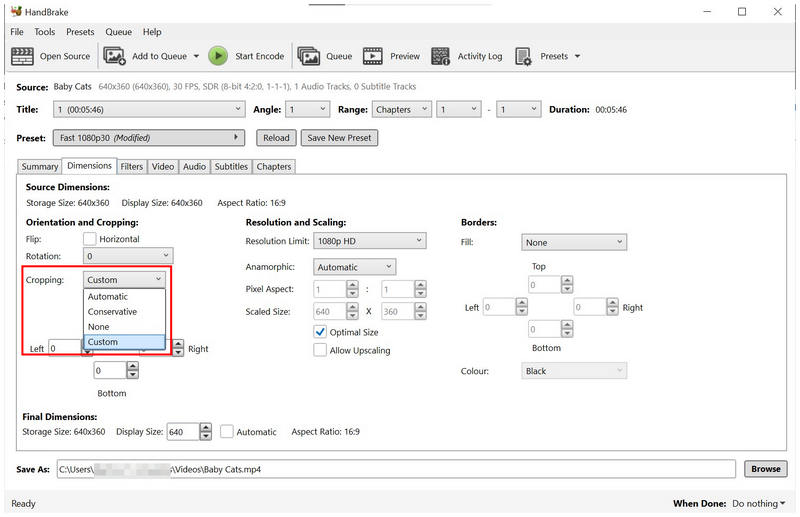
When you use the Conservative option, HandBrake will still automatically apply the crop adjustment. However, the video quality of your file will be preserved. Meanwhile, selecting None turns off auto-cropping, and choosing Custom allows you to crop manually.
Part 3. How to Manually Crop in HandBrake
Now that we have discussed that, enabling manual cropping in HandBrake requires setting the cropping option to Custom. We can now move forward to the guide on using the manual crop adjustment in HandBrake.
Unlike other video editors, HandBrake does not use aspect ratio presets or resolution editing to provide video cropping options. It uses pixel-based value adjustment to the Top, Bottom, Left, and Right sections of your video.
To have an idea of how to apply this unconventional cropping option, please read our guide below.
Open HandBrake and import the file you want to edit by clicking File or by dropping it into the Upload Box.
Go to the Dimensions tab. Next, set the Cropping option to Custom. Then, click on Preview to display the video you are editing.
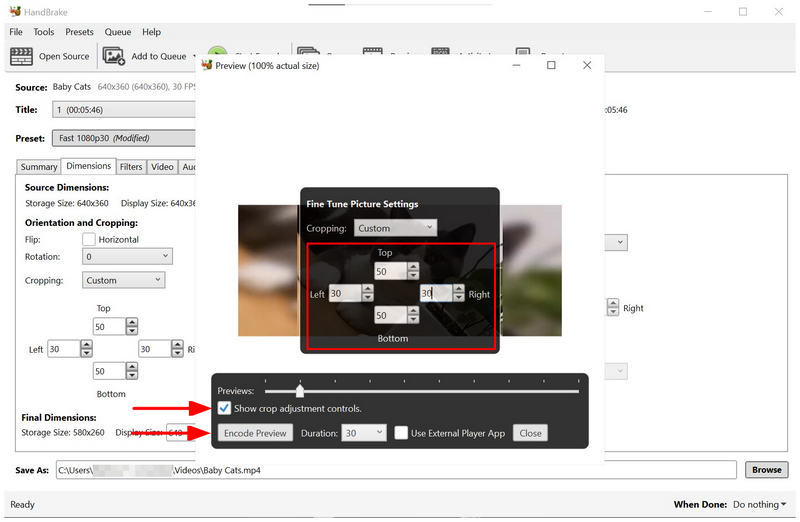
In the Preview menu, select the checkbox for Show Crop Adjustment Controls to show the cropping menu overlay. Adjust the cropping values for Top, Bottom, Left, and Right to your liking. Once done, click on Encode Preview to apply your crop adjustment.
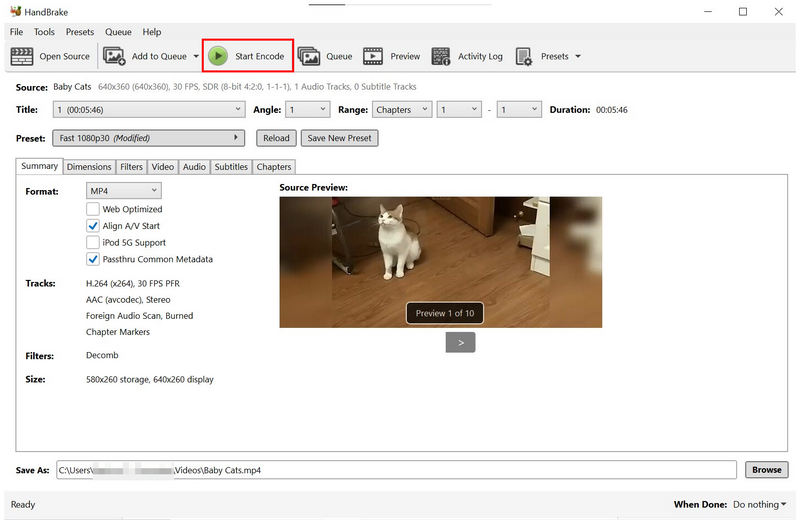
With the cropping values applied, you can return to the Summary tab to edit your video’s export settings. Finally, click on Start Encode to begin producing the cropped video.
HandBrake’s pixel-based cropping tool is not only unconventional but may also be impractical for some users. The decision not to provide any aspect ratio or custom resolution option is a miss for the otherwise practical software. To learn the best option for an easier video cropping tool, make sure to read our proposed alternative in the fifth section of the article.
Part 4. Why Does the Output Resolution Change Unexpectedly
In addition to automatic cropping, we discussed above, resolution limits and anamorphic scaling are the other factors that affect the output resolution of encoded videos in HandBrake. These elements are usually affected and present in specific video presets. They are active by default because these automatic resolution-control settings are applied to help HandBrake users save storage space.
Part 5. Best Alternative to HandBrake for Video Cropping
Since HandBrake’s cropping options are unconventional due to the lack of aspect ratio and resolution editing, it is not the best option for beginners or for users who want convenience. As such, web-based solutions like ArkThinker Free Video Cropper Online work excellently as an alternative to HandBrake for video cropping.
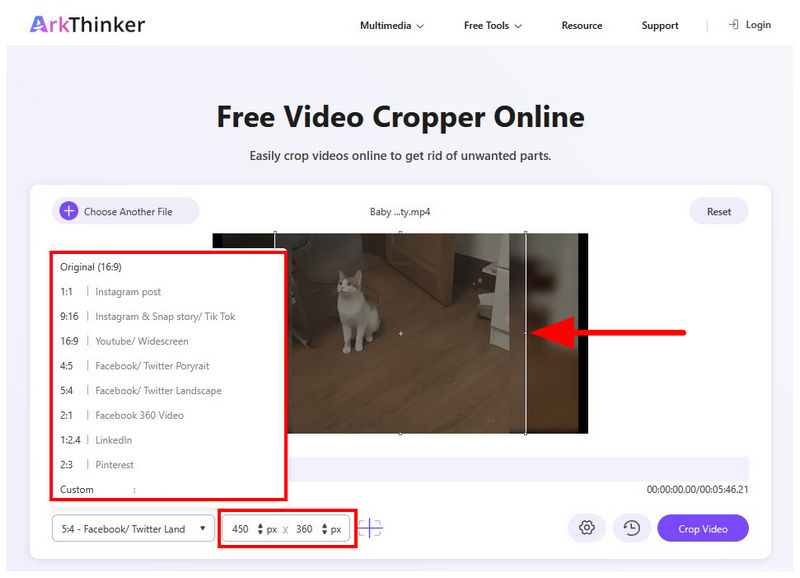
Unlike HandBrake’s pixel-based cropping tool, ArkThinker’s online software offers three cropping options that are easy to use, practical, and intuitive. These options are available as Presets, Resolution Value, and Crop Box.
These are far more welcoming to amateur editors and practical for users looking for a quick video-cropping solution. To learn how to use the web-based program, make sure to read our quick three-step guide below.
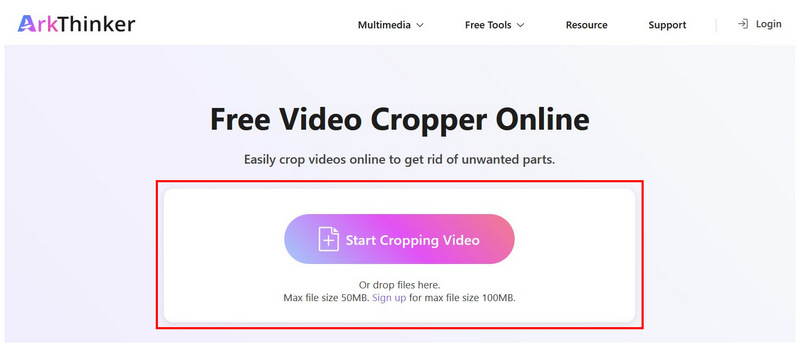
Go to ArkThinker Free Video Cropper Online’s website, then upload the video you want to edit by either clicking the Start Cropping Video button or dragging and dropping files in the Upload Box.
Wait for the video file to be uploaded. Once done, you can use three separate cropping options to suit your preferences. You can use the Presets, edit Resolution Value, or adjust the Cropping Box in the preview window.
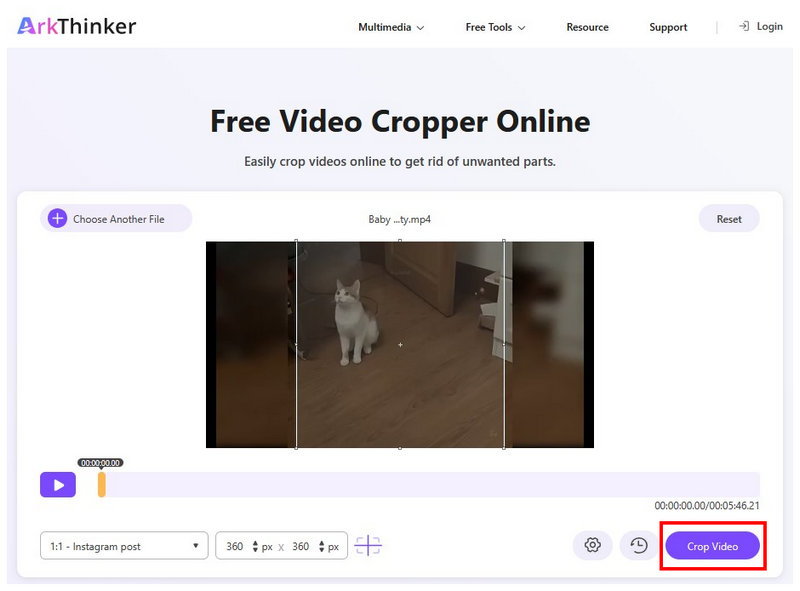
Once you have selected your cropping option, select Crop Video to apply the adjustment to the video file you are editing.
ArkThinker Free Video Cropper Online’s cropping options are not only versatile. They also provided their users with adjustment accuracy and more options based on their video cropping preferences. Moreover, cropped videos in ArkThinker are watermark-free.
Part 6. FAQs About HandBrake for Video Cropping
Can HandBrake crop videos?
Yes, it can. HandBrake can crop videos in the program’s Dimensions tab. Simply set the cropping tool to custom and use it to crop the file from all directions.
Is it hard to use HandBrake?
No, it is not. HandBrake has moderate difficulty. It is not simple, but its key features are well labeled and intuitive enough.
Why does HandBrake auto-crop videos?
HandBrake sets the cropping option to automatic by default. This caused the tool to crop gaps in encoded videos automatically. However, the cropping option can be turned off or customized.
Is HandBrake based on FFmpeg?
Yes, it is. HandBrake uses FFmpeg as its foundation. However, it does not require you to install FFmpeg to use it.
Should I use online tools for basic video editing?
Yes, you can. Basic editing adjustments are completely fine when done on online tools. However, you have to make sure that the program you will use is safe. A good example of a safe and reliable online program is ArkThinker Free Video Cropper Online.
Conclusion
Now that you have learned the best option for video cropping in HandBrake, we hope this article has provided you with useful information to make your next editing project run more smoothly. If you want a basic video cropping option with a beginner-friendly, highly accessible solution, we highly recommend ArkThinker Free Video Cropper Online.
Find More Solutions
2 Ways to Crop a Video Dimension in CapCut [2024 Guide] How Can You Apply Video Cropping in DaVinci Resolve Can You Crop A Video for Instagram and How to Apply It Best 4 Solutions for Cropping Your Videos on TikTok [Step-by-Step] How to Use Final Cut Pro to Crop Videos Is It Possible to Crop Your Video in PowerPoint & How to Do- Edit Video
- How to Make a Short Video Longer with 3 Different Methods
- Loop a Video on iPhone, iPad, Android Phone, and Computer
- Free Video Editing Software – 7 Best Free Video Editor Apps
- 3 TikTok Watermark Remover Apps to Remove TikTok Watermark
- Video Filter – How to Add and Put a Filter on a Video 2024
- How to Slow Down a Video and Make Slow Motion Video 2024
- Split Your Large Video File with 3 Best Movie Trimmers 2024
- How to Add Watermark to Video on Different Devices 2024
- 5 Best MP4 Compressors to Reduce the Video File Size 2024
- Detailed Guide on How to Slow Down a Video on Snapchat 2024


