


Full Snagit Review in 2026: Pros, Cons, and Main Features
When looking for premium screenshot and screen recording tools, Snagit is one of the most recommended options available today. This was made possible by the program's advanced features, which make it a highly capable screen recorder with extensive annotation, editing, and sharing options. To help our readers decide whether the program is worth using, this Snagit review article will highlight the tool’s key features, pricing options, strengths, and drawbacks.
- GUIDE LIST
- Part 1. Snagit Review Overview: What You Need to Know
- Part 2. How Much Does Snagit Cost
- Part 3. Key Features of Snagit
- Part 4. Snagit Pros and Cons
- Part 5. Snagit Performance
- Part 6. Snagit vs Arkthinker Screen Recorder: Which Is Better
How We Test and Review Snagit
- • Snagit was tested and reviewed on modern Windows computer hardware.
- • The desktop used for testing is equipped with an Intel i7 processor, 16GB of RAM, and an integrated Intel GPU.
- • To ensure that Snagit runs at peak performance during testing, it was tested by recording the screen with a single YouTube tab during the assessment.
- • To assess the quality of screen captures and recordings, we compared Snagit captures with media captured using the built-in Snipping Tool and Xbox Game Bar.
- • For post-processing assessment, we tested Snagit’s annotation and video editing tools.
Part 1. Snagit Review Overview: What You Need to Know
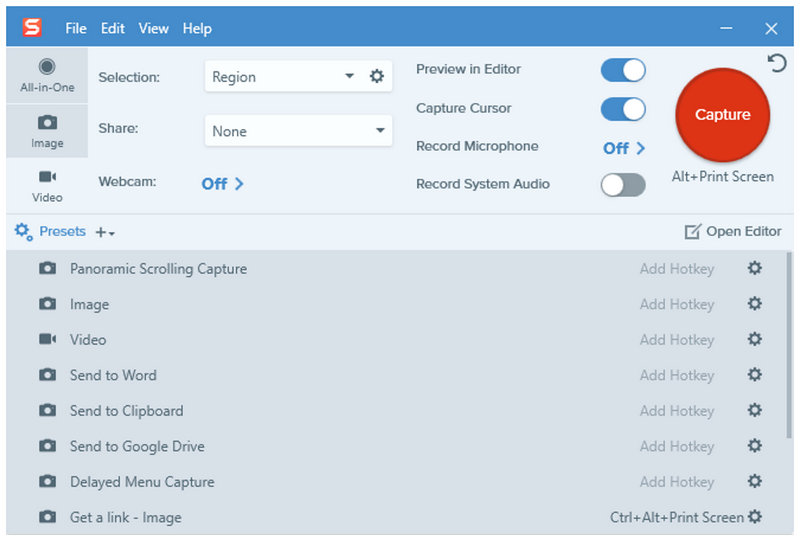
To get started with our review, let us first discuss the basics of the Snagit screen capture tool and why it is a popular third-party solution for media practitioners looking to upgrade from their computers’ built-in options.
Simply put, using Snagit to take screenshots on Windows or Mac is more versatile because it offers a scrolling screenshot mode that captures browser pages in a single image. To top it all off, built-in annotation options such as shapes, callouts, and arrows can be added to captured images, enabling the creation of tutorial photos in a single program.
On the other hand, the software’s screen recording offerings are also optimised for more advanced captures. To start, it offers the highly practical webcam recorder and records both system and microphone audio with superb quality.
All these recording and screenshot features make Snagit an excellent choice for users who want to create educational content, tutorials, recorded webinars, and social media content, all in one tool.
Note: Although the hardware we used is a Windows laptop, this article can still be used as a Snagit for Mac review since the program was able to optimise both versions of the software for the two popular operating systems.
Part 2. How Much Does Snagit Cost
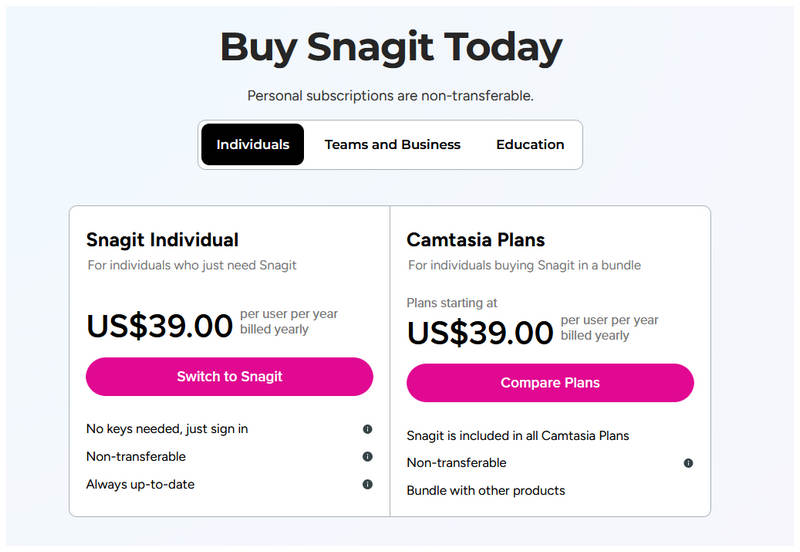
Snagit pricing follows the model of other premium software; its paid plans are versatile and cater to a wide range of multimedia practitioners. In total, the software offers different pricing plans categorised as Individual, Teams and Business, and Education.
Although these pricing models are designed for different use cases, Snagit's core functions are available across all options. However, their price tags differ because they are catered to different users.
To start, the Snagit pricing plans follow these costs:
| Subscription Model | Pricing |
| Individual | $39.00/year |
| Teams and Business | $48.00/year Custom Pricing |
| Education | $39.36/year (Educators) $20.00/year (Students) |
Now that you have learned the exact figures for how much Snagit costs, we hope this is one of the vital pieces of information that will help you decide whether using Snagit is worth it as an upgraded screenshot and recording tool.
Part 3. Key Features of Snagit
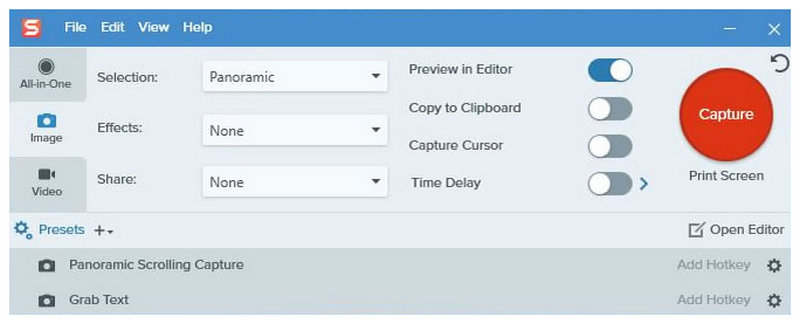
Panoramic Scrolling Capture
The most notable screenshot upgrade feature of Snagit is its scrolling capture mode. In most screenshot options, scrolling capture can only take screenshots vertically, making it a popular solution for saving browser pages. However, Snagit can also capture screenshots horizontally. This makes it a perfect choice for saving spreadsheet data as a single image file.
Screen Recording and Webcam Capture
Another significant upgrade over default screen recorder options, Snagit has a high-quality webcam recorder mode that makes it easier for users who create tutorial content to add an overlay of themselves to the webcam capture. This can even be used alongside screen recording to capture both your webcam overlay and your screen.
Image Editing and Annotation Tools
In addition to its advanced screen recording options, Snagit’s image editing and annotation features are also commendable. To start, you can create tutorial images within the software, which provides annotation options such as arrows, callouts, text, shapes, highlights, stamps, and numbered steps. Additionally, the program includes editing tools such as video cropping, resizing, standard rotation, and blurring.
Templates, Sharing, and Workflow Features
To sum up all its practical features, Snagit offers templates for commonly used annotations, such as those for step-by-step guides, reports, and visual presentations. These include shapes and arrows that are already uniform in size and can be added to images for a clean-looking tutorial.
Part 4. Snagit Pros and Cons
If you want a quick glimpse of how Snagit compares to other screenshot options, the program's strengths and weaknesses may help you decide which is better when comparing Snagit versus Greenshot, Camtasia, ShareX, and other tools.
- Excellent screenshot tools, modes, and annotation options.
- Advanced screen recording modes with built-in video editor.
- Optimised for ease of use and is beginner-friendly.
- Annotation features dedicated to creating step-by-step tutorials.
- Vertical and horizontal scrolling screenshot capture.
- Only available as a subscription-based tool.
- Its video-editing features will not be sufficient for professional-quality tutorials.
- The advanced screenshot modes will be overkill for general use.
- Minor features are not available based on what operating system you are using.
- Consumes significant resources during screen recording.
Part 5. Snagit Performance
With all the previous options covering what Snagit is, its best uses, features, strengths, and limitations. We can now move on to reviewing the tool's main performance in terms of recording quality, post-processing features, and resource consumption.
To get started, the program's recording quality is one of its biggest strengths. Whether you use it as a screenshot tool or a recorder, the sheer quality of the photos and videos Snagit captures is simply top-notch.
Next, post-processing is another notable advantage of the software compared to its competitors. For images, the templates and annotation tools are good enough for making a tutorial. When it comes to video editing tools, the software's essentials are more than enough to greatly reduce the work required for applying more advanced adjustments in traditional video editors.
Unfortunately, the superb performance and demanding features of Snagit come at a great cost. It is extremely hungry for computer resources. When recording with the program, you should expect a noticeable reduction in your desktop's performance.
Part 6. Snagit vs Arkthinker Screen Recorder: Which Is Better
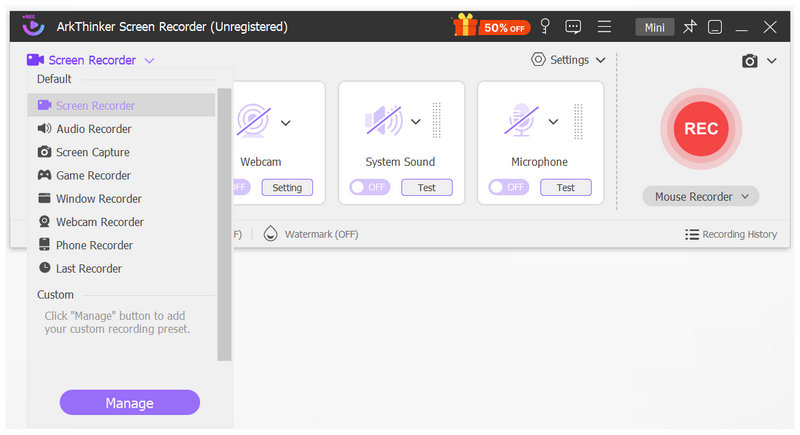
When choosing a reliable alternative to Snagit, most users recommend open-source and paid tools with a notable bias toward screen recording and capture features. However, Snagit is praised for its versatility as a balanced software. If you want a program designed to serve as a reliable screen recording and capture tool, the top recommendation is ArkThinker Screen Recorder.
Unlike Snagit, the program offers a reliable free version for short recordings; all its key features and recording modes are available in the freeware version. If you want to upgrade the software, you only have more flexible options, as it offers a monthly license, a more affordable annual subscription, and a lifetime one-time-payment license, a rarity among modern software.
Along with the core recording tools that most users need, ArkThinker Screen Recorder combines versatility with useful editing functions and built-in screen capture capabilities. It also has a significant edge over its competitors because these annotation features can be applied in real time during screen recordings. A practical solution to make media editing even more efficient.
To start using the most reliable alternative to Snagit, download ArkThinker Screen Recorder using the link below.
Main Features
- • Equipped with six versatile video recording modes.
- • Screen capture mode with scrolling screenshot.
- • Offers practical post-processing tools with image annotations and video editors.
- • Crisp audio recording capture for both system and microphone audio.
- • Cross-platform availability for Windows and MacOS
Part 7. FAQs About Snagit Review
Does Snagit have a free version?
No, it does not have a free version. However, you can use the tool for free via their trial version. You can use the trial version of the program for 15 days.
What are good Snagit alternatives?
Good Snagit alternatives are the featured ArkThinker Screen Recorder and ShareX. Both tools are equipped with features as a screen recorder and screenshot tool. All you have to do is choose between regular and open-source software.
Does Snagit have video editing tools?
Yes, it does. Snagit has essential video editing tools. These are designed exclusively for basic video editing.
Can I edit images in Snagit?
Yes, you can. Snagit even have versatile image editing options. It has annotation tools as well as generic image-editing settings such as trimmer, cutter, and basic filters.
Are there free options that can offer features similar to Snagit?
Yes, there are. There is a lot of freeware available for advanced screen recording and screenshot capture. Some good examples are ArkThinker Screen Recorder and ShareX.
Conclusion
Now that we have provided a detailed review of Snagit's features, performance, strengths, and limitations, we hope you can decide whether the program suits your needs as a media practitioner. As such, we hope this article helped you decide whether to use Snagit. If you are looking for a more budget-friendly alternative with features similar to the program, make sure to download ArkThinker Screen Recorder.
What do you think of this post? Click to rate this post.
Excellent
Rating: 4.9 / 5 (based on 701 votes)


